
You can link your device to a screen in about one minute using a USB-C to HDMI adapter or a docking station. Most modern phones require a port that supports DisplayPort Alt Mode to connect to an HDMI monitor.
Hardware to connect your Android phone to HDMI
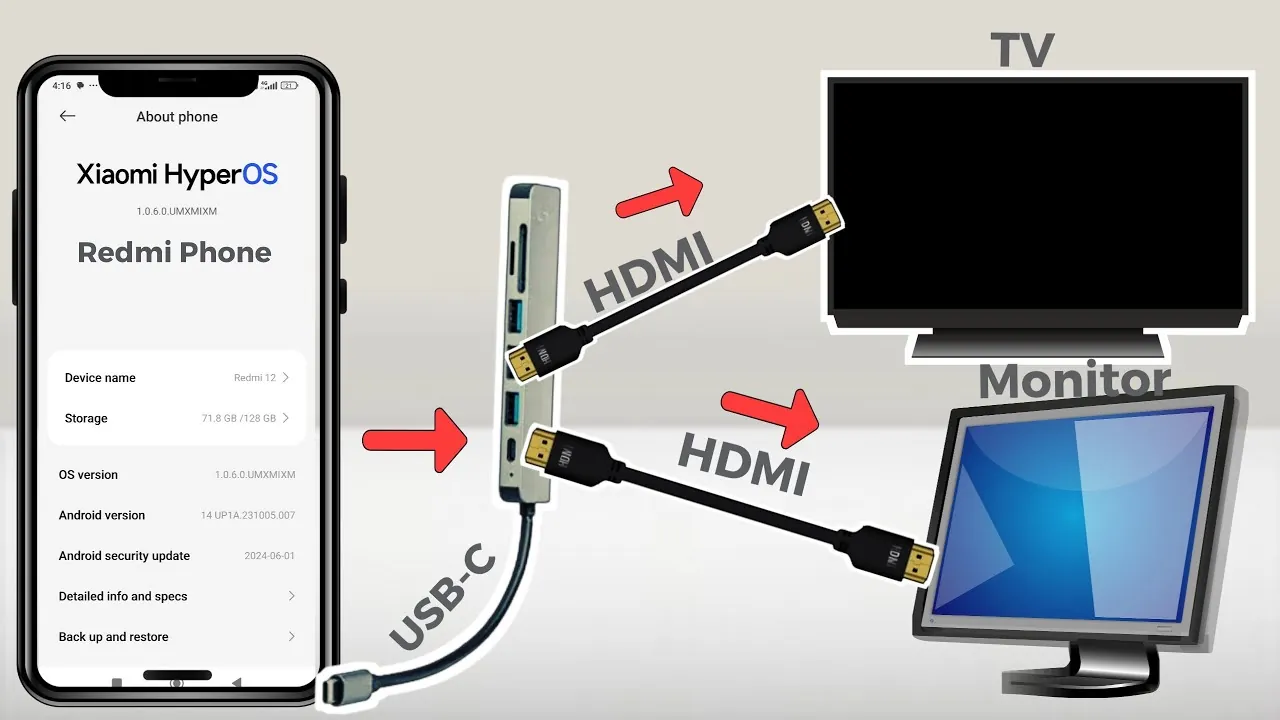
You need the right hardware to ensure a stable connection between your mobile device and an external display. Using low-quality cables often leads to signal drops or resolution issues.
- A smartphone with a USB-C port that supports DisplayPort Alt Mode.
- An HDMI cable, preferably version 2.0 or higher for 4K support.
- A USB-C to HDMI adapter or a compatible USB-C hub.
- An external monitor or television with an available HDMI input.
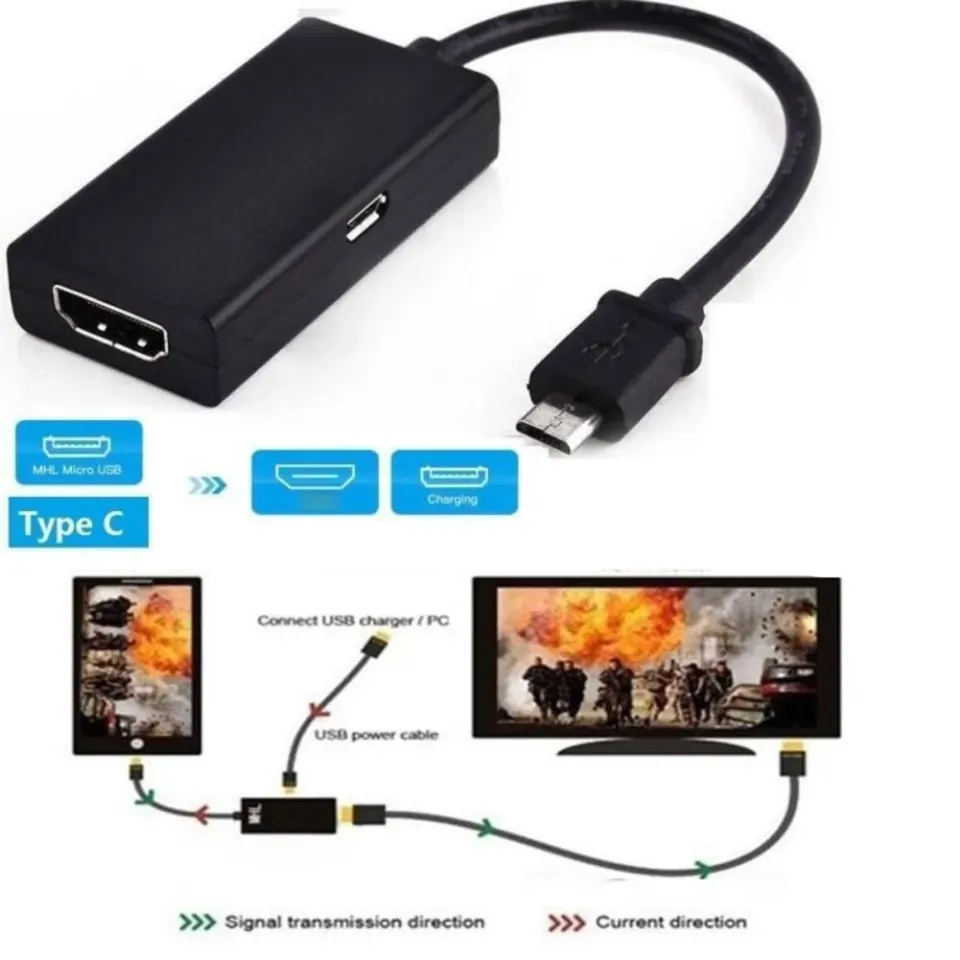
If your phone uses an older micro-USB port, you’ll need a SlimPort or MHL adapter, though these are rare on modern devices. Check your manufacturer’s official device specifications page to confirm your model supports external video output.
Steps to Link Your Device
- Plug the USB-C end of your adapter into the charging port of your Android phone.
- Connect one end of a standard HDMI cable into the adapter’s HDMI port.
- Insert the other end of the HDMI cable into an open port on your monitor.
- Turn on your monitor and use the remote or button controls to select the correct HDMI source.
- Wait a few seconds for the phone to detect the display and mirror your screen automatically.
Tip: If nothing appears, restart your phone while it’s still plugged into the adapter to force a handshake between devices. Careful: Don’t force the connector into the port if it feels stuck, as this can permanently damage the internal pins.
Variations by Device and Setup
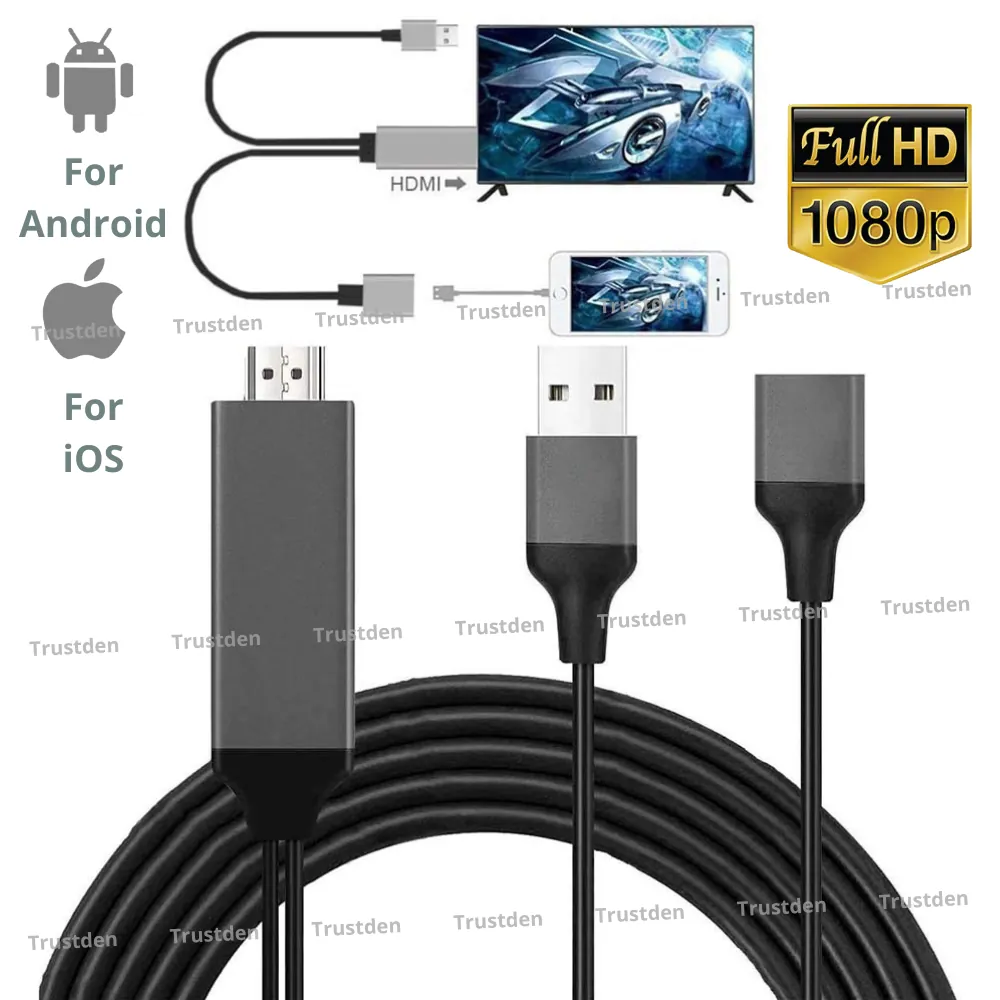
The performance of your connection depends heavily on the hardware capabilities of both your phone and the display you choose.
| Setup Situation | Time/Effort | Key Difference | What to Watch |
|---|---|---|---|
| Basic Mirroring | Under 1 minute | Plug and play | Screen rotation |
| Desktop Mode | 2-3 minutes | Requires app/UI | Battery usage |
| 4K Resolution | 1-2 minutes | High bandwidth | Cable quality |
| Wireless Casting | 3-5 minutes | Network latency | Wi-Fi stability |
Starting with a simple wired connection is always safer because it avoids the complexity of network settings and gives you a direct, lag-free signal.
How to Verify a Successful Connection
A successful connection results in an exact, clear mirror of your phone’s interface on the larger screen without noticeable flickering. If the image looks blurry or is missing edges, the resolution is likely mismatched. This often happens because the phone and monitor can’t agree on the output signal. Use a high-quality, shielded HDMI cable and ensure your phone’s software is updated.
Standards and Equipment Care
The DisplayPort Alt Mode standard, managed by the Video Electronics Standards Association (VESA), ensures that mobile devices can send video data over USB-C. Once you finish your session, disconnect the adapter from your phone to prevent port strain.
Alternative Mirroring Methods
Wireless Casting
Use a built-in feature like Google Cast or Miracast to send your screen over Wi-Fi. This removes the need for cables but may introduce lag during fast-paced tasks like gaming.
Dedicated Desktop Software
Some manufacturers offer proprietary software that launches a desktop-like interface when plugged into a monitor. This changes your phone into a portable computer, making it ideal for document editing and multitasking.
Third-Party Display Apps
If your hardware lacks video output, certain apps can stream your screen over a USB data connection. This is often slower and requires more technical setup than a direct adapter.
Frequently asked questions
Can I connect my phone to an HDMI monitor wirelessly?
Yes, you can use a Chromecast or a device that supports Miracast to project your screen over Wi-Fi. This method relies on your local network speed and is best for media viewing.
How much power does the adapter use?
The adapter typically draws less than 5 watts of power, but this varies based on the resolution and brightness of your display. Always keep your phone charged to avoid unexpected shutdowns.
Is it safe to leave the phone connected for hours?
Yes, it’s safe, but your phone will drain its battery faster because the processor works harder to render two displays. Use a hub with power delivery to charge the phone simultaneously.
Why is my screen flickering on the monitor?
Flickering usually happens due to a poor-quality HDMI cable or an incompatible resolution setting. Try swapping the cable for a shorter, higher-quality version to stabilize the signal.
How long does the connection take to establish?
The connection usually establishes in under 10 seconds after plugging in the cables. If it takes longer, ensure your phone is unlocked and the monitor is set to the correct input.
What happens if my phone doesn’t support video out?
If your phone lacks hardware support for video output, the monitor will show “No Signal” regardless of the adapter used. Check your manual to confirm if your device supports DisplayPort Alt Mode.
Conclusion
Always ensure your adapter is firmly seated in the port before troubleshooting connection issues, as a loose fit is the most common cause of a blank screen. If the display remains dark after trying different cables and ports, the limitation is likely with the phone’s hardware, which can’t be changed through software updates.
