
Is your Android phone constantly running out of storage, slowing down, or showing that dreaded “Storage Full” warning? You’re not alone—and the good news is, you don’t have to keep deleting your favorite apps or photos just to make space.
Understanding why your phone storage keeps filling up and learning simple, effective ways to stop it can save you time, frustration, and even money. You’ll discover easy steps you can take right now to free up space and keep your Android running smoothly.
Ready to reclaim your phone’s storage and boost its performance? Let’s dive in!
Identify Storage Hogs
Identifying storage hogs on your Android phone is the first step to freeing up space. Some apps and files take up a lot of storage without you noticing. Finding these helps manage your phone better. You can delete or move large files and unused apps to clear space quickly.
Check Storage Usage In Settings
Open your phone’s Settings app. Scroll down and tap on “Storage.” Here, you see a breakdown of how your storage is used. Categories like Apps, Images, Videos, and Cached data show how much space each takes. This helps spot which types of files use the most storage. You can tap each category to get more details and manage files directly.
Spot Large Files And Apps
Look for large files like videos, downloads, or old backups. These often use the most space. Also, check which apps use the largest storage. Some apps save a lot of data or cache over time. You may find apps you rarely use but take up much space. Deleting or clearing these apps can free up a significant amount of storage fast.
Clear Cache And Junk Files
Clearing cache and junk files helps free up space on your Android phone. These files build up over time and slow down your device. Removing them regularly keeps your storage cleaner and your phone running smoother. Follow simple steps to delete app cache and remove temporary files.
Delete App Cache
App cache stores data to speed up app loading. Over time, it can grow large and take up space. To delete app cache, open your phone’s Settings. Tap on “Apps” or “Applications.” Select the app you want to clear. Tap “Storage,” then choose “Clear Cache.” This removes temporary data without affecting your app’s settings or files. Repeat for other apps to free more space.
Remove Temporary Files
Temporary files include leftover data from apps and downloads. These files are not needed after use and waste storage. Use the built-in storage cleaner in Settings. Open “Storage,” then tap “Free up space” or “Clean now.” The tool scans for junk files and shows what can be deleted. Confirm to remove these files safely. This step helps recover storage quickly and keeps your phone tidy.
Manage Apps Efficiently
Managing apps efficiently is key to keeping your Android phone storage free. Apps can take up a lot of space, especially if they are not used regularly. Taking control of your apps helps free storage and keeps your phone running smoothly.
Uninstall Unused Apps
Start by checking which apps you rarely use. Uninstalling these apps immediately frees up space. Go to Settings, then Apps, and review the list. Tap on apps you do not need and select Uninstall. This removes the app and its data from your device. Removing unused apps also reduces background activity and saves battery life.
Use App Offloading Or Archiving
Some Android phones offer app offloading or archiving features. These options remove the app but keep its data saved. When you reinstall the app, your data returns. This saves space without losing important information. Check your phone’s settings for this feature. It works well for apps used only occasionally. Offloading helps keep storage clear without deleting data permanently.
Optimize Media Storage
Media files like photos and videos take up a large part of your Android phone’s storage. Optimizing media storage helps keep space free for apps and updates. Simple steps can manage your media efficiently and prevent storage from filling up quickly.
Delete Unwanted Photos And Videos
Start by removing photos and videos you no longer need. Check your gallery for blurry or duplicate images. Delete large video files that are not important. This clears space and improves phone speed.
Use Cloud Storage Solutions
Cloud storage lets you save photos and videos online. Services like Google Photos or Dropbox keep your media safe and accessible. Upload your files to the cloud and delete local copies. This frees up internal storage without losing your memories.
Move Media To Sd Card
If your phone supports an SD card, move media files there. Transfer photos, videos, and music from internal storage to the card. This reduces pressure on your phone’s built-in storage. Managing files on the SD card keeps your device running smoothly.
Enable Smart Storage Features
Enabling smart storage features helps manage Android phone storage effectively. These features clear unused files and alert you before storage gets full. Using smart storage can keep your phone running smoothly.
Turn On Automatic Storage Cleanup
Automatic storage cleanup deletes old files and junk automatically. It removes backed-up photos and unused apps without your effort. To enable it, open Settings, tap Storage, and select Free up space. Then, turn on Smart Storage to start cleanup regularly.
Set Up Storage Alerts
Storage alerts notify you when space is low. They help prevent sudden full storage problems. To set alerts, go to Settings, tap Storage, and enable notifications. This way, you get reminders to clear space before the phone slows down.
Control Downloads And Updates
Controlling downloads and updates is key to stopping your Android phone storage from filling up too fast. Downloads, like files and media, can take up lots of space. Updates for apps and the system also use storage and can add up over time. Managing these wisely helps keep your phone running smoothly and frees up space for what really matters.
Manage Downloaded Files
Check your Downloads folder often. Delete files you no longer need, such as old PDFs, images, or videos. Large files like movies or music should be moved to cloud storage or a computer. Use a file manager app to find and remove hidden or forgotten downloads. Regular cleaning stops clutter from building up silently.
Limit Automatic App Updates
Automatic updates can fill storage without warning. Turn off auto-updates in the Google Play Store settings. Choose to update apps only when connected to Wi-Fi and when you have enough space. This control helps avoid large updates downloading at inconvenient times. Update only apps you use often, skipping rarely used ones to save space.
Adjust Messaging And Social Apps
Messaging and social apps often take up large amounts of storage on Android phones. These apps save chats, photos, videos, and voice notes, which can fill your device quickly. Adjusting settings in these apps helps prevent storage from filling up fast. You can delete old data and control how much media downloads automatically.
Clear Old Messages And Attachments
Old messages and attachments use storage space silently. Delete chats you no longer need to free up room. Most messaging apps let you clear conversations or remove media files separately. Check your app settings for options to delete messages older than a set time. Removing large attachments like photos and videos also saves space. Regularly cleaning old messages stops storage from filling up fast.
Limit Media Auto-download
Social and messaging apps often download media automatically. Photos, videos, and audio files pile up without notice. Turn off auto-download to control what saves to your phone. This prevents unwanted files from filling storage quickly. Set your app to download media only on Wi-Fi or when you choose. This keeps your storage cleaner and avoids surprises from large files.
Credit: www.compareandrecycle.co.uk
Use Developer Options For Storage
Android’s Developer Options offer useful tools for managing storage. These hidden settings let you control app behavior and storage use more effectively. Accessing Developer Options can help you move apps and analyze their storage impact. This makes it easier to stop your Android phone storage from filling up quickly.
Move Apps To Sd Card
Some Android devices allow moving apps to an SD card via Developer Options. This frees up internal storage space. To do this, enable Developer Options by tapping the build number seven times in Settings. Then, go to Developer Options and find the setting to force apps to use external storage.
Not all apps support this feature. But moving compatible apps to the SD card clears space on your phone’s main storage. This helps keep your device running smoothly without constant storage warnings.
Analyze App Storage Impact
Developer Options let you see detailed storage use by each app. This helps identify which apps use the most space. Open Developer Options and check the storage section for this data. You can spot apps with large caches or data files.
Removing or clearing storage from these apps can prevent your phone storage from filling up. Regularly reviewing app storage impact keeps your device clean and efficient. This simple step saves space without deleting important files.
Troubleshoot Storage Issues
Storage issues on Android phones cause frustration. Space fills quickly without clear reasons. Troubleshooting storage problems helps find the root cause. Fixing these issues frees space and improves phone speed. Follow simple steps to identify and solve storage troubles.
Fix Storage Full Errors
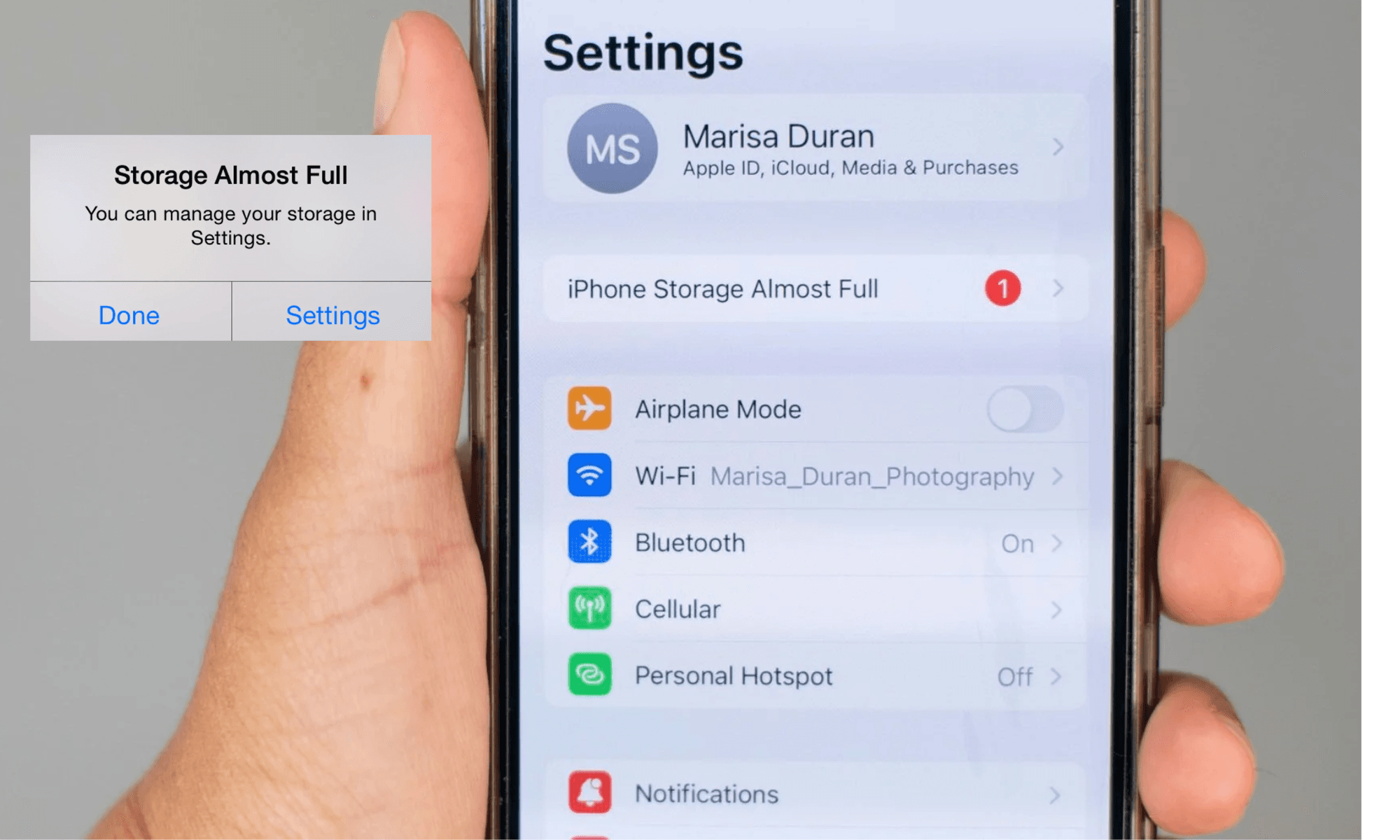
Storage full errors appear when phone memory is nearly used up. Clear cache from apps to free quick space. Go to Settings, then Storage, and tap Cached data. Delete unused apps that take large space. Move photos and videos to cloud storage or a computer.
Check downloads folder and delete old files. Restart the phone after cleaning to refresh storage status. Use the Files app to identify large files and remove them. Keep phone storage organized to avoid repeated full errors.
Handle Storage Growing For No Reason
Sometimes storage grows without adding new files. Hidden app data or system files may cause this. Clear app cache regularly to reduce hidden storage use. Check for app updates that fix storage bugs. Uninstall apps that store excessive data in the background.
Review app permissions and disable unnecessary access to storage. Use a storage analyzer app to see which files grow unexpectedly. Delete duplicate files and clear junk files often. Keep your phone updated to prevent storage glitches.
Frequently Asked Questions
Why Does My Android Phone Storage Keep Filling Up?
Your Android storage fills up due to cached data, app files, photos, videos, and system updates accumulating over time. Regularly clear caches, delete unused apps, and move media files to external storage to free space.
Why Is My Storage Still Full After Deleting Everything On Android?
Your Android storage may stay full due to cached files, hidden junk, or system data. Clear app caches and check Downloads folder. Restart your device to update storage status. Use built-in tools to free space or move files to an SD card or cloud storage.
What Should I Delete When My Phone Storage Is Full On Android?
Delete unused apps, clear app caches, remove old photos and videos, and delete downloaded files to free Android storage.
How Do I Get My Phone To Stop Saying Storage Is Full?
Clear cache and delete unused apps or files. Move media to an SD card or cloud storage. Enable Smart Storage in settings to auto-remove old files. Regularly check storage usage to prevent filling up.
Conclusion
Keeping your Android phone’s storage from filling up takes regular care. Delete unused apps and clear cache often. Move photos and videos to cloud storage or an SD card. Avoid saving large files you don’t need. Use built-in tools to monitor storage space.
These simple steps help your phone run smoothly. Stay mindful of what you download and keep storage free. That way, your device stays fast and ready for what you need.
