
Is your Android phone constantly warning you about low storage? You’re not alone.
When your device starts slowing down or apps refuse to update, it’s usually a sign that your storage is nearly full. But how do you find out exactly what’s taking up all that space? Instead of guessing or deleting files blindly, you can quickly pinpoint the biggest storage hogs on your phone.
This way, you’ll know exactly what to clear out and how to free up space without losing anything important. Keep reading, and you’ll learn simple steps to uncover what’s filling your Android storage—and how to take control of it fast.
Check Storage In Settings
Checking storage in your Android device’s settings helps you spot what uses the most space. It shows both the internal storage and any SD card storage. This method gives a clear overview without extra apps. Understanding this can help manage your device better and avoid storage problems.
Access Device Care Or Storage
Open the Settings app on your Android device. Scroll down and look for “Device Care” or “Storage.” The name may vary by phone brand or model. Tap on it to enter the storage details screen. This area shows how much space is used and what types of data take up space.
View Internal And Sd Card Storage
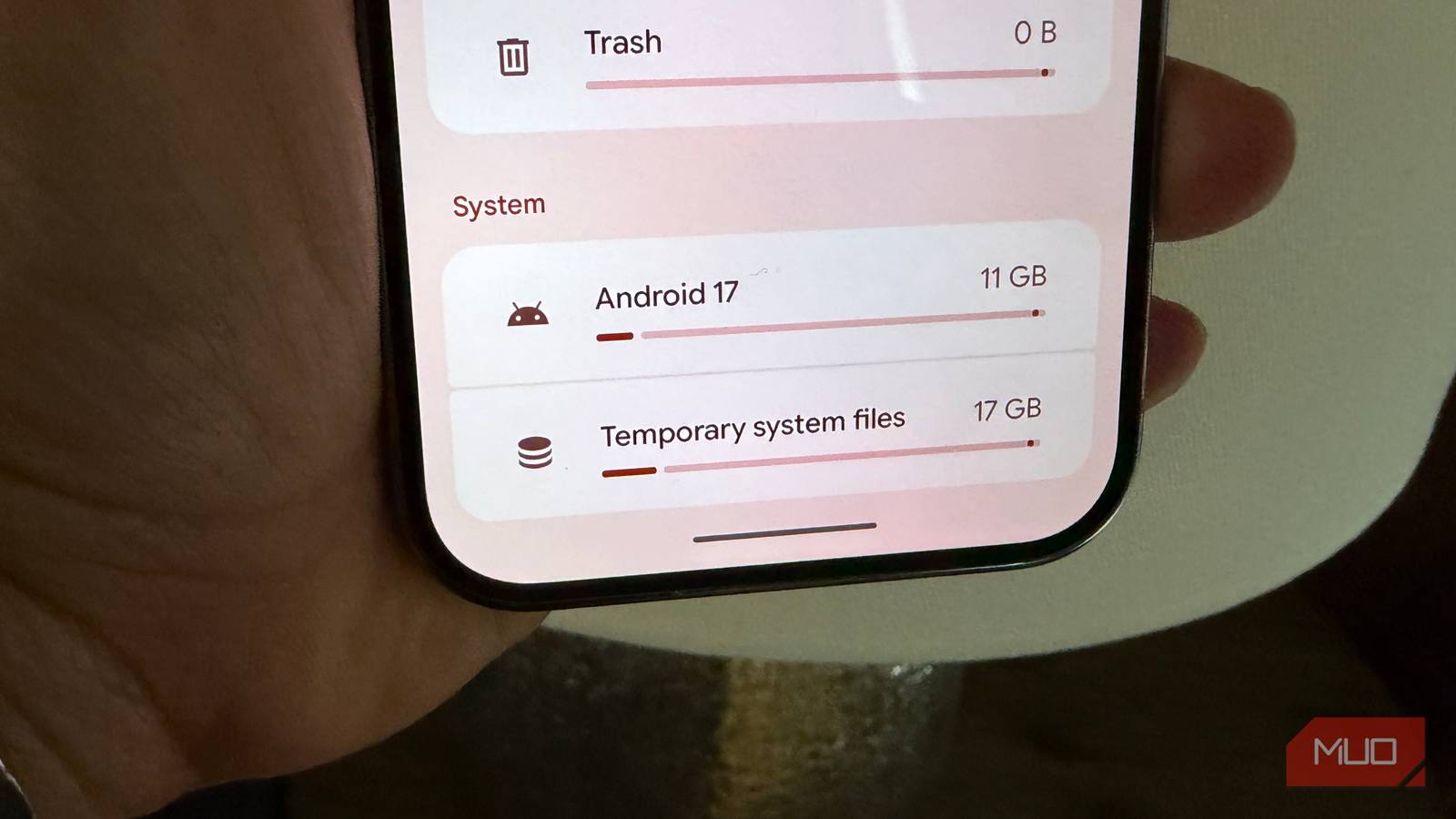
On the storage screen, you will see internal storage details first. It divides storage into categories like apps, images, videos, and system files. If your device has an SD card, it appears here too. Tap the SD card section to see its storage usage. This split view helps understand where to free up space.
Credit: www.makeuseof.com
Identify Apps Using Most Space
Clearing cache and data is a simple way to free up storage on your Android device. Cached files help apps run faster but can build up over time. Data includes app settings and files, which may take more space. Managing both can improve your phone’s speed and storage.
Clear Cache For Individual Apps
Open your phone’s Settings and tap Apps or Applications. Select the app you want to clear. Tap Storage, then choose Clear Cache. This removes temporary files without deleting your personal data. Repeat for other apps using too much cache space.
Manage App Data Storage
Go to Settings and open Apps or Applications. Pick an app and tap Storage. To delete all app data, tap Clear Data or Clear Storage. This resets the app to default and deletes files inside it. Use this only if you don’t need saved info or settings.
Clear Cache And Data
Storage management tools help you discover what uses space on your Android device. They show detailed storage reports and suggest files to delete. Using these tools saves time and avoids guesswork. You get clear insights about apps, media, and system files filling your phone.
Built-in Storage Cleaners
Most Android phones come with built-in storage cleaners. You can find these in Settings under Storage or Device Care. These cleaners scan your device for junk files, cache, and unused apps. They let you delete unnecessary data safely with one tap. The built-in tools also highlight large files and rarely used apps. This helps you decide what to remove quickly.
Third-party Storage Analyzer Apps
Third-party apps offer deeper analysis of your storage. Apps like Files by Google or DiskUsage show visual maps of your storage space. You can see which folders and files take the most space at a glance. These apps often include extra features like duplicate file finders and large file alerts. They let you clean your device more thoroughly than built-in tools. Choose apps with good reviews and simple interfaces for best results.
Use Storage Management Tools
Managing media and messages on your Android device helps free up storage quickly. Photos, videos, and message attachments can take up large space. Organizing and reducing these files keeps your phone running smoothly. Use simple steps to clear out old files and move important data elsewhere.
Delete Old Messages And Attachments
Old text messages and their attachments can fill storage fast. Delete conversations you no longer need. This removes photos, videos, and voice notes inside chats.
Use your messaging app to find large attachments. Delete only the biggest files if you want to keep messages. This clears space without losing important texts.
Set your phone to auto-delete messages after a certain time. This keeps storage free without manual work. Check messaging settings for this option.
Move Media To Cloud Or External Storage
Photos and videos take up the most space on Android devices. Move media files to cloud storage like Google Drive or Dropbox. This frees internal storage while keeping your files safe.
Use an SD card if your phone supports it. Transfer photos and videos to the card. This keeps files accessible but off your phone’s main storage.
Regularly back up your media to avoid losing important memories. Choose automatic backup options for convenience. This ensures files are stored securely outside your device.
Credit: www.avast.com
Frequently Asked Questions
What Takes Up Most Storage On Android?
Apps and their cached data consume the most storage on Android devices. Photos, videos, and system files also use significant space.
Why Is My Storage Still Full After Deleting Everything On Android?
Storage may stay full due to cached files, hidden system data, or undeleted app leftovers. Clear cache and restart.
How Do I Free Up Space On My Android Without Deleting Everything?
Clear app caches in Settings > Storage without deleting apps. Move media files to cloud storage or an SD card. Uninstall unused apps and disable bloatware. Use built-in storage manager tools to delete temporary files safely.
My Phone Memory Keeps Filling Up. How Can I Free Up Space?
Check your phone’s storage in Settings under Storage or Device Care. Delete unused apps, clear app caches, and remove unnecessary files or media to free space. Use cloud storage for photos and videos. Regularly review downloads and large files to keep memory optimized.
Conclusion
Finding what uses storage on your Android helps keep your phone running well. Check the Storage section in your Settings to see details. Apps, photos, and cached files often take the most space. Delete files you no longer need to free up room.
Regularly reviewing storage prevents slowdowns and storage warnings. Keep your phone organized for better performance and space management. Simple steps make it easy to manage storage on any Android device.
