
Is your iPhone running low on storage, and you’re wondering why “System Data” is taking up so much space? You’re not alone.
System Data, formerly known as “Other” storage, can quietly grow over time, filling your device with caches, logs, and temporary files that aren’t always easy to spot or remove. But don’t worry—you can reclaim valuable space and speed up your iPhone with some simple steps.
In this guide, you’ll learn exactly how to clear System Data from your iPhone storage, from deleting browser caches and old messages to offloading unused apps and performing a full backup and restore if needed. Keep reading, and you’ll have your iPhone running smoothly with plenty of free space in no time.

Credit: www.youtube.com
Clear Safari Cache
Managing message storage on your iPhone helps reduce system data size. Text messages and their attachments can take up much space. Clearing out unnecessary files keeps your phone running smoothly. Focus on removing large attachments and setting message history limits. These steps free up storage and improve device performance.
Remove Large Attachments
Open Settings and tap General, then iPhone Storage. Scroll to Messages and select it. Here, you see categories like Photos, Videos, and GIFs. Tap each category to view large attachments. Delete files you no longer need by swiping left and tapping Delete. Removing these saves significant space from system data.
Adjust Message History Settings
Go to Settings and tap Messages. Find Message History and tap Keep Messages. Change the setting from Forever to 30 Days or 1 Year. This deletes older messages automatically. Limiting message history reduces storage used by old texts and attachments. Your iPhone stays cleaner with less system data buildup.

Credit: www.youtube.com
Delete Third-party App Caches
Offloading unused apps is a smart way to free up space on your iPhone. It removes the app but keeps its data intact. This means you can reinstall the app later without losing any information. Your documents and settings stay safe while the app’s storage is cleared.
This method targets apps you rarely use. These apps often take up a lot of storage without you noticing. Offloading helps reduce system data buildup caused by cached files and temporary data. It is an easy step to clear space without deleting important files.
How To Offload Unused Apps Manually
Open Settings and tap on General. Then select iPhone Storage. You will see a list of apps sorted by size. Tap on an app you don’t use often. Choose “Offload App” to remove the app but keep its data.
Enable Automatic Offloading
Go to Settings and tap App Store. Find the option “Offload Unused Apps.” Turn it on. Your iPhone will automatically offload apps you rarely use. This saves storage without any manual work.
Check Storage Space After Offloading
After offloading apps, check your iPhone Storage again. The System Data size should decrease. You will have more free space for new apps, photos, and updates. Repeat this process regularly to maintain storage health.
Manage Messages Storage
Monitoring the size of System Data on your iPhone helps control storage use. System Data includes caches, logs, and other files iOS uses. These files can grow large and slow down your device.
Keep an eye on System Data size regularly. It shows how much space these files occupy on your iPhone. You can find this info in your iPhone settings.
Check System Data In Iphone Storage
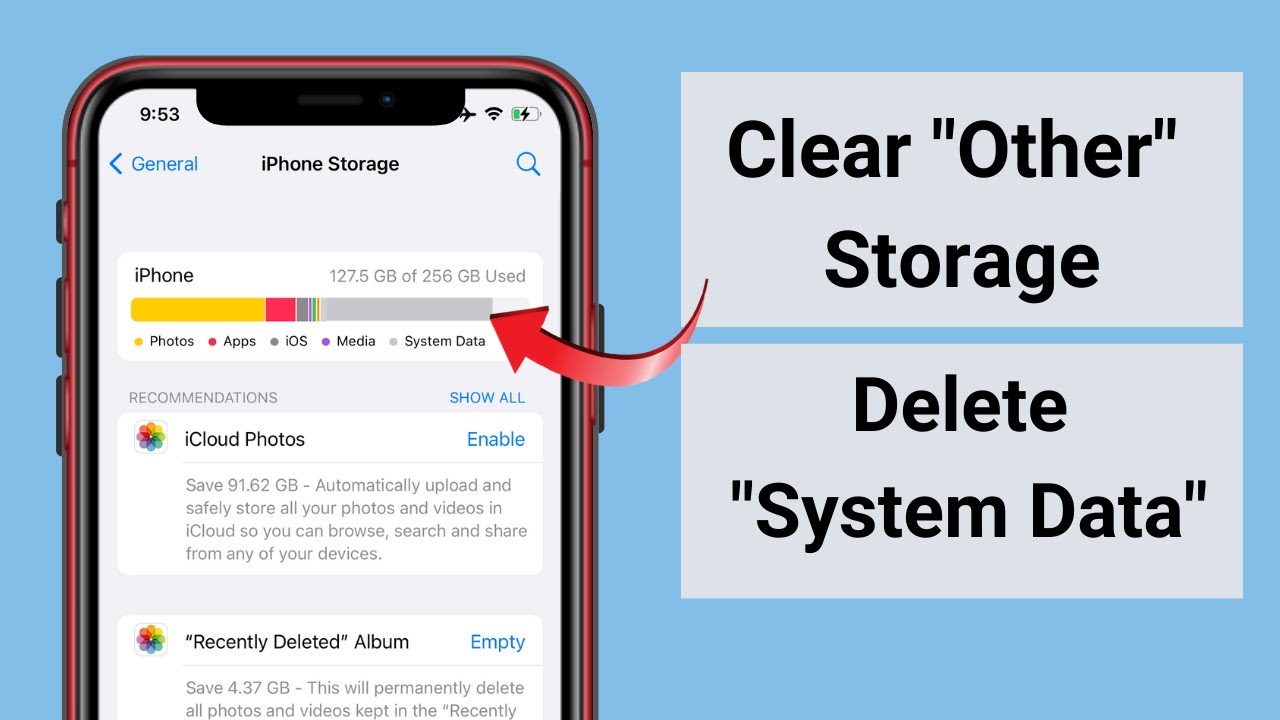
Open Settings and tap General. Then select iPhone Storage. Scroll down to see System Data size. This number tells how much storage the system files use.
Track Changes Over Time
Check System Data size weekly or monthly. Notice if it grows quickly. Large increases may mean app caches or logs are building up. Tracking helps decide when to clear data.
Use Storage Insights
iPhone Storage page shows a color bar. It divides storage into categories like Apps, Photos, and System Data. This visual helps spot when System Data takes too much space.
Credit: www.youtube.com
Offload Unused Apps
Checking your iOS version is the first step to manage system data on your iPhone. Different iOS versions handle system storage differently. Knowing your iOS version helps find the right solutions to reduce system data.
Older iOS versions may have more leftover files and caches. Newer versions often improve storage management. Updates can fix bugs causing system data to grow large.
How To Find Your Ios Version
Open the Settings app on your iPhone. Scroll down and tap “General.” Then select “About.” Look for “Software Version.” This shows your current iOS version number.
Why Your Ios Version Matters For System Data
System data includes caches, logs, and temporary files. Different iOS versions store and clear these files differently. An older iOS may not clear system data efficiently, causing storage to fill up.
Update Ios To Reduce System Data
Go to Settings > General > Software Update. If an update is available, tap “Download and Install.” Updating can clean hidden caches and optimize storage. It also improves overall device performance.
Check Ios Version Regularly
Apple releases updates regularly to improve system management. Check your iOS version often. Staying updated helps keep system data under control and frees up storage space.
Frequently Asked Questions
Why Is System Data Storage In My Iphone So High?
System data on your iPhone grows due to cached files, Siri voices, logs, and leftover update files. Clearing app caches, old messages, and restarting your device reduces it. For severe cases, backup and restore your iPhone to remove corrupted system data completely.
Why Is My System Data So High?
System data grows due to app caches, temporary files, and iOS logs. Clearing Safari cache, deleting old messages, or reinstalling apps reduces it. Restart your device to refresh storage. For persistent issues, back up and restore your iPhone to remove corrupted system data completely.
How Do I Clear My System Storage?
Clear system storage by deleting Safari cache, old messages, and large app data. Offload or reinstall apps, then restart your device. For persistent issues, back up and restore your iPhone to remove corrupted system files and free space effectively.
Why Is My Iphone Storage Full Even After Deleting Everything?
Your iPhone storage may still be full due to cached files, system data, or hidden app data. Clear Safari cache, delete old message attachments, offload unused apps, restart your iPhone, or back up and restore to free up space effectively.
Conclusion
Removing system data from your iPhone frees up valuable storage space. Start with clearing caches and deleting old files regularly. Offloading unused apps keeps your data safe while saving space. Restarting your device helps clear temporary logs quickly. For stubborn storage issues, backing up and restoring your iPhone works best.
Following these simple steps keeps your iPhone running smoothly. Keep storage in check and enjoy more room for what matters most.
