
Want to add new apps to your smart TV but don’t want to rely on slow downloads or limited app stores? Installing apps directly from a USB drive can be a game-changer for your viewing experience.
It’s simple, fast, and gives you access to apps that might not be available through your TV’s usual channels. In this guide, you’ll learn exactly how to install apps on your smart TV from a USB—step by step, with easy-to-follow instructions.
Whether you want streaming apps, games, or tools, this method puts you in control. Keep reading to unlock the full potential of your smart TV today!
Prepare Your Usb Drive
Start by formatting your USB drive to FAT32 for compatibility. Download the app’s APK file from a trusted source and copy it onto the USB. Keep the file organized in a folder for easy access when connecting to your smart TV.
Choose The Right Usb Drive
Select a USB drive with enough space for the app file. A 4GB or larger drive usually works well. Use a USB 2.0 or 3.0 drive for faster transfer speeds. Avoid cheap or old drives that might fail during installation.
Format Usb For Tv Compatibility
Format the USB drive to a file system your TV supports. Most smart TVs read FAT32 or exFAT formats. Connect the USB to your computer and use the format tool. Choose FAT32 for drives smaller than 32GB. For larger drives, select exFAT to avoid file size limits.
Download The App Apk File
Find the app’s APK file from a trusted source. Avoid suspicious websites to keep your TV safe. Save the APK file directly to the root folder of your USB drive. Do not place it inside folders to make it easier to find on your TV.
Enable Usb Installation On Smart Tv
Enabling USB installation on your smart TV lets you add apps outside the official store. This can expand your TV’s functionality. To do this, adjust your TV’s security and system settings first. Follow these simple steps to prepare your TV for USB app installation.
Access Security Settings
Start by opening your smart TV’s main menu. Find the “Settings” option and select it. Scroll to the “Security” or “Privacy” section. This is where you control app permissions and installations. Accessing these settings is crucial to allow USB app installs.
Allow Unknown Sources
In the security menu, locate “Unknown Sources.” This option lets you install apps from outside the official store. Switch it on to enable USB installation. Your TV will warn you about risks. Accept the warning to proceed safely.
Enable Developer Options If Needed
Some smart TVs require Developer Options enabled for USB app installs. To activate it, go to “About” in the settings. Find “Build Number” and press it repeatedly. This unlocks Developer Options. Return to the main settings and open Developer Options. Turn on USB debugging or similar features.
Connect Usb And Locate Apk
Connecting your USB drive and finding the APK file on your smart TV is the next step. This process lets you access the app file you want to install. It is simple and quick. Follow these steps carefully to avoid errors.
Make sure your USB drive contains the APK file before starting. This guide assumes the APK is already saved on your USB. Ready? Let’s begin.
Insert Usb Drive Into Tv
Locate the USB port on your smart TV. It is usually on the side or back panel. Gently insert your USB drive into the port. Wait a few seconds for the TV to recognize the device. You may see a notification or icon on the screen confirming the connection.
Open Tv’s File Manager
Use your remote to access the TV menu. Find and open the file manager or explorer app. This app helps you browse files on connected devices. If your TV does not have a file manager, try downloading one from the app store first.
Navigate To The Apk File
Inside the file manager, select your USB drive from the list. Browse through the folders to find the APK file you copied earlier. The file name usually ends with “.apk”. Highlight the APK file to prepare it for installation.
Credit: appuals.com
Install The App On Your Smart Tv
Installing an app on your smart TV from a USB drive is a straightforward process. It allows you to add apps not available in your TV’s store. This method works well for Android-based smart TVs. Follow these steps carefully to complete the installation.
Launch The Apk Installer
After connecting your USB drive to the TV, open the file manager app. Navigate to the USB folder and find the APK file. Select the APK to launch the installer. The installer will prepare the app for installation on your TV.
Follow On-screen Prompts
The TV will show instructions to guide you through the process. Accept any permission requests to allow installation from unknown sources. Click “Install” when prompted. Wait for the installation to finish before closing the installer.
Troubleshoot Installation Issues
If the app does not install, check if the APK file is compatible with your TV. Make sure the USB drive is properly connected. Enable “Unknown Sources” in your TV’s security settings. Restart your TV and try again if errors occur.
Install Apps On Different Tv Brands
Installing apps on a smart TV using a USB drive varies by brand. Different TV models run on different operating systems. This affects how you add new apps from external sources. Knowing your TV brand helps you follow the right steps. Below, find simple guides for popular smart TV brands.
Installing On Android Tvs
Android TVs allow easy app installation from USB. Download the APK file on your computer first. Copy the APK to a USB drive. Insert the USB into your Android TV. Open the file manager app on your TV. Locate the APK file on the USB. Enable “Unknown Sources” in TV settings. Select the APK to start installation. Wait until the app installs. Open the app from your TV’s app list.
Installing On Samsung Smart Tvs
Samsung Smart TVs use Tizen OS, which limits USB app installs. They do not support APK files. You cannot install apps directly from USB. Use the Samsung App Store for available apps. Some older models may allow app installation through developer modes. Check Samsung’s support site for your model details.
Installing On Lg Smart Tvs
LG Smart TVs run on webOS. Installing apps from USB is not typical. Use the LG Content Store to download apps. Some LG TVs allow app backup and restore via USB. This feature does not install new apps but transfers existing ones. Visit LG’s official site for specific instructions.
Installing On Other Non-android Tvs
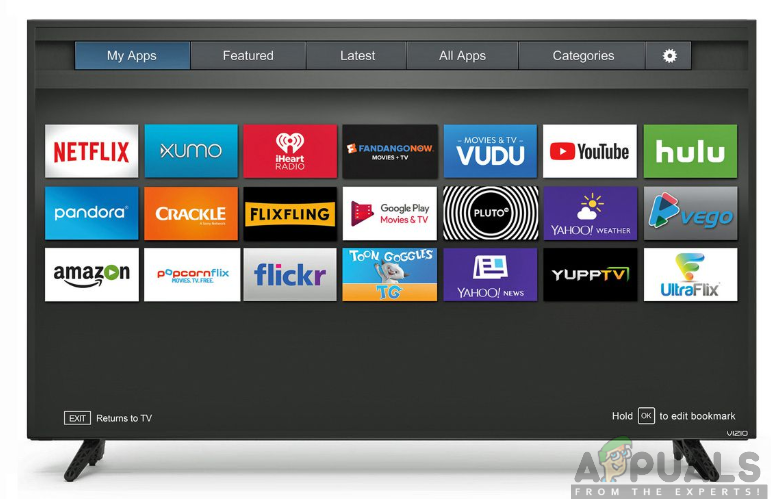
Many non-Android smart TVs restrict app installation from USB. Brands like Sony (non-Android models), Vizio, and TCL often limit app installs to their app stores. Some TVs support firmware updates via USB, but not app installation. Check your TV’s manual or support website for options. Using the official app store is often the safest method.

Credit: www.youtube.com
Manage Installed Apps From Usb
Managing apps installed from a USB on your smart TV helps keep your device organized and secure. You can update, remove, or protect these apps easily. Proper management ensures your TV runs smoothly and safely.
Update Apps Via Usb
To update an app installed from USB, first download the latest version on your computer. Copy the updated app file to your USB drive. Insert the USB into your TV and open the file manager. Locate the app file and select it to start the update. The TV will replace the old version with the new one. This process keeps apps current without needing internet access.
Uninstall Apps Installed From Usb
Removing apps installed from USB is simple. Go to your TV’s settings menu and find the apps section. Select the app you want to uninstall. Click the uninstall option and confirm your choice. This frees up space and removes apps you no longer use. Regular uninstallation helps maintain your TV’s performance.
Secure Your Tv After Installation
After installing apps from USB, secure your TV to protect your data. Disable the option to install apps from unknown sources in settings. This prevents unauthorized app installations. Use a strong password for your TV’s network connection. Keep your TV’s software updated for security patches. These steps reduce risks and keep your smart TV safe.
Tips For Safe App Installation
Installing apps on your smart TV from a USB drive offers great convenience. Safe installation keeps your TV secure and running smoothly. Follow these tips to protect your device and data.
Download Apks From Trusted Sources
Only download APK files from reputable websites. Trusted sources reduce the risk of corrupt or harmful files. Check reviews and ratings before downloading. Avoid unknown sites that may host unsafe files.
Avoid Malicious Software
Scan all APK files with antivirus software before transferring. Malicious apps can damage your smart TV or steal information. Do not open files from suspicious emails or links. Keep your TV’s software updated for better security.
Backup Important Data
Always back up your smart TV data before installing new apps. This prevents loss of settings or saved files if installation fails. Use a USB drive or cloud storage for backups. Restore data easily if needed after installation.

Credit: www.youtube.com
Frequently Asked Questions
How To Install 3rd Party Apps On Smart Tv?
Download the app’s APK from a trusted site. Copy it to a USB drive. Enable “Unknown Sources” in TV settings. Connect USB to TV. Use the file manager to install the app.
Can I Install An Apk File On A Smart Tv?
You can install APK files on some Android-based smart TVs by enabling “Unknown Sources” and using a USB drive. Non-Android TVs usually don’t support APK installation. Always download APKs from trusted sites to avoid security risks. Use a file manager app on your TV to complete the installation.
How Do I Get My Usb To Work On My Smart Tv?
Format the USB drive to FAT32 or exFAT. Copy compatible files to the USB, then plug it into your smart TV’s USB port. Use the TV’s file manager to access and open the files. Enable “Unknown Sources” in settings if installing apps from USB.
How To Install Apps In Non-android Smart Tv?
Download the app file from a trusted source. Transfer it to a USB drive. Connect the USB to your smart TV. Enable “Unknown Sources” in settings. Use the TV’s file manager to locate and install the app.
Conclusion
Installing apps on your smart TV via USB is simple and useful. Just follow the steps carefully to avoid errors. Always use trusted sources to download app files for safety. Remember to enable the necessary settings before installation. This method helps add apps not found in your TV’s store.
Enjoy more choices and better entertainment with your smart TV. Keep your USB drive handy for easy app updates or new installs. With a little patience, you can expand your TV’s features quickly.
