
Are Windows 11 updates interrupting your workflow or causing unexpected issues? You’re not alone.
Many users want a reliable way to stop updates from automatically installing—sometimes indefinitely. But how can you pause Windows 11 updates permanently without risking system stability? You’ll discover simple yet effective methods to take control of your update settings. Whether you prefer using built-in tools or advanced tweaks, you’ll learn the exact steps to pause updates on your terms.
Keep reading, and you’ll finally gain the power to manage Windows updates the way you want.
Credit: www.winupdatestop.com
Pause Updates Via Settings
Pausing Windows 11 updates through the Settings app is the easiest way to stop updates temporarily. This method suits users who want control without complex tools. It lets you pause updates for a set time. You can repeat this to extend the pause indefinitely.
Access Windows Update Menu
Open the Start menu by clicking the Windows icon. Select the Settings gear to open the Settings app. On the left side, find and click “Windows Update.” This opens the update controls for your system.
Use Pause Updates Feature
Inside the Windows Update page, find the “Pause updates” option. Click the drop-down menu or button labeled “Pause updates for 7 days” to pause updates. You can extend this pause in increments of 7 days, up to 35 days total.
Set Reminders For Re-pausing
Windows will automatically resume updates after the pause period ends. Set a calendar reminder before this date. Return to the same menu to pause updates again. This cycle allows you to keep updates paused without fail.
Credit: www.easeus.com
Metered Connection Trick
The Metered Connection Trick helps stop Windows 11 updates from downloading automatically. It works by telling your PC to treat your internet connection as limited. Windows then delays most updates to save data. This method is simple and effective for many users.
Setting a metered connection is best for Wi-Fi networks. It does not work for Ethernet by default. You can also control background data to reduce update activity further. These steps help you pause updates without disabling important system functions.
Enable Metered Connection On Wi-fi
Open the Start menu and select Settings. Click on Network & Internet. Choose Wi-Fi from the left menu, then click your connected Wi-Fi network.
Scroll down to find the Metered connection option. Turn on the toggle for Set as metered connection. This limits data use and pauses most Windows updates.
Your PC now treats this Wi-Fi as a limited data plan. Updates will not download unless you disable the metered setting. This keeps your system safer from unexpected restarts.
Restrict Background Data Usage
Go to Settings and open Network & Internet again. Click on Data usage under your Wi-Fi network. Find Background data and enable the option to limit it.
Restricting background data stops apps from using the internet without your knowledge. This includes Windows Update services that may try to download files.
By combining metered connection and background data limits, you reduce update downloads significantly. Your PC will only update when you allow it, giving you full control over when to install updates.
Disable Updates With Group Policy
Disabling updates using Group Policy in Windows 11 offers a more permanent solution to stop automatic updates. This method is ideal for users running Windows 11 Pro, Enterprise, or Education editions. It allows control over update behavior without relying on temporary pause options.
This process involves changing system settings that govern Windows Update. These changes prevent the system from downloading and installing updates automatically. Follow the steps below carefully to disable updates effectively.
Open Group Policy Editor
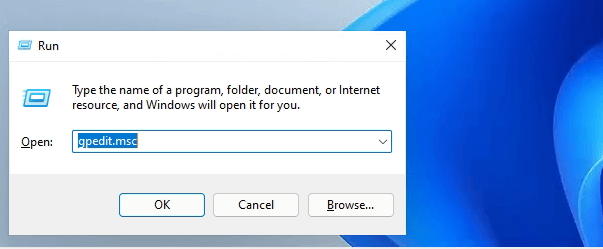
Press Windows + R on your keyboard to open the Run dialog box. Type gpedit.msc and hit Enter. This command launches the Local Group Policy Editor, where you can adjust Windows update policies.
Navigate To Update Settings
In the Group Policy Editor window, expand Computer Configuration. Then open Administrative Templates. Next, go to Windows Components and click on Windows Update. Finally, select Manage end user experience.
Disable Automatic Updates
Find the policy named Configure Automatic Updates in the right pane. Double-click it to open the settings. Select the Disabled option to turn off automatic updates. Click Apply and then OK to save changes.
Restart your PC to make sure the settings take effect. This stops Windows 11 from installing updates without your permission. You can always revert these changes by enabling the policy again.

Credit: www.youtube.com
Modify Windows Registry
Modifying the Windows Registry is a powerful way to control updates in Windows 11. This method offers more control than the standard settings. It lets you pause updates permanently by changing specific system values. Proceed with caution, as incorrect changes can cause problems. Follow each step carefully to ensure success and avoid errors.
Back Up Registry
Always back up the registry before making any changes. Open the Start menu and type regedit. Press Enter to open the Registry Editor. Click on File, then select Export. Choose a safe location and name the backup file. This backup helps restore settings if something goes wrong.
Change Update Settings
Navigate to the key HKEY_LOCAL_MACHINE\SOFTWARE\Policies\Microsoft\Windows\WindowsUpdate\AU. If the path is missing, create new keys step by step. Right-click and choose New > DWORD (32-bit) Value. Name it NoAutoUpdate. Set its value to 1. This action disables automatic updates. Restart your PC to apply changes.
Avoid Common Pitfalls
Do not delete registry keys unless you are sure. Changing wrong entries may cause system errors. Avoid using third-party tools to modify the registry. They can add unwanted changes. Always keep your backup file safe. Test if the update pause works before making other changes. Keep your system security in mind when disabling updates.
Stop Windows Update Service
Stopping the Windows Update service can permanently pause updates on Windows 11. This method blocks the system from downloading and installing updates automatically. It involves disabling the update service through the Services Manager. The process is straightforward and helps control when updates occur.
Access Services Manager
Press Windows + R to open the Run dialog box. Type services.msc and press Enter. This opens the Services Manager window. Here you can see a list of all Windows services.
Scroll down to find Windows Update. This service manages automatic updates on your PC. You need to access its settings to stop updates.
Disable Windows Update Service
Right-click on Windows Update and select Properties. In the new window, find the Startup type dropdown menu. Change it from Automatic to Disabled. Click the Stop button to halt the running service.
Click Apply and then OK to save changes. This stops Windows from checking for updates or installing them on its own.
Prevent Service Restart
Windows might try to restart the update service after a reboot. To prevent this, open the Recovery tab in the Windows Update Properties window. Set the first failure, second failure, and subsequent failures to Take No Action. This stops Windows from restarting the service automatically.
Click Apply and OK. Restart your PC to confirm the changes. The Windows Update service will remain off until you enable it again.
Turn Off Related Services
Turning off related services is a key step to pause Windows 11 updates permanently. These services control how updates download and install on your device. Disabling them prevents automatic update checks and installations.
Stopping these services ensures Windows 11 does not refresh or update without your permission. It helps maintain your system’s current state and avoids unexpected restarts or interruptions.
Disable Delivery Optimization
Delivery Optimization shares update files with other devices on your network. This can trigger automatic downloads even if updates are paused.
To disable it, open Settings and go to Update & Security. Then select Delivery Optimization and turn off Allow downloads from other PCs. This stops peer-to-peer update sharing.
Stop Update Orchestrator Service
The Update Orchestrator Service manages Windows update scheduling and execution. Stopping it blocks update processes from running.
Press Windows + R, type services.msc, and press Enter. Find Update Orchestrator Service, right-click, and select Properties. Set the startup type to Disabled and click Stop. This halts automatic update tasks.
Turn Off Microsoft Store Updates
The Microsoft Store updates apps automatically, sometimes triggering Windows updates indirectly. Disabling Store updates helps control this.
Open the Microsoft Store app, click the three dots menu, and select Settings. Turn off Update apps automatically. This prevents app updates that might lead to system updates.
Use Third-party Tools
Third-party tools offer a straightforward way to pause Windows 11 updates permanently. These tools simplify the process and provide options beyond the default Windows settings. Many users prefer third-party software for better control over update timing and frequency.
Using these tools helps avoid unexpected restarts and interruptions. They can also manage updates more flexibly, fitting your schedule and preferences. Choosing the right tool ensures your system stays secure while updates remain paused.
Overview Of Popular Tools
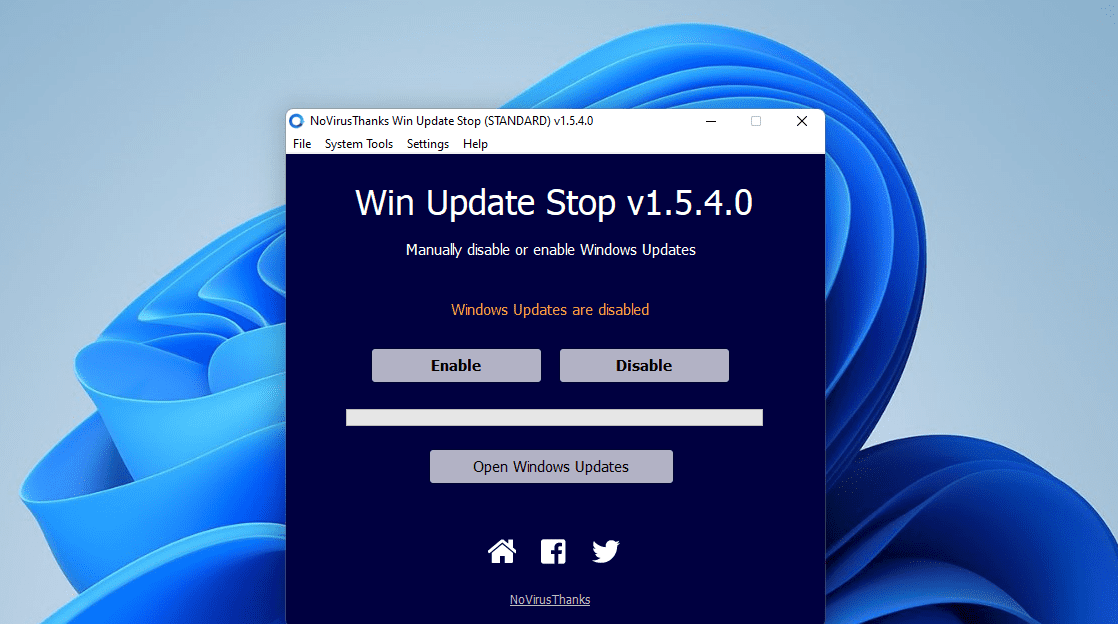
Several popular tools help pause Windows 11 updates easily. Tools like StopUpdates10, Windows Update Blocker, and WuMgr are well-known. They offer user-friendly interfaces to disable or block updates quickly. Each tool varies slightly in features and ease of use.
StopUpdates10 allows one-click disabling of updates. Windows Update Blocker provides options to block updates and services. WuMgr offers detailed control over update downloads and installations. These tools suit different user needs and technical skills.
Safety And Reliability
Choosing safe and reliable tools is critical. Download software only from official or trusted sources. Avoid tools from unknown websites to prevent malware risks. Check user reviews and expert opinions before installation.
Reliable tools do not harm system files or cause instability. They should allow easy reactivation of updates when needed. Always back up important data before using third-party update blockers.
How To Use Them Effectively
Start by downloading the tool from a trusted website. Install it following the provided instructions carefully. Most tools feature a clear button to pause or block updates.
After pausing updates, restart your computer to apply changes. Monitor your system for any issues or unexpected update prompts. Reactivate updates periodically to keep your system secure.
Using these tools alongside Windows built-in settings offers the best results. Adjust settings regularly to balance update control and security needs.
Risks And Considerations
Pausing Windows 11 updates permanently might seem helpful. It stops interruptions and avoids unexpected restarts. Yet, it carries several risks you must understand. These risks affect your computer’s security, stability, and performance. Consider these points carefully before pausing updates indefinitely.
Security Implications
Windows updates include security patches. They fix vulnerabilities hackers can use to attack your PC. Pausing updates stops these patches from installing. Your system becomes more open to malware and cyber threats. Without updates, hackers find it easier to exploit your computer. This risk grows over time without security fixes.
System Stability Concerns
Updates also fix bugs and improve system stability. Pausing updates may cause crashes or errors. Some apps might stop working correctly. Your PC may become slower or unstable. Over time, missing updates can cause bigger problems. Stability issues might require a full system reset later.
When To Re-enable Updates
Pause updates only when necessary and for a short time. Re-enable updates to keep your system safe and stable. Check for critical updates regularly. Turn updates back on after fixing issues or stopping interruptions. Keeping updates off for too long is risky and not recommended.
Tips For Managing Updates
Managing Windows 11 updates helps keep your system stable and avoids unexpected restarts. You can control when updates happen without fully disabling them. Simple steps let you balance security and convenience. Use these tips to take charge of updates on your schedule.
Schedule Active Hours
Set active hours when you use your PC the most. During these times, Windows will avoid restarting for updates. This feature helps prevent interruptions in your work or entertainment. Open Settings, go to Windows Update, and choose “Change active hours.” Pick your start and end times carefully.
Set Update Notifications
Turn on update notifications to stay informed. Windows will alert you before downloading or installing updates. This way, you can prepare for any changes or delays. In the Windows Update settings, enable notifications. You won’t miss important updates or surprise restarts.
Regular Manual Update Checks
Check for updates manually on a schedule that suits you. This practice helps you install important fixes without waiting for automatic updates. Open Settings, select Windows Update, and click “Check for updates.” Doing this weekly or monthly keeps your system secure and up to date.
Frequently Asked Questions
How Do I Pause Updates In Windows 11?
Open Settings, go to Windows Update, and click “Pause updates. ” Choose a date to resume updates automatically.
Why Can’t I Pause Windows Updates Anymore?
Microsoft limits pausing Windows updates to a short period to ensure system security and stability. Extended pauses may no longer be available in some versions. Use advanced settings or group policies on Pro editions to manage updates more flexibly.
Is Pausing Windows Updates Safe?
Pausing Windows updates is safe short-term and helps avoid interruptions. Resume updates soon to maintain security and system stability.
Why Does Windows 11 Keep Updating Every Day?
Windows 11 updates daily to improve security, fix bugs, and add features. Frequent updates ensure your system stays secure and runs smoothly.
Conclusion
Pausing Windows 11 updates permanently requires care and attention. Using the right methods helps avoid system problems. Remember to back up your data before making changes. Keep an eye on update settings to maintain control. This way, you can prevent unwanted updates safely.
Stay informed and choose the best option for your needs. Managing updates gives you peace of mind and better control.
