
Is your Android phone constantly warning you about low storage? It’s frustrating, right?
You can’t take new photos, download that app you’ve been wanting, or even get important updates. Don’t worry, we’ve all been there. The good news is, you don’t need to be a tech whiz to fix this. We’ll show you simple, easy steps to clear out that clutter and get your phone running smoothly again.
Ready to reclaim your storage space? Let’s dive in!

Credit: www.mintmobile.com
Declutter Your Digital Life
Decluttering your digital life is essential. It makes your phone faster. It also makes it easier to find what you need. Think of it like cleaning your room. Less stuff means more space. It feels much better too.
Your phone holds many things. Some are useful. Some are not. You can remove the unneeded items. This frees up valuable storage space. Your phone will thank you for it. Let’s start cleaning.
Many apps store temporary data. This is called cache. It can take up a lot of space. You can clear this data. Go to your phone’s Settings. Find Apps or Applications. Pick an app. Tap Storage. Then tap Clear Cache. Do this for frequently used apps. It won’t delete your app data. It just removes temporary files. This is a quick way to save space.
You have apps you never use. They just sit there. They take up storage. Find these apps. Uninstall them. Go to Settings. Tap Apps. Select the app. Tap Uninstall. If you cannot uninstall, disable it. This also stops it from using space. Review your app list often. Remove old games. Delete apps you downloaded once. Free up that space. Your phone will run better.
Leverage Built-in Tools
Your Android phone has helpful features. These tools find and remove unneeded files. Use them to get more space back.
Storage Settings Scan
Open your phone’s Settings app. Find the Storage option. Some phones call it Device Care. Tap Free up space. Your phone suggests what to delete. It finds junk files. It spots duplicate pictures. It shows large downloads too. Review the suggestions. Tap to delete unneeded items.
Files By Google Clean
Get the Files by Google app. It’s a free app. Open the app. Look for the Clean tab. It shows you junk files. It highlights large files. It finds unused apps. You can review these items. Select what you want to remove. Tap Delete. This app makes cleaning easy.
Manage App Data
Manage app data carefully. This helps you reclaim much-needed space. Apps store temporary files. They also keep data you might not need. Look at your apps. See which ones use the most space. You can then make smart choices.
Cache Clearing
Apps create cache files. These speed up loading times. Cache files can grow large. They take up storage space. You can clear app caches. This frees up storage. Go to your phone’s Settings. Find Apps or Applications. Select an app. Tap Storage. Then tap Clear Cache. Do this for several apps. It makes a difference.
App Purge
Some apps are not used. They sit on your phone. These unused apps take space. They might also collect data. Remove apps you do not need. Go to Settings. Find Apps. Choose an app. Tap Uninstall. Confirm you want to delete it. This is a great way to free space. Think about your favorite apps. Are there any you rarely open? Consider removing them. Your phone will thank you.

Credit: www.youtube.com
Eliminate Digital Debris
Clear out digital clutter. Delete old files and unused apps. This simple step gives your phone more room.
Your Android phone holds many digital files. Some are useful. Others are not. This digital debris takes up space. It slows your phone down. Let us clean it out. Recycle Bin Sweep Your phone has a recycle bin. Deleted files go there. They still use storage. You need to empty it. Go to your Gallery app. Look for a “Trash” folder. Select all items. Then, tap “Delete.” This frees up real space. Downloaded File Dive You download many files. Some are important. Many are not. Old PDFs. Unused documents. They fill your storage. Open your “Files” app. Find the “Downloads” folder. Look through the files. Delete what you do not need. Be sure before you delete.
Optimize Photos And Videos
Photos and videos take up lots of space. You can manage them easily. This section helps you free up room. Your phone will run faster.
Cloud Backup Strategy
This is a smart plan. Use cloud storage for photos. Google Photos is a great option. So is Dropbox. You can upload pictures there. Then delete them from your phone. Your memories stay safe. You get more space back.
Gallery Cleanup
Go through your gallery often. Delete blurry pictures. Remove duplicate photos. Get rid of screenshots you don’t need. Videos are big. Delete old videos. You might not need them anymore. This makes a big difference. Your gallery stays neat.
Advanced Storage Tactics
Reclaim space on your Android. Delete old files and apps. Your phone will run better.
You have mastered the basics of storage cleanup. Now, let’s explore some advanced techniques. These methods go deeper. They help you reclaim even more space. Get ready for serious storage gains.
System Data Reduction
System data can take up significant space. This data includes app caches. It also holds temporary files. These files accumulate over time. They often serve no real purpose. Cleaning them is safe. Your phone will still work fine. Clear app cache regularly. Go to Settings. Tap Apps. Select an app. Find Storage. Tap Clear cache. Do this for many apps. Focus on apps you use a lot. Their caches grow fastest. Delete old app data too. Be careful here. This removes app settings. It can log you out. Some apps create large data files. These are often for offline use. Think about streaming apps. They download content. Check these apps. Remove downloaded shows or music. You can re-download them later.
External Storage Options
Your phone’s internal storage is limited. Consider using external storage. This moves data off your phone. It frees up valuable internal space. Use a microSD card. Many Android phones support them. Insert the card. You can move apps to it. You can save photos and videos there. Some apps let you choose storage location. Look for this option. Cloud storage is another great option. Services like Google Drive work well. Upload your photos and videos. They stay safe in the cloud. You can then delete them from your phone. Access them anytime. This is very convenient. It keeps your phone light.
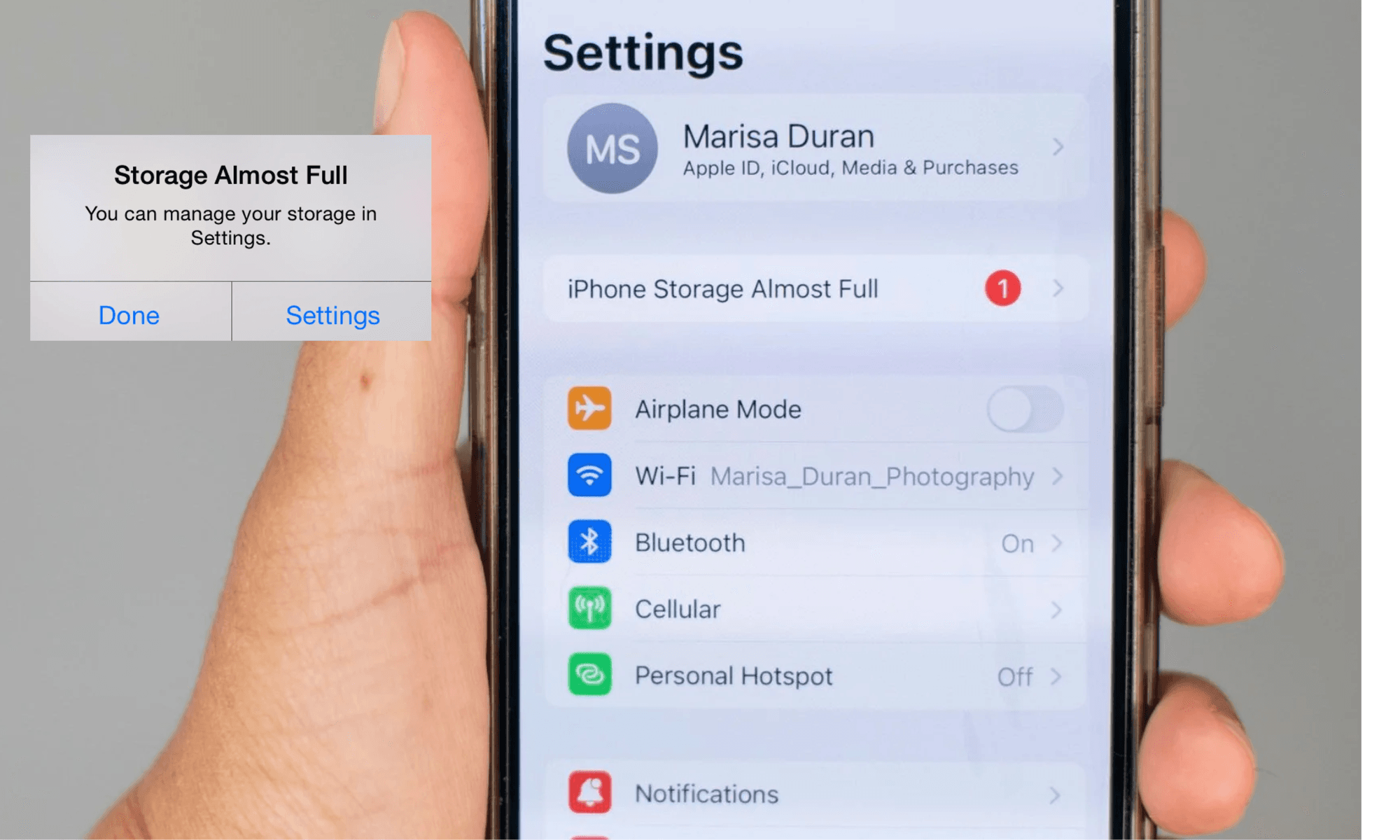
Credit: www.compareandrecycle.co.uk
Frequently Asked Questions
What Should I Delete When My Phone Storage Is Full?
Delete unused apps. Remove old photos and videos. Clear downloaded files. Empty your trash or recycle bin. These actions free up valuable phone space.
Why Is My Android Phone Storage Full After Deleting Everything?
Your phone may have hidden cache files. Deleted items might still be in the trash. System files also take up space. Use a file manager to check all folders. Empty the trash bin thoroughly.
How To Free Up Storage On Your Phone Without Deleting Anything?
Use your phone’s cleaner tool. Files by Google finds junk files. Delete large downloads. Uninstall unused apps. Clear app caches. Empty your trash bin. These actions free up space.
What Is A Good Free App To Free Up Storage Space On My Phone?
Files by Google is a great choice. It finds junk files. It also removes large downloads. Unused apps are identified too. This app helps clear your phone.
Conclusion
Your phone storage is now clear. Enjoy a faster, smoother experience. Keep checking your storage regularly. Delete old files often. This keeps your phone running well.
