
Is your Windows 11 PC feeling slow or unresponsive? One common culprit is a crowded RAM, which can hold onto unnecessary data and slow down your system.
But don’t worry—you don’t need to be a tech expert to fix this. You’ll learn simple and effective ways to free up RAM on your Windows 11 computer right now. From closing heavy apps to clearing the memory cache, these easy steps will help your PC run smoother and faster.
Keep reading to discover how to get the most out of your system’s memory and boost your computer’s performance today.
Check Memory Usage
Checking memory usage is key to free up RAM on Windows 11. It helps identify which apps use the most memory. You can then close apps that are not needed. This process improves your computer’s speed and performance.
Windows 11 has a built-in tool called Task Manager. It shows all running apps and their memory consumption. Monitoring this helps keep your system running smoothly.
Open Task Manager
Press Ctrl + Shift + Esc to open Task Manager quickly. You can also right-click the Start button and select Task Manager. This tool lists all apps and background processes.
Sort Apps By Memory
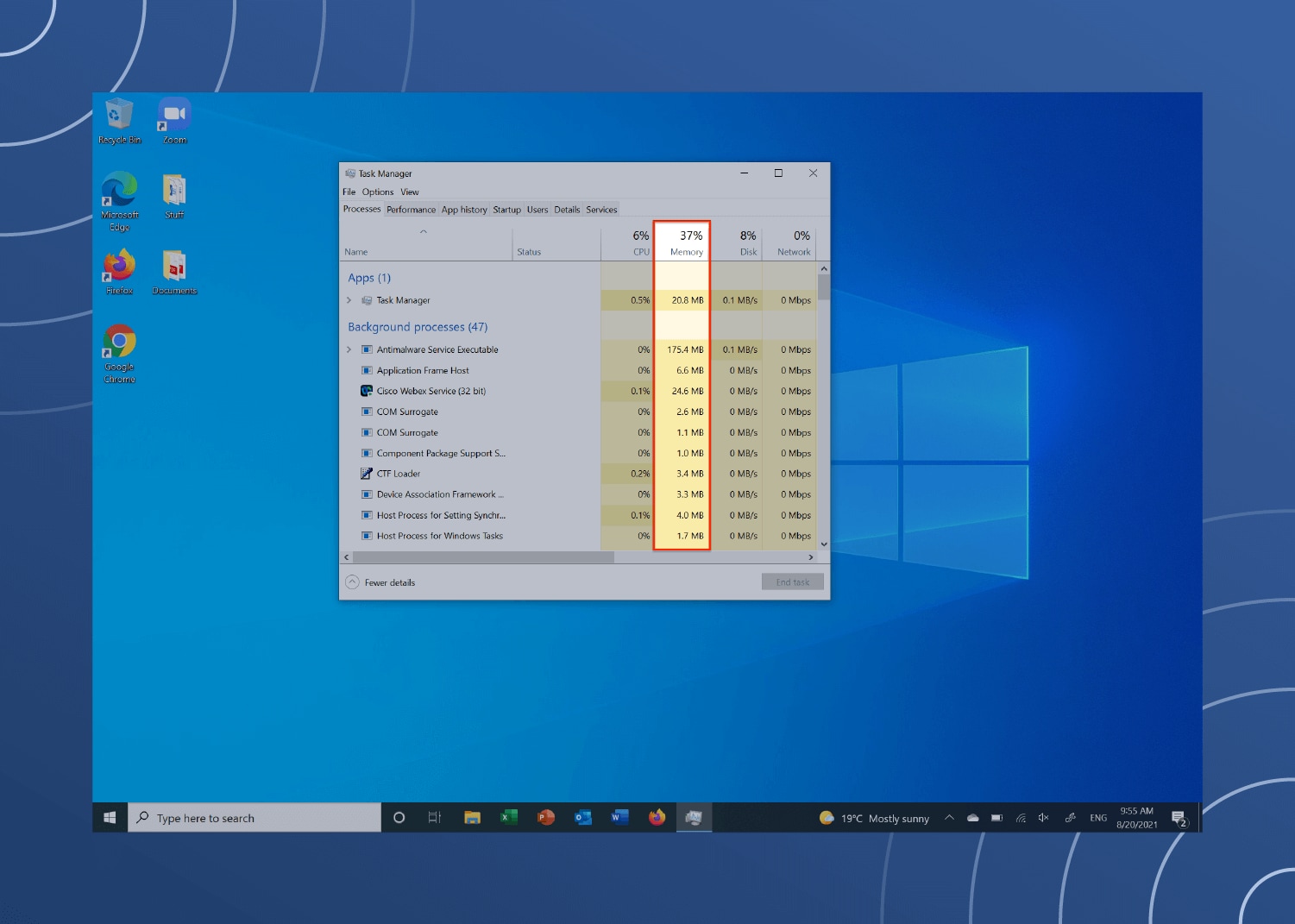
Inside Task Manager, click the Memory column header. This sorts apps by their memory use from highest to lowest. The top apps consume the most RAM. Sorting helps find heavy apps fast.
End Unnecessary Tasks
Select apps that use a lot of memory but are not needed. Click the End task button at the bottom right. This frees up RAM instantly. Avoid ending system processes or apps you use now.

Credit: www.youtube.com
Manage Startup Programs
Managing startup programs is a key step to free up RAM on Windows 11. Many apps launch automatically when your PC starts. These apps consume memory even if you do not use them right away. Reducing the number of startup apps speeds up your system and improves performance.
Windows 11 makes it easy to view and control which programs run at startup. You can disable apps that are not essential. This helps save RAM and allows your PC to focus on important tasks.
Access Startup Tab
Press Ctrl + Shift + Esc to open Task Manager. Click on the Startup tab at the top. This tab lists all apps set to start with Windows. You will see the app name, publisher, status, and startup impact. The impact shows how much each app slows your PC at startup. Review this list carefully.
Disable Non-essential Apps
Identify apps you do not need to run automatically. Select the app from the list. Click the Disable button in the bottom right corner. Disabled apps will not start when Windows boots. This action frees RAM and reduces background processes. Keep only necessary apps enabled, like antivirus and system tools. You can always enable apps later if needed.
Restart Windows Explorer
Restarting Windows Explorer is a quick way to free up RAM on Windows 11. This process clears temporary data and stops some background tasks. It helps improve system speed without closing your apps.
Windows Explorer manages the desktop, taskbar, and file browsing. Sometimes, it uses more memory than needed. Restarting it resets memory use and refreshes your interface.
Locate Windows Explorer
Press Ctrl + Shift + Esc to open Task Manager. Click the Name column to sort processes alphabetically. Scroll down to find Windows Explorer in the list. This process controls your desktop and file windows.
Restart To Clear Cache
Right-click Windows Explorer. Select Restart from the menu. Your screen may flicker briefly. This action clears cached data stored in RAM. It often lowers memory use and fixes minor glitches.
Clear Standby Memory
Clear standby memory helps free up RAM used by cached files. These files stay in memory after use to speed up access. But too much standby memory slows your PC down. Clearing it frees space for active programs.
You can clear standby memory using a free tool from Microsoft. It is safe and easy to use. This process clears out cached files without closing running apps. It improves system speed and responsiveness.
Download Rammap Tool
Download RAMMap from Microsoft’s official site. This tool shows detailed RAM usage on your PC. It breaks down how memory is allocated and used. The download is quick and the tool is lightweight.
After downloading, install and open RAMMap. Accept the license terms to start using it. The interface displays memory categories like standby, active, and free. You can manage these memory types with simple clicks.
Empty Standby List
In RAMMap, find the menu bar at the top. Click on the “Empty” menu to see options. Select “Empty Standby List” from the dropdown. This clears the cached files stored in standby memory.
The process frees up RAM instantly. No need to restart your PC. Your active programs stay open and run smoothly. Run this step anytime your PC feels slow or laggy.
Adjust Virtual Memory
Adjusting virtual memory helps free up RAM on Windows 11. Virtual memory uses part of your hard drive to support RAM. When RAM is full, Windows moves some data to virtual memory. This process keeps your system running smoothly.
Setting the right virtual memory size can improve performance. Too little virtual memory slows down your PC. Too much wastes disk space. Adjust it carefully to match your needs.
Access Advanced System Settings
Press the Windows key and type “Advanced system settings”. Select View advanced system settings from the list. This opens the System Properties window.
Click the Advanced tab at the top. Under Performance, click the Settings button. This opens Performance Options.
Go to the Advanced tab again. Look for the Virtual memory section. Click the Change button to open virtual memory settings.
Customize Paging File Size
Uncheck the box labeled Automatically manage paging file size for all drives. Select the drive where Windows is installed, usually C:.
Choose Custom size. Enter the initial size and maximum size in megabytes (MB). A good rule is 1.5 times your RAM size for initial size.
For maximum size, use 3 times your RAM size. Click Set to save changes. Then click OK on all open windows.
Restart your PC to apply the new virtual memory settings. This helps Windows manage RAM better and improves system speed.
Credit: www.pandasecurity.com
Optimize Performance Settings
Optimizing performance settings helps reduce RAM usage on Windows 11. It adjusts system visuals to save memory and speed up processes. These tweaks can make your computer feel faster without extra hardware.
Open Performance Options
Press the Windows key and type “Adjust the appearance and performance of Windows.” Select this option from the results.
The Performance Options window appears. Here, you control how Windows uses system resources for visuals and effects.
Adjust Visual Effects
In the Performance Options window, under the Visual Effects tab, choose “Adjust for best performance.”
This disables many animations and shadows that use RAM. Your system will focus more on speed than looks.
Alternatively, select “Custom” and uncheck effects you find unnecessary. Click Apply, then OK to save changes.
Reducing visual effects frees up RAM and improves overall system performance on Windows 11.
Close Background Apps
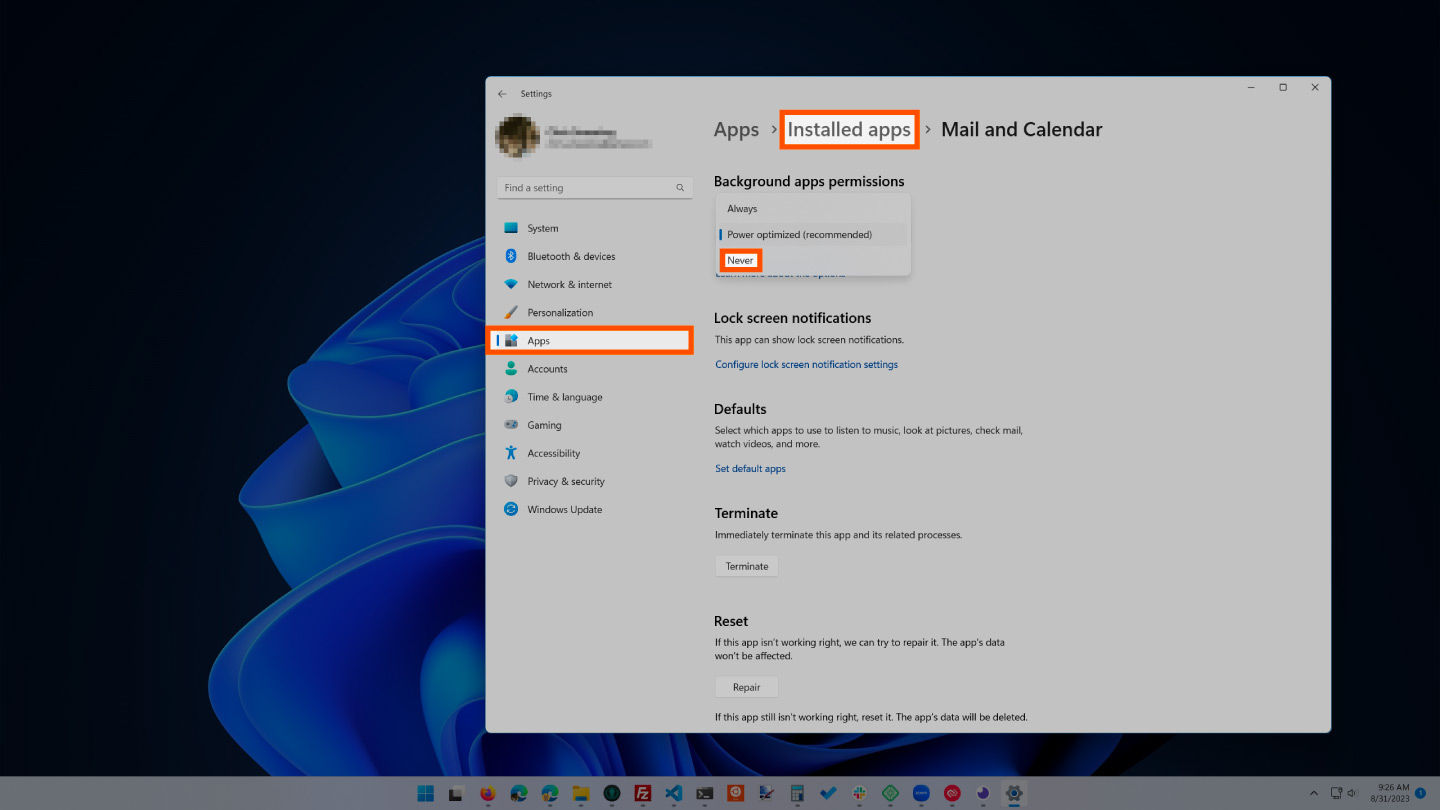
Closing background apps is a quick way to free up RAM on Windows 11. Many apps run silently in the background. These apps use memory even if you are not using them. Stopping unnecessary apps helps your PC run faster and smoother.
Identify Background Processes
Open Task Manager by pressing Ctrl + Shift + Esc. Click the “Processes” tab to see all running apps and background processes. Sort by the “Memory” column to find apps using the most RAM. Look for apps you do not need right now. Note them down before ending their tasks.
End Unnecessary Services
Some services run in the background without your notice. Press Windows + R and type “services.msc” to open Services. Scroll through the list to find services that consume memory but are not essential. Right-click on the service and choose “Stop” to end it. Be careful not to stop important system services. This step frees up additional RAM for active tasks.
Monitor Ram Usage Over Time
Monitoring RAM usage over time helps you understand how your system uses memory. It shows which apps consume the most RAM. Tracking this data helps identify memory leaks and heavy programs. This insight lets you manage RAM better and keep your PC running smoothly.
Use Resource Monitor
Resource Monitor is a built-in Windows 11 tool. It gives a detailed view of your RAM usage. Open it by typing “Resource Monitor” in the Start menu search. Click the Memory tab to see real-time data.
This tool shows used, standby, and free memory. It also lists processes and how much memory each uses. You can spot apps that use too much RAM. This helps decide which programs to close or manage.
Track Memory Trends
Tracking memory trends means watching RAM use over days or weeks. Use Resource Monitor or Task Manager regularly. Note which apps cause spikes in memory use.
Windows 11 also offers Performance Monitor for detailed tracking. Set up a data collector to record memory use over time. Review reports to find patterns and issues.
Tracking trends helps prevent slowdowns. You can act before memory problems affect your PC. This keeps your system stable and fast.
Consider Hardware Upgrades
Considering hardware upgrades can improve your Windows 11 PC’s performance. Sometimes software tweaks are not enough to free up RAM effectively. A hardware upgrade, especially increasing your RAM, can offer a noticeable boost. It helps your computer handle more tasks smoothly without slowing down.
Check Total Ram Installed
First, find out how much RAM your PC has. Press Ctrl + Shift + Esc to open Task Manager. Click on the Performance tab, then select Memory. You will see the total RAM installed and how much is in use. Compare this with your PC’s recommended RAM for your tasks. This step tells you if your current RAM is sufficient or not.
Upgrade Ram If Needed
If your PC has less RAM than needed, consider an upgrade. Adding more RAM lets your computer run multiple apps without freezing. Check your PC’s manual or manufacturer website to know the type and maximum RAM supported. Buy compatible RAM sticks and install them carefully, or seek professional help. Upgrading RAM is a practical way to improve overall speed and multitasking on Windows 11.
Credit: labkaps.fr
Frequently Asked Questions
Why Is Windows 11 So Heavy On Ram?
Windows 11 uses more RAM due to its advanced features, background apps, and visual effects. It caches data to improve performance.
Is 90% Ram Usage Normal?
90% RAM usage can be normal if your system actively uses memory for caching. Watch for slow performance or crashes.
How Do I Clear The Ram Cache?
Open Task Manager with Ctrl + Shift + Esc. End high-memory apps. Restart Windows Explorer to flush cache. Use Sysinternals RAMMap and select Empty Standby List to clear RAM cache fully.
Why Is My Windows 11 Computer Using So Much Ram When It’s Idle?
Windows 11 uses RAM to cache data, speeding up performance even when idle. Background processes and startup apps also consume memory. Check Task Manager to identify high RAM usage and close unnecessary programs to free up memory. Restarting Windows Explorer can help clear cached data in RAM.
Conclusion
Freeing up RAM on Windows 11 helps your PC run smoother and faster. Close apps you don’t need to save memory. Disable unnecessary startup programs to reduce load at boot. Restart Windows Explorer to clear temporary data easily. Use tools like RAMMap to empty standby memory cache.
These simple steps improve performance without complex changes. Keep an eye on your RAM usage regularly to stay efficient. Small actions make a big difference in your computer’s speed. Try these tips today for a better Windows 11 experience.
