
Are you tired of seeing your electricity bill skyrocket every month just because of your PC? You’re not alone.
Many people don’t realize how much power their computers consume or how simple changes can make a big difference. Imagine cutting down your PC’s energy use without sacrificing performance or convenience. You’ll discover easy and effective ways to make your PC take up less power, helping you save money and reduce your environmental impact.
Keep reading—you’re about to learn practical tips that anyone can use to lower their power bill fast!
Credit: x.com
Optimize Power Settings
Optimizing your PC’s power settings can significantly lower your electricity bill. Small adjustments help your computer use energy more wisely. These tweaks do not reduce performance much but save power steadily.
Focus on settings that control how your PC uses power during activity and idle times. This ensures your computer only uses what it needs. Let’s explore simple ways to optimize power settings for savings.
Use Energy Saver Mode
Energy Saver Mode reduces power use by limiting background tasks. It adjusts CPU speed and dims the screen to save energy. Turning on this mode helps cut power consumption without affecting your work.
To activate, go to Settings, then System, and select Power & Battery. Enable Energy Saver Mode to keep your PC running efficiently.
Adjust Sleep And Display Timers
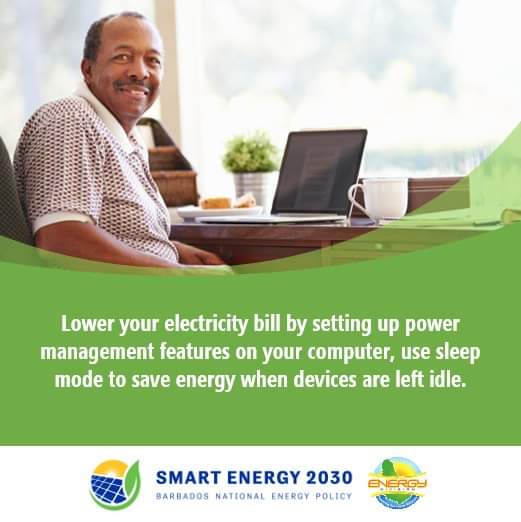
Set your PC to sleep after a short period of inactivity. This stops power usage when you are away. Also, reduce the display timer to turn off your screen faster.
These simple changes lower energy use during breaks. Access these options in Power & Battery settings under Screen and Sleep.
Customize Power Plans
Create or modify power plans to fit your daily needs. Balanced plans save power while keeping good performance. You can also choose power saver plans for maximum energy reduction.
Adjust settings like processor state and display brightness in Control Panel under Power Options. Custom plans help manage power better than default ones.
Manage Background Apps
Managing background apps is a key step to lower your PC’s power use. Many apps run quietly behind the scenes. These apps consume energy without you noticing. Reducing their activity can cut your power bill. It also helps your PC run smoother and faster.
Start by checking which apps launch when your PC starts. Many programs auto-start and stay active. Some are not needed right away. Stopping these can save power and boost startup speed.
Disable Unnecessary Startup Programs
Open your PC’s startup settings. Look for apps that start automatically. Disable the ones you do not use often. This stops them from running in the background. It saves power and frees up memory. Only keep essential apps enabled for startup.
Limit Background Processes
Background processes use CPU and power. Some apps run many processes without your input. Close apps fully instead of just minimizing them. Change app settings to reduce background activity. This helps lower the power your PC uses daily.
Use Task Manager To Monitor Usage
Task Manager shows which apps use the most resources. Press Ctrl + Shift + Esc to open it. Check the CPU and memory columns. Identify apps with high usage even when idle. End tasks that waste power and are not needed. Repeat this check regularly to keep power use low.
Tweak Hardware Settings
Tweaking your PC’s hardware settings helps cut power use. Small changes can lower your electricity bill. These tweaks reduce energy without hurting performance. Focus on the CPU, GPU, and component choices.
Adjusting hardware settings is smart for energy saving. It keeps your PC efficient and cool. Let’s explore simple steps to tweak your hardware for less power consumption.
Undervolt Cpu And Gpu
Undervolting means lowering the voltage to your CPU or GPU. It cuts power use and heat output. Your PC runs cooler and stays quieter. Use software tools to safely adjust voltages. Test stability after each change. This method saves energy without slowing your PC.
Adjust Gpu Power Management
Set your GPU’s power management mode to balanced or adaptive. This controls how much power the GPU uses during tasks. It prevents the GPU from running at full power all the time. Adjust settings in your graphics control panel. This reduces power waste during light use.
Choose Energy-efficient Components
Pick parts designed for low power use. Look for CPUs and GPUs with good energy ratings. Use SSDs instead of traditional hard drives. Select power supplies with high efficiency ratings like 80 Plus Bronze or better. Energy-efficient parts lower your PC’s overall power draw.
Control Peripherals And Accessories
Controlling peripherals and accessories helps reduce your PC’s power use. Many devices stay powered even when not in use. This wastes electricity and raises your bill. Managing these devices cuts power consumption effectively. It also extends the life of your accessories.
Disconnect Unused Devices
Unplug devices you do not use often. Keyboards, mice, and external drives can draw power when connected. Leaving them plugged in wastes electricity. Removing them saves energy and lowers costs. Check all connected peripherals and disconnect the unused ones.
Use Smart Power Strips
Smart power strips turn off power to devices automatically. They sense when a device is off or in standby mode. This stops electricity flow to idle accessories. Using these strips cuts phantom power use. Plug your PC and accessories into a smart strip for easy control.
Unplug Chargers When Not In Use
Chargers keep drawing power even without a device connected. Leaving phone or tablet chargers plugged in wastes energy. Unplug them once charging finishes or when not needed. This simple step reduces unnecessary power draw and lowers your bill.
Optimize Cooling And Maintenance
Optimizing your PC’s cooling and maintenance helps reduce power use. A cooler PC runs more efficiently. It avoids overheating, which wastes energy and can damage parts.
Regular upkeep keeps fans and components working well. This lowers electricity costs and extends your PC’s life. Follow simple steps to keep your PC cool and well-maintained.
Keep Pc Clean And Cool
Dust blocks airflow and traps heat inside your PC. Clean the inside regularly using compressed air. Remove dust from fans, vents, and heat sinks. This helps air move freely and cools parts better.
Place your PC in a well-ventilated area. Avoid keeping it near heaters or in direct sunlight. Proper placement prevents overheating and lowers power use.
Use Efficient Cooling Solutions
Choose cooling systems that use less power but cool effectively. High-quality fans and heat sinks reduce energy waste. Consider upgrading to energy-efficient fans if your PC is old.
Liquid cooling can be more efficient for high-performance PCs. It moves heat away faster and uses less power than some air coolers. Select the right cooling system for your setup and needs.
Monitor Temperature For Efficiency
Use software tools to check your PC’s temperature. Keep an eye on CPU and GPU heat levels. High temperatures mean your PC works harder and uses more power.
Adjust fan speeds or cooling settings based on temperature readings. Lowering heat helps your PC run smoothly and saves electricity. Regular monitoring prevents overheating and keeps power bills low.

Credit: www.atlanticrefrigeration.com
Switch To Low-power Alternatives
Switching to low-power alternatives can significantly reduce your PC’s electricity use. It helps lower your power bill and keeps your computer running efficiently. Using devices and settings that consume less energy is a smart way to save money.
Use Laptops Or Tablets For Light Tasks
Laptops and tablets use less power than desktop PCs. They are designed to save battery life and consume less energy. For simple tasks like browsing, emailing, or watching videos, choose a laptop or tablet. This change can cut your electricity use and still get the job done.
Lower Gaming And Graphics Settings
High graphics and gaming settings demand more power from your PC. Reducing these settings lowers the energy your computer needs. Play games at medium or low settings to save power. This reduces heat and strain on your hardware, helping your PC last longer and use less electricity.
Consider Energy-efficient Displays
Monitors can use a lot of power. Energy-efficient displays use less electricity while showing clear images. Look for LED or OLED screens with low power consumption. Lower the brightness to save even more energy. Choosing the right display helps keep your power bill down.
Monitor And Track Energy Usage
Monitoring and tracking your PC’s energy usage helps control power bills. Knowing how much electricity your computer consumes guides you to make smart choices. This process highlights where power waste happens and what changes save energy. Regular checks keep your PC running efficiently and reduce costs over time.
Use Software Tools For Monitoring
Software tools show real-time power use of your PC. They track CPU, GPU, and other hardware energy consumption. Some programs offer detailed reports and alerts for high usage. Using these tools helps spot apps or tasks that waste energy. Choose easy-to-use apps that fit your computer’s system.
Check Electricity Meter Regularly
Checking your electricity meter often shows the total power your PC uses. Record readings before and after long computer sessions. This simple habit reveals the real impact of your PC on the electric bill. You can compare numbers and notice patterns in your energy use. Use this info to adjust your PC habits.
Set Energy Usage Goals
Set clear, simple goals to reduce your PC’s power use. For example, aim to cut daily energy consumption by 10%. Track your progress weekly to stay motivated. Small targets make saving power easier and more effective. Adjust goals as you learn what works best for your setup.

Credit: www.amazon.com
Frequently Asked Questions
How To Make A Pc Use Less Electricity?
Enable energy saver mode in settings, reduce screen brightness, close unused apps, unplug devices when not in use, and use efficient hardware.
Does A Pc Increase The Electric Bill A Lot?
A PC can slightly increase your electric bill, but efficient settings and energy-saving modes minimize this impact significantly.
How To Get Low Energy On Pc?
Enable Energy Saver mode via Settings > System > Power & Battery. Reduce screen brightness, close unused apps, and use balanced power plans to lower PC energy use.
How To Drain Excess Power From Pc?
Drain excess power from your PC by shutting it down or using sleep mode. Unplug unused devices and enable power-saving settings. Adjust GPU and CPU power management, reduce background apps, and undervolt the processor to lower energy consumption efficiently.
Conclusion
Saving power on your PC helps lower your electric bill each month. Simple changes, like adjusting power settings, can make a big difference. Turning off unused devices and closing background apps saves energy fast. Choosing energy-efficient hardware reduces power use without losing performance.
Small steps add up to noticeable savings over time. Keep your PC clean and updated for better efficiency. Use these easy tips to cut power costs and help the environment too. Start today and see your power bill shrink bit by bit.
