
Getting hit with a Blue Screen of Death (BSOD) on your Windows 11 PC can be frustrating and confusing. But the key to fixing the problem lies in the error code that appears with the blue screen.
Knowing exactly how to find this error code is your first step toward understanding what went wrong—and how to get your system back on track. You’ll learn simple, clear steps to locate your Windows 11 blue screen error code quickly.
By the time you finish reading, you’ll have the tools you need to decode the issue and take action with confidence. Don’t let that blue screen hold you back—let’s dive in and get to the bottom of it together.

Credit: support.microsoft.com
Locate Event Viewer
Finding the Windows 11 Blue Screen error code helps diagnose system crashes. Event Viewer stores detailed logs of system events and errors. Accessing these logs reveals the exact error codes and reasons for crashes. This section guides you to locate Event Viewer quickly and navigate to the system logs.
Open Event Viewer Quickly
Press Win + X on your keyboard. This opens the quick access menu. Select Event Viewer from the list. Alternatively, press Win + R, type eventvwr.msc, and hit Enter. The Event Viewer window will open immediately. It shows all system and application logs in one place.
Navigate To System Logs
In Event Viewer, expand Windows Logs on the left panel. Click on System to open system event logs. These logs include critical errors and warnings. Scroll through the list or use the filter option to find recent errors. Look for entries marked as Error or Critical. These often contain the Blue Screen error codes you need.
Filter Blue Screen Events
Filtering blue screen events helps you find specific error codes quickly. Windows logs many events, making it hard to locate blue screen errors. Using filters narrows down the search to relevant events only. This method saves time and makes troubleshooting easier. Follow simple steps to create custom views and identify bug check events.
Create Custom View For Errors
Open Event Viewer by pressing Win + X and selecting Event Viewer. Click the Action menu and choose Create Custom View. Set the time range to see recent events only. Select the Event level checkboxes: Error and Critical. Under Event logs, pick Windows Logs > System. In the filter box, type “BugCheck” to catch blue screen events. Save the custom view with a clear name for quick access.
Identify Bugcheck Events
Look for events with the source labeled “BugCheck.” These entries record blue screen stop codes. Click on an event to see detailed information. Note the BugCheckCode and parameters listed in the details. Use these codes to understand the cause of the blue screen. You can cross-check the code online for specific fixes. This step is key to diagnosing Windows 11 blue screen errors.
Read Blue Screen Codes
Reading blue screen codes is the first step in fixing Windows 11 errors. These codes show why your computer stopped suddenly. Understanding these codes helps to find the cause of the problem fast.
Blue screen codes appear as a stop code or error code on the screen. They provide clues about hardware or software issues. Knowing how to read these codes saves time and effort in troubleshooting.
Find Stop Code Details
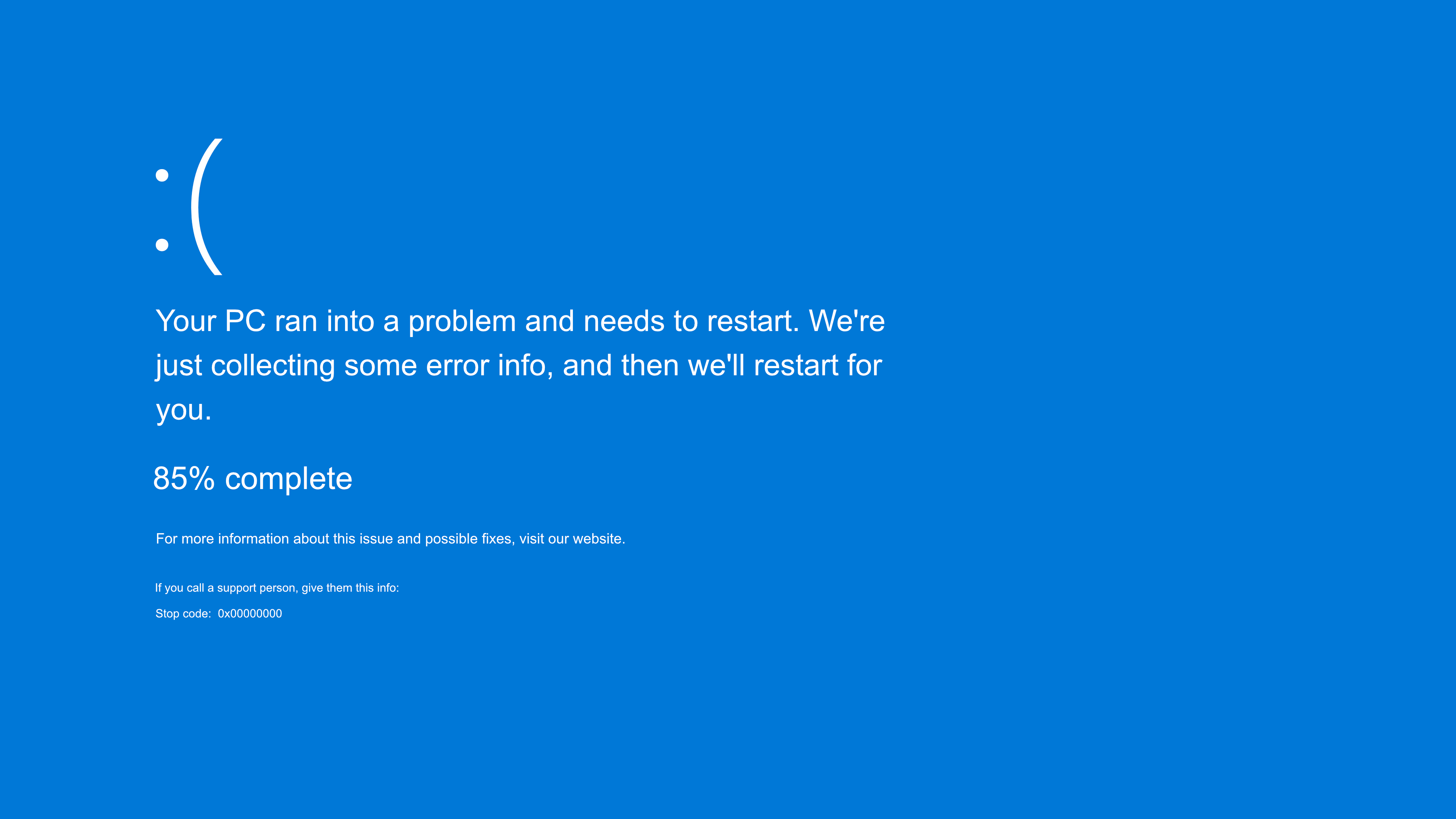
Look at the blue screen carefully for the stop code. It usually starts with “STOP” followed by numbers and letters. This code identifies the exact error Windows found.
Note down the stop code or take a clear photo. This information helps when searching for solutions. Sometimes, the blue screen also shows a file name related to the error.
Use the stop code to check Microsoft’s support site or trusted forums. These sources explain what the stop code means and suggest fixes.
Cross-check Error Codes
Cross-check the stop code with other error codes in your system logs. Open Event Viewer by pressing Win + X and selecting it from the menu. In Event Viewer, look for “BugCheck” events under the System log.
These events record the error code and additional details. Match this information with the blue screen stop code. It confirms the cause and helps avoid wrong fixes.
Comparing codes from different places gives a clearer picture of the issue. It also helps when asking for help from tech support or online communities.
Credit: www.itpro.com
Use Windows Reliability Monitor
Windows Reliability Monitor is a useful tool for tracking system issues. It records problems like crashes and errors. This tool helps find the exact Blue Screen error code. You can check past events and spot patterns causing the issue.
Access Reliability History
Open the Start menu and type “Reliability Monitor.” Select “View reliability history” from the results. A new window will open showing a timeline with system events. Each day is marked with symbols indicating errors or warnings. Click on any date to see detailed reports for that day.
Spot Blue Screen Reports
Look for red X icons in the timeline. These mark critical errors, often linked to Blue Screen crashes. Click on a red X to view the problem details. The report shows the error type and code, such as “Bug Check” or “Stop Error.” Note the code to search for fixes online or in Windows support.
Check Minidump Files
Checking minidump files is a key step to find the Windows 11 blue screen error code. These files contain small memory dumps created during a system crash. They help identify the cause of the blue screen error. Accessing and analyzing these files provides useful clues for troubleshooting.
Locate Dump Folder
Minidump files are saved in a specific folder on your PC. Open File Explorer and go to C:\Windows\Minidump. This folder stores files with a .dmp extension. Each file represents a crash event. Sort files by date to find the latest one. Make sure the folder is not empty before analysis.
Analyze Dump With Tools
Use software tools to read minidump files and find error codes. Microsoft’s WinDbg tool is popular for this task. You can download it from the Microsoft Store. Load the dump file into the tool. It shows detailed information about the crash. Look for the “Bug Check Code” or “STOP Code.” These codes explain the blue screen cause.
Apply Quick Fixes
Applying quick fixes can help resolve Windows 11 blue screen errors fast. These steps target common causes and often restore system stability. Try each method to see if it stops the error code from appearing. The fixes do not require advanced skills and can be done in minutes.
Remove Recent Hardware
New hardware can cause conflicts and trigger blue screen errors. Remove any devices installed just before the error started. This includes USB drives, printers, or internal parts like RAM or graphics cards. Restart your PC after removal to check if the problem clears. If the error stops, the hardware may be faulty or incompatible.
Update Drivers And Windows
Outdated drivers often cause system crashes. Open Device Manager and look for devices with warning icons. Right-click and select “Update driver” to get the latest version. Also, go to Windows Update settings and install all pending updates. These updates fix bugs and improve device compatibility. Keeping drivers and Windows current reduces blue screen risks.
Run System File Checker
Corrupted system files can cause blue screen errors. Use the System File Checker tool to find and fix these files. Open Command Prompt as administrator. Type sfc /scannow and press Enter. The scan will check all protected files and repair problems automatically. After completion, restart your PC to apply changes.
Enable Driver Verifier
Enabling the Driver Verifier tool helps find bad drivers causing Windows 11 blue screen errors. This tool tests drivers to catch errors early. It stresses drivers to reveal hidden problems that may crash your system.
Using Driver Verifier lets you track down faulty drivers safely. It logs driver issues, giving clues to the blue screen error codes. This method is useful when other diagnostics do not show clear results.
Activate Driver Verifier
Press Windows key + R to open the Run box. Type verifier and press Enter. The Driver Verifier Manager window will open. Select Create standard settings and click Next.
Choose Select automatically all drivers installed on this computer to test all drivers. Click Next, then Finish. Restart your PC to start the driver tests.
Monitor For Faulty Drivers
After activating Driver Verifier, use your PC normally. If a driver fails, Windows shows a blue screen with an error code. Write down the code and driver name shown on the screen.
You can also open Event Viewer by pressing Windows key + X and selecting Event Viewer. Check under System logs for driver-related errors. Look for entries marked with BugCheck.

Credit: en.wikipedia.org
Use Third-party Tools
Using third-party tools simplifies finding the Windows 11 blue screen error code. These tools analyze crash dumps and system logs automatically. They offer clear reports that help you understand the root cause. This approach saves time and reduces confusion compared to manual methods.
Recommended Blue Screen Analyzers
BlueScreenView by NirSoft is a popular choice. It scans minidump files and lists all blue screen errors. The tool shows error codes, drivers involved, and timestamps.
WhoCrashed is another user-friendly option. It provides detailed crash analysis in plain language. It also suggests possible fixes based on error codes.
WinDbg, from Microsoft, is a powerful debugger for advanced users. It offers deep insights into system crashes but requires some technical knowledge.
Benefits Of Third-party Software
These tools make error codes easy to find and read. They collect data automatically, avoiding manual errors. Users get detailed information in one place.
Third-party software often explains error codes simply. This helps users who are not tech experts. It speeds up troubleshooting and reduces frustration.
Many tools offer free versions, making them accessible. They support multiple Windows versions, including Windows 11. This ensures compatibility and reliable results.
Frequently Asked Questions
How To Find Error Code For Blue Screen?
Open Event Viewer by pressing Win + X and selecting it. Navigate to Windows Logs > System. Look for “BugCheck” events to find the blue screen error code.
How To Find Error Codes In Windows 11?
Open Event Viewer by pressing Win + X and selecting it. Navigate to Windows Logs > System. Look for error or BugCheck events to find Windows 11 error codes.
How To Clear Blue Screen Error In Windows 11?
Restart your PC in Safe Mode and uninstall recent software or drivers. Use Event Viewer to identify error codes. Update Windows and drivers. Run system scans like SFC and DISM. Check hardware for faults and ensure sufficient disk space.
Where Can I Find The Blue Screen Error Logs In Windows?
Open Event Viewer by pressing Win + X and selecting it. Navigate to Windows Logs > System. Look for errors labeled “BugCheck” to find blue screen error logs.
Conclusion
Finding the Windows 11 blue screen error code helps fix your PC issues faster. Use Event Viewer to locate the BugCheck event easily. Note the error code and search online for specific solutions. Regularly checking error codes can prevent future crashes.
Stay calm and take one step at a time. This simple method makes troubleshooting less confusing. Keep your system updated to reduce blue screen errors. Knowing how to find error codes saves you time and stress.
