
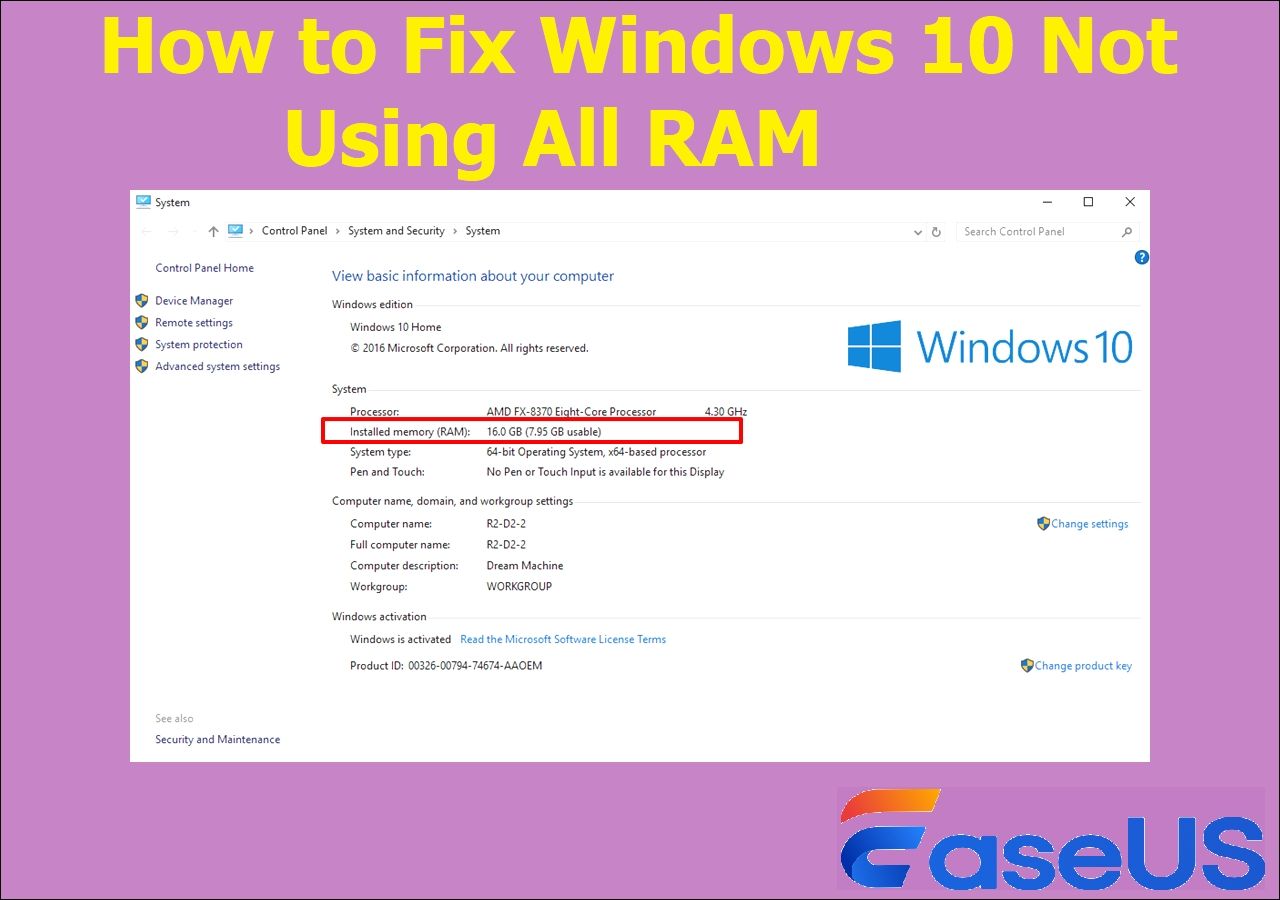
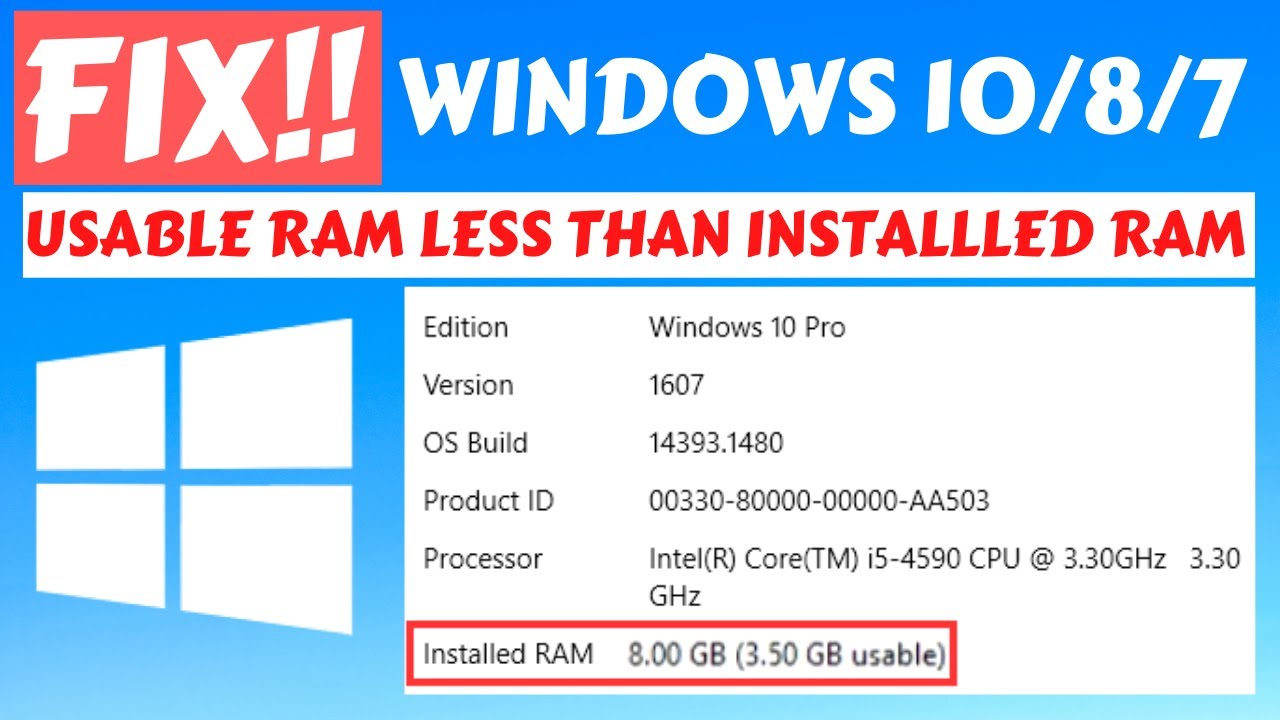
Is your computer showing less usable RAM than what you actually installed? It’s frustrating when your system doesn’t recognize all the memory you paid for, and it can slow down your work, gaming, or streaming.
But don’t worry—you’re not stuck with this problem. There are simple fixes you can try right now to get your full RAM working for you. You’ll discover easy steps to identify why your usable memory is lower than expected and how to fix it quickly.
Keep reading, and you’ll unlock the full potential of your PC’s memory in no time.
Check Ram Installation
Checking the RAM installation is a key step to fix RAM showing less usable memory. Improperly installed RAM sticks cause the system to detect less memory. Ensuring the physical modules are correctly seated helps the computer recognize full RAM capacity. Simple inspection and reseating can solve many memory detection problems.
Inspect Physical Ram Modules
Turn off your computer and unplug it from the power source. Open the case carefully to access the RAM slots. Look closely at the RAM modules. Check for dust, dirt, or damage on the gold contacts and modules. Make sure the sticks are fully inserted and not loose. Any visible damage may require replacing the RAM.
Reseat Ram Sticks Properly
Remove each RAM stick gently by pressing the clips on both sides. Hold the module by the edges to avoid static damage. Reinsert the RAM firmly into the slot at a 90-degree angle. Press down until the clips click and lock the module in place. Proper seating ensures the motherboard detects the RAM correctly.
Test Ram Slots For Faults
RAM slots on the motherboard can sometimes fail or have poor contacts. Test each RAM stick by placing it in different slots one at a time. Power on the computer and check if the full memory is recognized. If a slot does not detect RAM, it may be faulty. Avoid using damaged slots to prevent memory issues.
Credit: www.itumgrapes.com
Adjust System Configuration
Identifying hardware compatibility is key to fixing RAM showing less usable memory. Sometimes, the system reads less RAM because parts do not match or work well together. Checking hardware compatibility prevents issues and ensures the computer uses all installed memory. Simple checks can save time and improve performance.
Verify Ram Type Compatibility
Confirm the RAM type matches your motherboard requirements. Different RAM types like DDR3 and DDR4 are not interchangeable. Using the wrong type causes the system to limit usable memory. Check your motherboard manual or product page to find supported RAM types. Buy RAM modules that fit those specifications exactly.
Confirm Motherboard Ram Limits
Every motherboard has a maximum RAM capacity and slot limits. Installing more RAM than supported leads to reduced usable memory. Verify your motherboard’s RAM limit in the official specifications. Also, check how many slots it has and the maximum RAM per slot. Stay within these limits to avoid memory issues.
Swap Ram Modules To Isolate Issues
Test each RAM module separately by swapping them between slots. This helps identify faulty or incompatible sticks. If usable memory increases after removing a module, that module may be the problem. Also, try different slots to rule out motherboard slot issues. Swapping narrows down the cause of unusable RAM.
Credit: esmiraldadewaal.nl
Frequently Asked Questions
How To Fix Low Usable Ram?
Open msconfig, go to Boot > Advanced Options, and uncheck “Maximum Memory. ” Restart your PC. Check RAM seating and BIOS settings.
How To Increase Ram Usable Memory?
Increase usable RAM by disabling “Maximum Memory” in msconfig’s boot advanced options. Ensure RAM is properly seated and compatible. Check BIOS settings and update drivers. Close unnecessary programs to free memory. Restart your computer to apply changes.
Why Is My Ram 16gb But Only 8 Usable?
Your system reserves part of the 16GB RAM for hardware, BIOS settings, or integrated graphics, showing only 8GB usable. Check BIOS and disable “maximum memory” in msconfig to fix this.
Why Is My Installed Ram Not Fully Usable?
Your installed RAM may not be fully usable due to hardware reservations, BIOS settings, or a 32-bit OS limit. Check BIOS for memory remapping and disable “maximum memory” in msconfig. Also, ensure RAM sticks are properly seated and compatible with your system.
Conclusion
Fixing RAM that shows less usable memory can improve your PC’s performance. Start by checking system settings and hardware seating. Disable any memory limits in the boot configuration. Ensure your RAM sticks are compatible and properly installed. Keep your drivers and BIOS updated for best results.
These simple steps help your system use full RAM capacity. A smoother, faster computer experience awaits once you fix this issue. Don’t let usable memory problems slow you down. Take action and enjoy better performance today.
