
If your iPhone’s Safari browser feels slow or pages aren’t loading properly, clearing the cache might be the simple fix you need. Your Safari cache stores temporary files to speed up browsing, but over time, this data can pile up and cause issues.
You might notice slower performance, outdated content, or even privacy concerns. Don’t worry—clearing the cache is quick, easy, and safe. In this guide, you’ll learn exactly how to clear Safari cache on your iPhone step-by-step, so you can enjoy a smoother, faster browsing experience right away.
Keep reading to take control of your Safari browser and keep your iPhone running at its best.
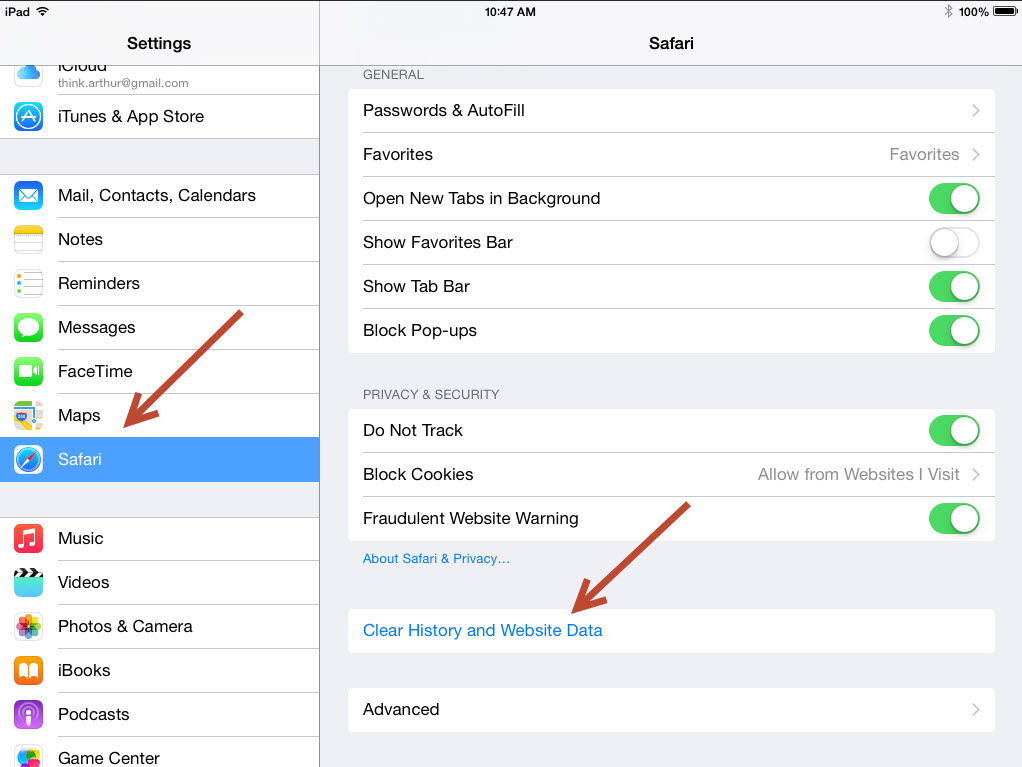
Credit: support.knowledgehook.com
Clear All History And Cache
Clearing the cache for a specific website in Safari on your iPhone helps fix loading issues or privacy concerns. This method removes stored data from that one site without affecting others. It keeps your browsing smooth and targeted.
Open Website Data In Safari Settings
Start by opening the Settings app on your iPhone. Scroll down and tap Safari. Next, scroll to the bottom and select Advanced. Then tap Website Data to view stored information from all websites.
Search For Specific Site
Use the search bar at the top of the Website Data screen. Type the name of the website you want to clear. This helps you find it quickly among all stored site data.
Delete Site Data
Swipe left on the website name you want to remove. Tap Delete to clear its cache and cookies. This action deletes only that site’s data, leaving others untouched.

Credit: www.wikihow.com
Clear Cache Without Deleting History
Many iPhone users prefer browsers other than Safari. These browsers also store cache to speed up browsing. Clearing cache in alternative browsers helps free up space and solve loading issues. Here are simple steps to clear cache in two popular iPhone browsers.
Clear Cache In Chrome On Iphone
Open the Chrome app on your iPhone. Tap the three dots at the bottom right corner. Choose “Settings” from the menu. Scroll down and tap “Privacy.” Select “Clear Browsing Data.” Make sure “Cached Images and Files” is checked. Tap “Clear Browsing Data” at the bottom. Confirm by tapping “Clear Browsing Data” again.
Clear Cache In Firefox On Iphone
Launch the Firefox app on your iPhone. Tap the three horizontal lines in the bottom right corner. Go to “Settings.” Scroll to the “Privacy” section and tap “Data Management.” Toggle on “Cache.” Tap “Clear Private Data” at the bottom. Confirm by tapping “OK.”
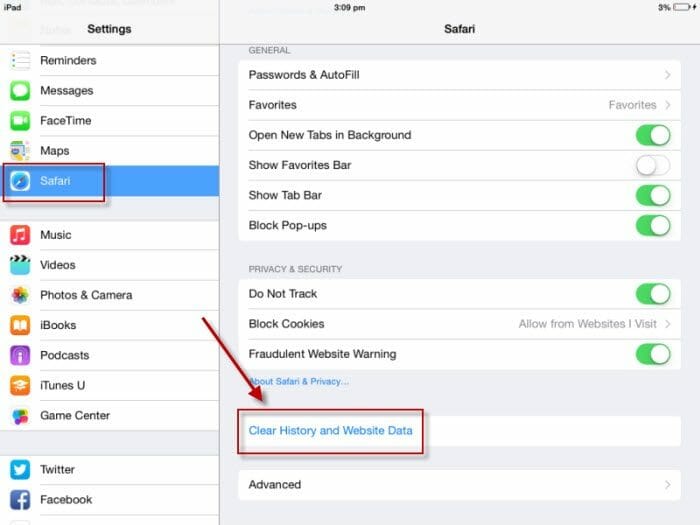
Credit: dirigiblestudio.com
Frequently Asked Questions
Is It Okay To Clear Safari Cache?
Yes, clearing Safari cache is safe and helps improve browser speed and fix loading issues. It removes stored data without harming your device.
Is It Safe To Clear All Cache On My Iphone?
Yes, clearing all cache on your iPhone is safe. It frees storage and improves performance without harming data or settings.
How Do I Clear The App Cache On My Iphone?
Open Settings, tap Safari, then select Clear History and Website Data. Confirm to clear the app cache on your iPhone.
How Do I Clear The Cache Of A Website In Safari?
Open the Settings app, tap Safari, then select “Clear History and Website Data. ” Confirm to clear the cache and browsing data.
Conclusion
Clearing Safari cache on your iPhone keeps your browser fast and smooth. It also helps protect your privacy by removing stored data. You can clear all cache or target specific website data. Remember to close tabs if needed for a fresh start.
Regularly clearing cache prevents loading issues and frees up space. Follow the steps carefully to avoid deleting important information. Now, enjoy a cleaner and quicker browsing experience on your iPhone.
