
If you want to take your gaming, music, or VR experience to the next level, connecting your Woojer Vest 4 to your PC is a game-changer. Feeling every beat, explosion, or footstep through haptic feedback makes everything more immersive—and it’s easier to set up than you might think.
Whether you prefer a wired USB-C connection or the convenience of Bluetooth, this guide will walk you through every step clearly and simply. Stick with me, and you’ll be feeling your favorite sounds like never before in no time. Let’s get your Woojer Vest 4 synced up and ready to deliver that powerful, physical sensation right to your body.

Credit: www.woojer.com
Woojer Vest 4 Features
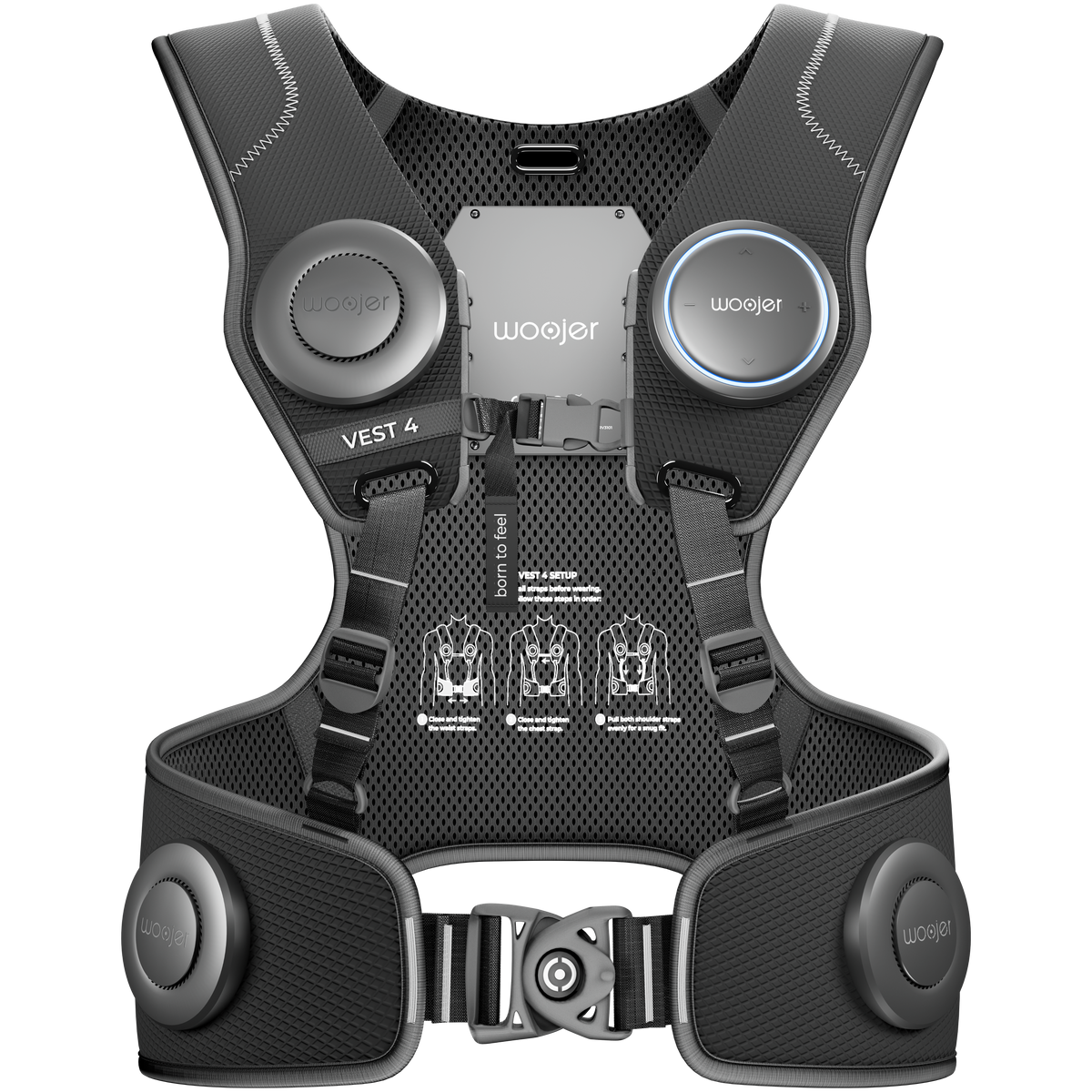
The Woojer Vest 4 offers a unique tactile experience for gamers and music lovers. It enhances audio immersion by converting sound into physical sensations. This wearable device brings sound to life through vibrations felt across your torso. Understanding its core features helps you get the most out of your Woojer Vest 4.
Haptic Feedback Technology
The vest uses advanced haptic feedback to simulate real-world vibrations. Small actuators inside the vest convert audio signals into precise physical pulses. This technology allows you to feel bass, explosions, and other sound effects. It enhances immersion by adding a new layer of sensory input beyond hearing.
Compatibility With Devices
The Woojer Vest 4 works with many devices. It connects easily to PCs, gaming consoles, VR headsets, and smartphones. Whether you use Windows or Mac, the vest supports multiple platforms. This broad compatibility ensures you can enjoy haptic feedback across your favorite devices.
Audio Input Options
Multiple audio input methods make the vest versatile. You can connect via USB-C for a direct, low-latency audio signal. Bluetooth connection is also available for wireless use, although with slightly higher latency. Additionally, the vest supports 3.5mm audio input through adapters for flexible setups.

Credit: www.woojer.com
Preparing Your Pc
Preparing your PC is the first step to connect your Woojer Vest 4. This ensures smooth setup and the best audio experience. Follow the steps below to get your PC ready for the Woojer Vest 4.
Checking System Requirements
Check that your PC meets the minimum system needs. Your PC should have Windows 10 or higher for compatibility. Make sure you have a USB-C port or Bluetooth support. Confirm your PC has at least 4GB of RAM for smooth operation. Verify that your audio drivers are up to date. These basics help avoid connection or performance issues.
Installing Necessary Drivers
Install the latest USB and audio drivers on your PC. Visit your PC manufacturer’s website to download these drivers. Proper drivers help the Woojer Vest 4 communicate with your PC. Without correct drivers, the vest may not work properly or may disconnect.
Updating Pc Audio Settings
Open your PC’s sound settings to configure the Woojer Vest 4 as the output device. Set the Woojer Vest 4 as the default playback device under Sound Control Panel. Adjust the volume to a moderate level for the best haptic feedback. Disable any audio enhancements that may cause distortion. This setup improves sound quality and syncing with the vest.
Connecting Via Usb-c
Connecting your Woojer Vest 4 to a PC via USB-C offers a direct and reliable audio experience. This method reduces audio lag and ensures the vest receives clear sound signals. It is the preferred connection for gamers and media lovers who want precise haptic feedback.
Follow simple steps to get your Woojer Vest 4 working with your PC using a USB-C cable. The process involves identifying the right ports, attaching the cable, and setting the vest as your audio device.
Locating Usb-c Ports
Find the USB-C port on your Woojer Vest 4. It is usually marked as an audio input or USB-C symbol. Next, check your PC for a USB-C port. It might be on the front, back, or side of your computer or laptop. Many modern PCs have these ports, but some older models may not.
Using The Usb-c Cable
Take the USB-C cable that came with your Woojer Vest 4. Connect one end of the cable to the vest’s USB-C port. Plug the other end into the USB-C port on your PC. Make sure both ends are securely connected. Once plugged in, your PC should detect the vest automatically.
Setting Woojer As Default Audio Device
Open your PC’s sound settings. Look for the ‘Playback’ tab. Find the Woojer Vest 4 in the list of audio devices. Click on it, then select ‘Set as Default Device.’ This step ensures all audio goes through your Woojer Vest 4. Close the settings to save your choice. Now, your Woojer will provide audio and haptic feedback from your PC.
Connecting Via Bluetooth
Connecting your Woojer Vest 4 to your PC via Bluetooth offers wireless freedom and great mobility. This method avoids cables, making it perfect for gaming, VR, or music sessions. Follow these simple steps to pair your vest smoothly.
Activating Pairing Mode On Woojer Vest
Start by turning on your Woojer Vest 4. Press and hold the Bluetooth button until the LED indicator flashes. This signals the vest is in pairing mode and ready to connect.
Enabling Bluetooth On Pc
Open your PC’s Bluetooth settings. Turn on Bluetooth if it is off. Click on “Add Bluetooth or other device” and select “Bluetooth” to search for nearby devices.
Completing The Pairing Process
From the list of found devices, select “Woojer Vest 4.” Wait a moment while the PC connects to the vest. Once connected, the LED on the vest will stop flashing and stay solid. Your Woojer Vest 4 is now ready for use.
Using Voicemeeter For Audio Management
Using VoiceMeeter for audio management enhances your Woojer Vest 4 experience on PC. VoiceMeeter acts as a virtual audio mixer. It helps you control sound routing and volume easily. This software reduces audio lag and improves sound quality. It is essential for a smooth connection between your Woojer Vest and PC.
Installing Voicemeeter Software
Visit the official VoiceMeeter website to download the software. Choose the standard VoiceMeeter or VoiceMeeter Banana version. Run the installer and follow the on-screen instructions. Restart your PC after installation completes. This step ensures the software works correctly with your system.
Configuring Audio Output
Open VoiceMeeter and locate the hardware input section. Select your PC’s default microphone or audio source. In the hardware output section, choose your Woojer Vest as the playback device. Adjust volume sliders to balance sound levels. Set VoiceMeeter as the default playback device in Windows sound settings.
Reducing Audio Lag
Audio lag disrupts the haptic feedback experience. Lower the buffer size in VoiceMeeter settings to reduce delay. Disable unnecessary audio enhancements in your PC’s sound control panel. Close other apps using audio resources to free system power. Test and tweak settings until you achieve minimal latency.
Credit: www.woojer.com
Optimizing Woojer Performance
Optimizing the performance of your Woojer Vest 4 enhances your experience. Proper settings ensure clear, strong haptic feedback. Simple adjustments improve comfort and sound synchronization. Follow these tips to get the best from your device.
Adjusting Volume Settings
Set your PC volume to maximum. This allows the Woojer Vest to receive a strong audio signal. Use the volume controls on your PC or media player. Avoid setting Woojer volume too high to prevent distortion. Balance volume for comfort and clear haptic response.
Using Woojer App For Firmware Updates
Download the official Woojer app on your PC or smartphone. The app keeps your vest’s firmware up to date. Firmware updates fix bugs and improve device performance. Connect your Woojer Vest to the app via Bluetooth or USB. Check the app regularly for new updates.
Managing Connectivity Options
Choose the best connection method for your setup. USB-C connection offers low latency and stable audio. Bluetooth is convenient but may introduce slight delay. Use USB-C for gaming or VR for the best experience. Turn off other Bluetooth devices to reduce interference. Always confirm your Woojer Vest is properly paired.
Troubleshooting Common Issues
Troubleshooting common issues when connecting the Woojer Vest 4 to your PC helps maintain a smooth experience. Many users face connection problems, audio delays, or update errors. Quick fixes exist for these frequent concerns.
Understanding these issues improves your setup speed. It also reduces frustration, letting you enjoy the full haptic experience without delays or interruptions.
Connection Failures
Check the USB-C cable for damage or loose connections. Use a different USB port on your PC to rule out port issues. Restart both your Woojer Vest 4 and PC before trying again. Ensure your PC recognizes the vest as an audio device in sound settings. Disable other Bluetooth devices nearby to avoid interference if using Bluetooth connection.
Audio Sync Problems
Set your PC volume to maximum to enhance haptic feedback. Use the Woojer app to adjust audio delay settings if available. Close background apps that may cause processing lag. Update your audio drivers to the latest version for better performance. Try switching between USB-C and Bluetooth to see which has less lag.
Firmware Update Errors
Keep your Woojer Vest 4 fully charged before starting an update. Use a stable and fast internet connection during firmware downloads. Restart the Woojer app and your PC if the update fails. Avoid disconnecting the vest or closing the app during the update process. If errors continue, reinstall the Woojer app and try again.
Enhancing Your Experience
Enhancing your experience with the Woojer Vest 4 on your PC brings new levels of immersion. The vest adds physical sensations that match sounds and actions. This makes gaming, movies, and music feel more real and exciting. Simple steps help you connect and customize the vest for the best results.
Pairing Bluetooth Headphones
Pair your Bluetooth headphones with the Woojer Vest 4 to enjoy wireless sound. First, put your headphones in pairing mode. Then, activate Bluetooth on the vest and search for devices. Select your headphones from the list and wait for confirmation. The vest’s LED will show a solid light when connected. This setup keeps your audio clear and lets the vest deliver precise haptic feedback.
Integrating With Vr Headsets
Use the Woojer Vest 4 with VR headsets for deeper virtual reality experiences. Connect the vest via USB-C or Bluetooth, depending on your headset’s options. The vest syncs with VR sounds and vibrations, enhancing the sense of presence. This integration helps you feel every impact, explosion, or movement in the virtual world. It creates a more engaging and believable environment.
Customizing Haptic Feedback
Adjust the Woojer Vest 4’s haptic feedback to suit your preferences. Use the Woojer app to control intensity and patterns of vibrations. Lower the intensity for subtle effects or increase it for strong sensations. You can also fine-tune feedback for different games or media types. Custom settings improve comfort and make the experience more personal. Experiment with options to find what feels best for you.
Frequently Asked Questions
Is The Woojer Vest Compatible With Pc?
The Woojer vest is fully compatible with PC. Connect it via USB-C or Bluetooth for immersive audio and haptic feedback. Use the Woojer app for updates and settings.
How To Connect Woojer To Pc Bluetooth?
Turn on Woojer and PC Bluetooth. Put Woojer in pairing mode by holding its power button. Select Woojer on PC Bluetooth devices to connect.
How To Connect Woojer Vest 4 To Bluetooth?
Turn on your Woojer Vest 4 and activate Bluetooth pairing mode. On your device, enable Bluetooth and select the Woojer Vest 4 from the list. Wait for the LED ring to show a solid light, indicating a successful connection. Use the Woojer app for updates and settings.
How To Put Woojer In Pairing Mode?
Press and hold the Woojer power button for 3 seconds until the LED flashes. This activates Bluetooth pairing mode. Open Bluetooth settings on your device and select Woojer to connect.
Conclusion
Connecting your Woojer Vest 4 to your PC is simple and quick. Use a USB-C cable for a stable connection. Bluetooth offers wireless convenience but may have slight delays. Adjust your PC volume for the best haptic feel. Keep the Woojer app updated for smooth performance.
Enjoy immersive audio with your Woojer Vest on your computer. This setup enhances gaming, music, and movies alike. Now, feel every beat and sound like never before.
