
You can easily set up a workstation by connecting your peripherals to your computer, and using a laptop with an external monitor and keyboard simply involves plugging the devices into your ports and adjusting the display settings. This setup turns a portable machine into a desktop-like experience for better comfort.
Your specific results depend on the type of ports your hardware has, such as HDMI, DisplayPort, or USB-C. You should also check if your operating system settings are configured to extend or mirror your desktop screens.
Who needs a laptop monitor and keyboard setup
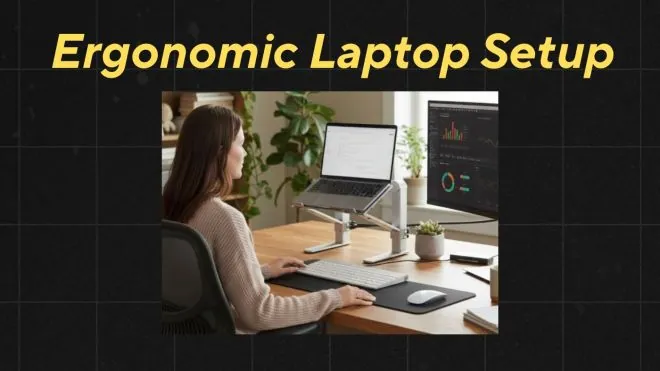
This guide is for people who want to improve their posture or productivity by moving their screen to eye level and using a separate keyboard. If you work from home or spend long hours at a desk, this setup is likely your best path to comfort. It assumes you have a laptop that’s currently working and at least one spare monitor and a USB or wireless keyboard available.
This content serves those using Windows or macOS systems. If you’re trying to connect an iPad or a smartphone to a monitor, these instructions don’t provide the correct steps for your specific mobile operating system. We assume you have the necessary cables, such as an HDMI cord or a USB hub, to bridge the connection between your devices.
If you don’t have a hub and your laptop only has one port, you’ll need to buy an adapter before you can start. This page isn’t for users who need to connect multiple monitors to a machine that doesn’t support external displays. If your laptop is very old and lacks modern video output ports, you should check the manufacturer’s manual to see if a docking station is compatible.
Factors that change the setup
The most important factor is the type of video port available on your laptop. HDMI is the most common, but many modern thin laptops only provide USB-C or Thunderbolt ports. If your ports don’t match your monitor, you’ll need an active adapter or a docking station to convert the signal.
Another factor is the power delivery capability of your connection. If you use a USB-C cable to connect to a monitor, some monitors can charge your laptop at the same time. If your monitor doesn’t support power delivery, you must keep your original charging cable plugged in to avoid battery drain.
The operating system settings also change how your setup functions. You can choose to “mirror” your screen, which shows the same thing on both, or “extend” your screen, which gives you more workspace across two displays. Most people prefer the extended view for multitasking.
People often make the mistake of plugging in a wireless keyboard without installing the necessary drivers or pairing it through Bluetooth first. This costs them time as they struggle to understand the reason the keys don’t respond. You must ensure your keyboard is powered on and in pairing mode before the computer can detect it.
Your available desk space is a catch that dictates your hardware choices. If your desk is small, you may need a compact keyboard without a number pad, whereas a large desk allows for a full-sized mechanical keyboard. You can read the dimensions of your desk and compare them to the size of your keyboard to see if you have enough room for a mouse.
Connecting your devices
- Identify the video output port on your laptop, such as HDMI, DisplayPort, or USB-C.
- Plug one end of the video cable into your laptop and the other into the monitor’s corresponding input port.
- Turn on the monitor and select the correct input source using the buttons on the monitor frame.
- Plug your USB keyboard into an available USB port on the laptop or a USB hub.
- If using a wireless keyboard, turn it on and pair it via your computer’s Bluetooth settings menu.
- Open your system display settings on the laptop to arrange the monitor position.
- Select the “Extend” option to use both screens as one continuous workspace.
- Adjust the resolution settings to match the native resolution of your external monitor.
The single judgement call that separates a good result from a poor one is the alignment of your screens in the software settings. You must drag the monitor icon in your settings to match where the physical monitor sits on your desk. If the software says the monitor is on the left but it’s physically on your right, moving your mouse will feel confusing and unnatural.
Display and connection options
| Situation | Action to take | Effort level | What to watch for |
|---|---|---|---|
| Single HDMI port | Use HDMI cable | Low | Cable length |
| USB-C only laptop | Use USB-C hub | Medium | Power delivery |
| Wireless keyboard | Pair via Bluetooth | Low | Battery status |
| Dual monitor setup | Use docking station | High | Port bandwidth |
| Old VGA monitor | Use active adapter | Medium | Image quality |
Professional setup details
Choosing the right cables
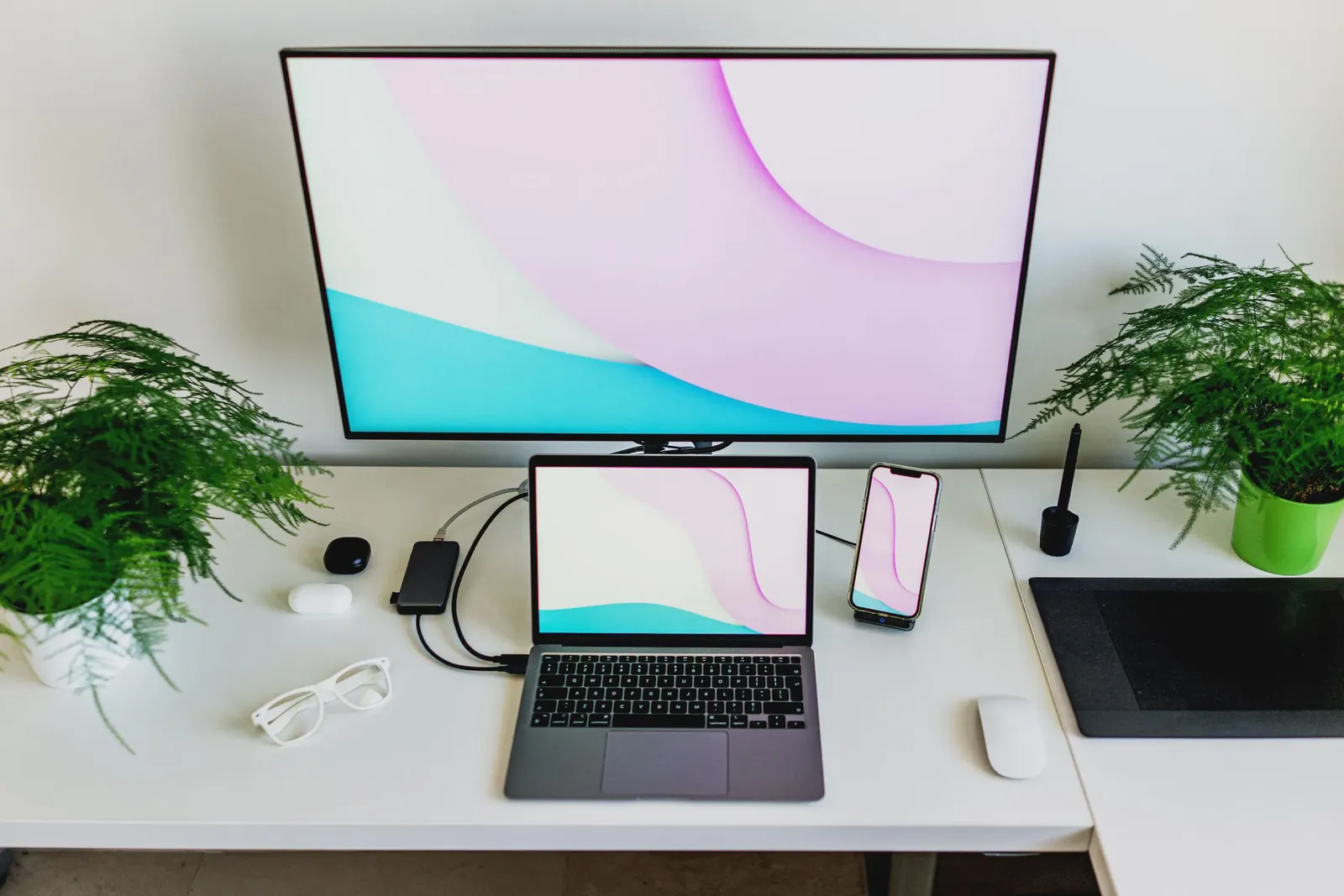
Experienced users always check the version of their HDMI or DisplayPort cables before buying. A high-quality cable, such as one meeting the HDMI Licensing Administrator specifications, ensures that your monitor can display the correct resolution and refresh rate. Using an old, damaged cable often causes flickering or a black screen, which beginners mistakenly attribute to a broken monitor.
Managing desk ergonomics
Professionals place their external monitor so the top third of the screen is at eye level. This prevents neck strain during long working sessions. They also place the keyboard at a height where their elbows are at a 90-degree angle. Beginners often set the monitor too low, which forces them to look down, leading to persistent back and neck discomfort after only an hour of use.
Troubleshooting common issues
| What you notice | What it means | What to do first | How to stop it |
|---|---|---|---|
| No image on screen | Wrong input source | Press monitor input button | Match cable to port |
| Keyboard unresponsive | Low battery | Replace the batteries | Charge it weekly |
| Screen is flickering | Loose cable | Re-seat the cable | Use quality cables |
| Mouse moves wrong | Bad display layout | Drag display in settings | Align icons correctly |
| Blurred text | Low resolution | Set to native resolution | Update graphics drivers |
Rules for equipment safety
You should never force a cable into a port if it doesn’t fit easily. Applying pressure can damage the delicate pins inside, which often requires a professional repair. Always consult your laptop’s user manual to see the maximum resolution supported by your specific model’s ports.
If you feel resistance, stop immediately. A port should accept a connector with only a light, smooth glide. If you find yourself pushing, you’re likely misaligned or using the wrong cable standard. Forcing a USB-C connector into a port that only supports USB-A or Micro-USB will permanently bend the internal contact points. Once those pins are crushed, the entire motherboard often requires replacement.
Check the color coding or icons next to your ports before plugging in any device. Ports marked with a lightning bolt symbol indicate high-speed charging or Thunderbolt support. Using a standard cable in these ports won’t harm the hardware, but it will significantly throttle your data transfer speeds. If you need to move large files, ensure your cable is rated for the same generation as the port.
If you’re working in a corporate environment, check your IT department’s policy before connecting external hardware. Some companies restrict the use of third-party USB hubs for security reasons. If your laptop requires a specific docking station provided by your employer, using an unapproved hub might result in a loss of connectivity or a locked port.
When in doubt, stick to the manufacturer’s original hardware. Generic hubs often lack the surge protection found in proprietary docks. A cheap hub can send a voltage spike through your port during a power fluctuation. This mistake costs far more than the price of a certified dock, as it frequently fries the laptop’s power management controller. If your system begins to restart randomly after connecting a hub, disconnect it immediately to prevent permanent damage.
Understanding the real cost
The cost of this setup varies based on the equipment you choose to buy. A simple HDMI cable is inexpensive, while a high-quality USB-C docking station is a more significant investment. The price depends entirely on the number of ports and the power delivery wattage provided by the dock.
Budget for at least 60 watts of power delivery if you plan to charge a laptop while using the station. Anything less will result in slow charging or a battery that drains while you work. If you see a dock that’s very inexpensive, check the port specifications closely. These units often lack high-speed data transfer or fail to support dual 4K monitors at 60Hz.
You should compare the cost of a docking station against the price of individual adapters. If you only need to connect one monitor, a single adapter is cheaper. If you need to connect a keyboard, a mouse, and a monitor, a hub is more cost-effective. Buying three separate adapters is more expensive and leaves you with a mess of tangled cables.
A common mistake is buying a hub that lacks an external power supply. These units draw power directly from your laptop, which can cause intermittent connection drops for external drives. If you plan to attach more than two peripheral devices, always choose a powered dock.
The rule is simple: if your setup is stationary, spend more on a powered dock to protect your hardware. If you’re a frequent traveler, stick to a compact, bus-powered hub to save weight. Check current prices on manufacturer websites to see which option fits your budget today. Don’t rely on third-party marketplace listings, as these often feature older hardware that lacks modern firmware updates.
Keeping your setup working
To keep your setup in good condition, unplug your cables by the head, never by pulling the cord itself. This prevents internal wire breakage that occurs when the copper strands stretch and snap inside the protective sheath. If your monitor starts showing lines or flickering, the first step is to swap the cable with a spare to rule out a simple connection failure.
Most users mistakenly blame the display panel when a cable is the only culprit. If the flickering persists after a cable swap, check the refresh rate in your display settings. A monitor set to 144Hz while using an older HDMI cable often results in intermittent signal loss. Lowering the rate to 60Hz confirms if the cable bandwidth is the bottleneck.
Keep your keyboard clean by using compressed air to remove dust from under the keys. Debris buildup creates conductive paths that lead to ghosting or unresponsive inputs. If your wireless keyboard stops responding, check your system settings to see if the computer has disabled Bluetooth to save power. A simple toggle of the Bluetooth switch in your settings usually restores the connection immediately.
If the keyboard remains unresponsive, check the device manager for a driver conflict. Windows often puts USB hubs to sleep during updates, which cuts power to wireless dongles. You can prevent this by opening the power management tab in your device properties and unchecking the box that allows the computer to turn off the device to save power.
This small adjustment saves you from the frustration of a dead peripheral during critical tasks. Always prioritize a wired connection for firmware updates to ensure the process completes without an interruption that could permanently brick the internal controller.
When this is the wrong approach
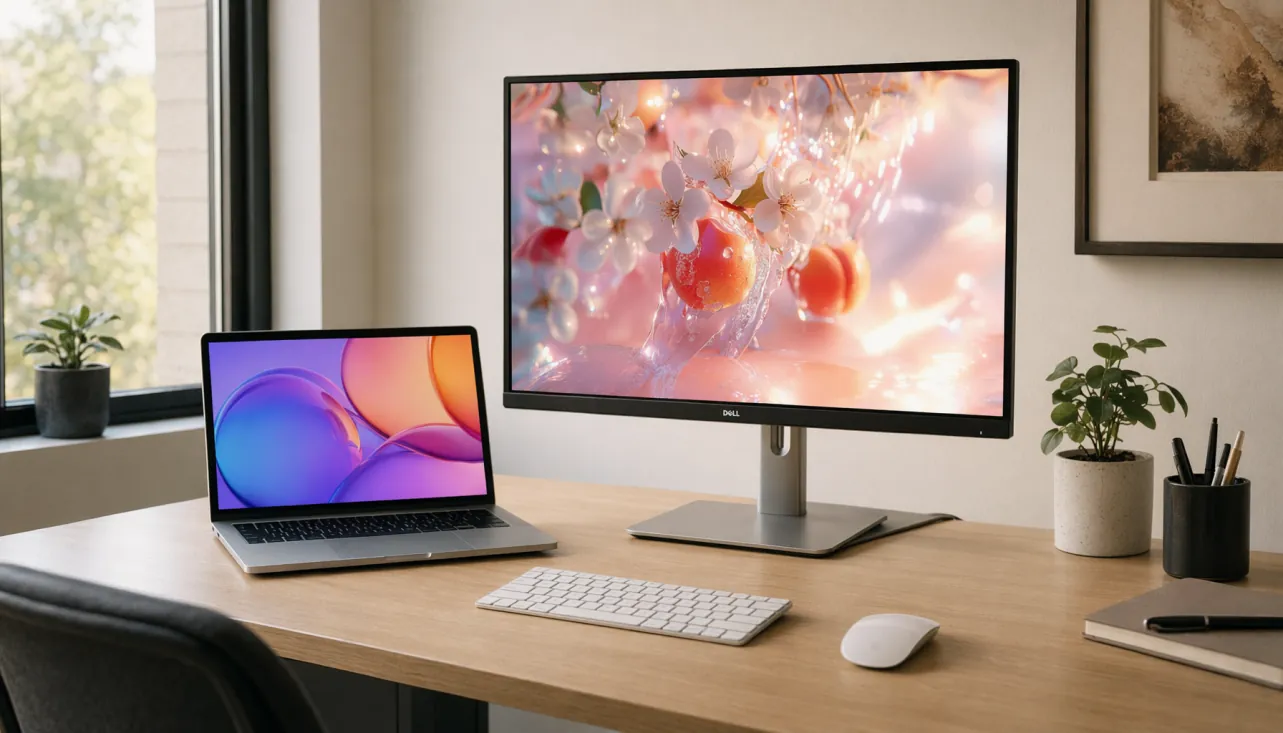
If you’re a professional video editor or a high-end gamer, a basic USB-C hub might not have the bandwidth to support your high-resolution monitors. These hubs often cap output at 30Hz for 4K displays, resulting in stuttering motion that ruins precise color grading or competitive gaming. In these cases, you need a dedicated Thunderbolt dock or a direct connection to your graphics card. These specialized devices provide the 40Gbps throughput necessary for high-refresh-rate gaming or professional-grade color accuracy.
Check your monitor’s refresh rate settings in your operating system. If you can’t select anything above 30Hz while using a hub, the hardware bottleneck is confirmed. You must bypass the hub to reclaim the fluid motion your hardware is capable of producing.
If your laptop is failing to output a signal even after testing different cables, don’t attempt to open the laptop chassis yourself. You risk voiding your warranty or causing permanent damage to the delicate internal motherboard connections. A single slip of a screwdriver can short out the pins on a port, turning a simple software glitch into a total logic board failure.
Take the machine to an authorized service center where a technician can test the port with professional diagnostic tools. If the laptop is under warranty, this path costs you nothing. If you open the casing, you lose that protection immediately.
Distinguish between a port failure and a cable failure by testing your monitor on a different computer. If the monitor works elsewhere, the issue is your laptop port. If it fails on both machines, you have simply wasted time troubleshooting the laptop when a new $20 cable would have solved the problem.
Always isolate the variable before assuming the hardware is dead. If you hear a faint clicking or smell ozone when plugging in a device, stop immediately. That indicates a short circuit, and further attempts will likely fry the controller chip permanently.
Frequently asked questions
Can I use a TV as a monitor?
Yes, you can use a TV as a monitor by connecting it via an HDMI cable. Ensure you set the TV to “PC” mode or “Game” mode in its settings to reduce input lag, which is a common issue when using televisions for computer tasks.
How long should the cables be?
If you need a longer reach, you must buy an “active” cable or a signal booster, as standard passive cables often lose data over longer distances.
Is it safe to leave the laptop closed?
Yes, it’s safe to leave your laptop closed while using an external monitor, provided your laptop supports “clamshell” mode. Ensure your laptop is plugged into power, as most machines will go to sleep if the lid is closed while running on battery.
Why is my screen resolution blurry?
Your screen is blurry because it isn’t set to the monitor’s native resolution. Open your display settings and select the resolution labeled as “recommended” to ensure the text and images appear sharp and clear.
How do I switch between screens?
You can switch focus between screens by moving your mouse cursor across the boundary you set in your display settings. If you can’t move the mouse to the other screen, go back to your display settings and check that the monitor layout matches your physical setup.
Does it matter which USB port I use?
Yes, it matters because some USB ports are only for data, while others support video output or power delivery. Check the symbols next to your laptop ports or read the technical specifications page on the manufacturer’s website to confirm which ports support the hardware you’re connecting.
Conclusion
Start by connecting your video cable to both the laptop and the monitor, then power on your devices. You should see your desktop extend to the second screen once the operating system detects the new hardware. If you see no signal, double-check that your monitor is set to the correct input, and if that fails, contact the manufacturer’s support team for your specific laptop model.
