
Ready to take your console gaming to the next level by streaming it on your PC? Whether you want to share your epic wins, create engaging content, or simply enjoy your favorite games on a bigger screen, streaming your console through your PC opens up a world of possibilities.
You don’t need to be a tech expert to get started—this guide breaks down everything you need, step by step, so you can set up your stream quickly and easily. From the gear to the software tricks that make your stream look professional, you’ll learn how to capture crystal-clear gameplay and connect with your audience like a pro.
Keep reading, and you’ll be streaming your console on PC in no time.
Choosing The Right Hardware
Choosing the right hardware is key to streaming your console on PC smoothly. The hardware affects stream quality and delay. Picking the wrong gear can cause lag or poor video. Understanding what hardware to use helps you create a better streaming setup. Focus on essential parts like capture cards and compatibility.
Good hardware keeps your stream clear and responsive. It makes streaming easier and more enjoyable. This section breaks down capture cards and device compatibility for your streaming needs.
Capture Cards Explained
Capture cards record and send your console’s video to your PC. They connect via HDMI from the console and USB to the computer. Capture cards convert the video signal into a format the PC can use. This lets you stream or record gameplay with minimal delay.
They also allow you to play on a monitor without lag by passing the video through. Capture cards vary in quality, features, and price. Choosing one that fits your needs is important for a smooth stream.
Recommended Capture Cards
Elgato is a popular brand for easy setup and good quality. The Elgato HD60 S offers 1080p streaming at 60fps, ideal for most gamers. AVerMedia Live Gamer Mini is another solid option with low latency and affordable price.
For 4K streaming, consider Elgato 4K60 Pro, but it requires a PCIe slot in your PC. Budget options exist but may sacrifice video quality or add delay. Pick capture cards with USB 3.0 for faster data transfer.
Console And Pc Compatibility
Check that your console and PC work with the capture card. Most capture cards support Xbox, PlayStation, and Nintendo Switch. Confirm the capture card drivers support your PC’s operating system.
Some capture cards need specific software like OBS Studio or their own app. Ensure your PC has enough power to handle streaming and video processing. USB ports and HDMI versions on your PC and console must match the capture card requirements.
Compatibility ensures your setup runs without technical issues. It helps avoid frustration and stream interruptions.
Setting Up Your Streaming Equipment
Setting up your streaming equipment is the first step for smooth console streaming on your PC. Proper connections ensure clear video and low delay. Follow each step carefully to avoid issues during your stream.
Connecting Console To Capture Card
Start by connecting your console to the capture card. Use a high-quality HDMI cable for this. Plug one end into the console’s HDMI OUT port. Connect the other end to the capture card’s HDMI IN port. This connection sends video and audio signals to the capture card for processing.
Hooking Up Capture Card To Pc
Next, connect the capture card to your PC. Use a USB cable provided with the capture card. Plug one end into the capture card and the other into a USB port on your computer. Your PC will recognize the device as a video source. Open your streaming software and select the capture card as the input.
Using A Passthrough Monitor
A passthrough monitor helps you play without delay. Connect a second HDMI cable from the capture card’s HDMI OUT to your monitor. This setup sends the console video to the monitor directly. You see the gameplay instantly, while the capture card sends the video to the PC for streaming. It keeps your gameplay smooth and responsive.
Configuring Streaming Software
Configuring your streaming software is the key step to broadcast your console gameplay on your PC. This process lets you control the video feed, audio, and visual elements of your stream. Proper setup ensures smooth streaming with clear visuals and sound.
The most popular software for streaming is OBS Studio. It is free and works well with capture cards. You can also add custom overlays and alerts to make your stream unique and interactive.
Installing Obs Studio
First, download OBS Studio from the official website. Choose the version that matches your PC’s operating system. Run the installer and follow the on-screen instructions. After installation, open OBS Studio and complete the auto-configuration wizard to optimize settings for streaming.
Adding Capture Card As Video Source
Connect your capture card to the PC using a USB cable. Then, open OBS Studio. Click the “+” button in the “Sources” box and select “Video Capture Device.” Choose your capture card from the list. Adjust resolution and frame rate to match your console output. This step displays your console gameplay in OBS for streaming.
Customizing Overlays And Alerts
Add overlays to display your logo, chat, or recent followers. In OBS, use the “+” button in “Sources” and pick “Image” or “Browser Source” to add overlays. Set up alerts for new followers or donations with services like Streamlabs. Link the alert URL in a browser source in OBS. Custom overlays and alerts make your stream engaging and professional.
Credit: news.xbox.com
Streaming Without A Capture Card
Streaming your console gameplay on a PC without a capture card is simple and cost-effective. Wireless streaming uses built-in features from Xbox and PlayStation. It works over your home Wi-Fi network. This method skips the need for extra hardware. Although the quality may not match capture cards, it still offers a smooth experience for casual streaming. Follow these steps to start streaming wirelessly.
Using Xbox Remote Play
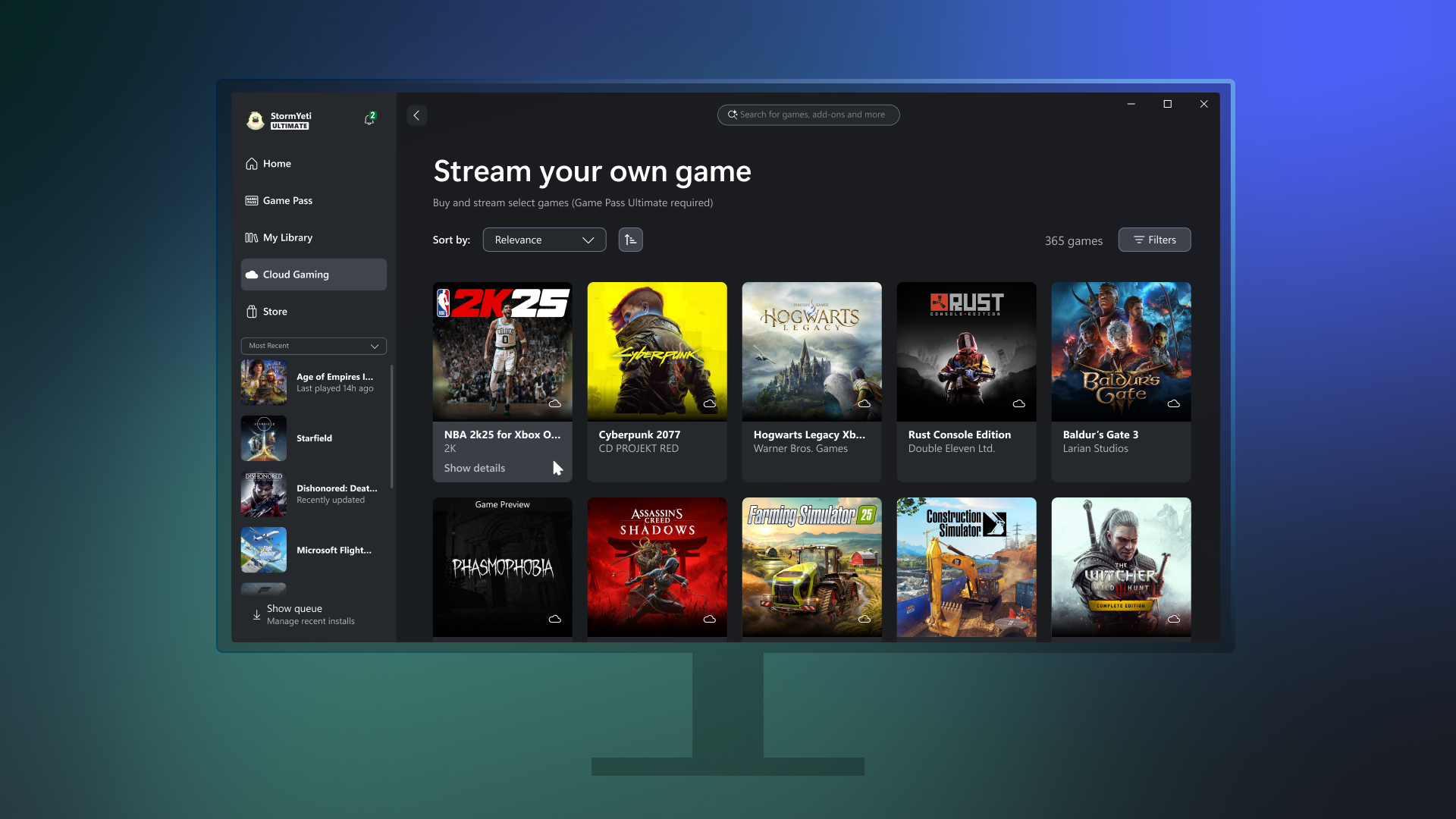
Xbox Remote Play lets you stream games from your Xbox to your PC. First, turn on your Xbox and sign in. On your PC, download and install the Xbox app from the Microsoft Store. Open the app and sign in with the same Microsoft account. Find the option to connect to your Xbox. Once connected, your console screen shows on your PC. You can now play and stream games directly through the app. Make sure your Xbox and PC are on the same Wi-Fi network for best results.
Setting Up Ps Remote Play
PlayStation Remote Play streams your PS4 or PS5 games to your PC. Start by enabling Remote Play on your PlayStation in the settings menu. Download and install the PS Remote Play app on your PC. Open the app and sign in with your PlayStation Network account. Connect your DualShock or DualSense controller to your PC. The app will search for your console on the network and link to it. After the connection, you can stream games from your PlayStation to your computer easily.
Pros And Cons Of Wireless Streaming
Wireless streaming is easy to set up and free. It requires no extra equipment besides your console and PC. You can stream from anywhere in your home as long as Wi-Fi is strong. Latency may be higher than with a capture card, which can affect gameplay. Video quality depends on your network speed and strength. Occasional lag or disconnects can happen during busy Wi-Fi use. Wireless streaming suits casual gamers and beginners who want quick access to console streaming.
Optimizing Audio For Your Stream
Optimizing audio is key to a great streaming experience. Clear sound keeps viewers engaged and makes your stream professional. Poor audio can distract or drive away your audience. Focus on capturing game sounds and your voice clearly. Balance all audio elements so nothing overpowers the stream. Simple steps improve your stream’s sound quality greatly.
Capturing Game Audio
Game audio sets the mood for your stream. Use a capture card to get high-quality game sounds. Connect your console’s HDMI output to the capture card’s input. The capture card sends audio to your PC along with video. In streaming software, select the capture card as your audio source. This ensures your viewers hear the game as you play.
Setting Up Microphone Input
Your voice adds personality to the stream. Use a good microphone connected to your PC. In streaming software, add your microphone as a separate audio source. Test your microphone volume to avoid it being too loud or too soft. Consider using noise suppression filters to reduce background noise. Clear voice audio keeps your commentary easy to follow.
Balancing Audio Levels
Balance game and microphone sounds for the best mix. Adjust volume sliders in your streaming software. Make sure your voice is not drowned out by game sounds. Avoid setting any audio too high to prevent distortion. Check levels with headphones before going live. Balanced audio creates a more enjoyable and professional stream.
Credit: news.xbox.com
Reducing Latency And Lag
Reducing latency and lag is crucial for a smooth console streaming experience on your PC. Latency causes delays between your console actions and what appears on your stream. Lag can disrupt gameplay and annoy viewers. Taking steps to minimize these issues improves stream quality and viewer engagement.
Using Wired Connections
Wired connections offer a stable and fast link between devices. Connect your console and PC using Ethernet cables instead of Wi-Fi. This reduces interference and packet loss. Use a high-quality HDMI cable from your console to the capture card. Connect the capture card to your PC via USB 3.0 or higher for faster data transfer. Avoid wireless setups for streaming to keep latency low and the stream smooth.
Adjusting Streaming Settings
Lowering the stream resolution can reduce lag. Choose 720p or 1080p depending on your PC’s power. Set the frame rate to 30 or 60 FPS based on your internet speed. Use hardware encoding options like NVENC or AMD VCE to offload processing from your CPU. Adjust the bitrate to balance stream quality and stability. Lower bitrates help if your internet upload speed is limited.
Network Recommendations
Use a fast and reliable internet connection with at least 5 Mbps upload speed. Connect your PC and console to the same local network for better communication. Avoid network congestion by limiting other devices using bandwidth during streaming. Restart your router regularly to clear network cache. Consider using a Quality of Service (QoS) feature on your router to prioritize streaming traffic.
Troubleshooting Common Issues
Troubleshooting is key to a smooth streaming experience from your console to your PC. Problems can arise at any step. Knowing how to fix common issues saves time and frustration. This section covers typical problems and simple solutions.
Fixing Capture Card Recognition
First, check if your PC detects the capture card. Unplug and reconnect the USB cable. Try different USB ports, preferably USB 3.0. Update the capture card drivers from the manufacturer’s website. Restart your PC after installation. Close other programs that might block access to the capture card. Open your streaming software and add the capture card as a video source again. If it still does not appear, test the card on another PC to rule out hardware failure.
Resolving Audio Sync Problems
Audio delay is common when streaming console gameplay. Check the audio settings in your streaming software. Adjust the audio offset to sync sound with video. Use headphones to monitor the stream in real-time. If the capture card offers audio passthrough, enable it. Make sure the console audio output matches your capture card input. Lowering stream resolution or frame rate can reduce audio lag. Test with different cables to eliminate hardware issues.
Dealing With Stream Drops
Stream drops ruin viewer experience. Check your internet connection speed and stability. Use a wired Ethernet connection instead of Wi-Fi for better reliability. Close bandwidth-heavy apps running in the background. Lower your stream’s bitrate in the streaming software settings. Update your PC’s network drivers regularly. Keep your capture card firmware updated. Restart your router if connection issues persist. Monitor stream health with built-in analytics in your streaming app.
Broadcasting To Platforms
Broadcasting your console gameplay to popular streaming platforms allows you to share your gaming moments with viewers worldwide. Setting up your stream on platforms like Twitch, YouTube, and Facebook Gaming is straightforward once your console is connected to your PC. Each platform has unique features and requirements that enhance your streaming experience.
Connecting To Twitch
Twitch is a top choice for gamers who want to build a community. Start by creating a Twitch account and then get your stream key from the dashboard. Open your streaming software, such as OBS Studio, and enter the stream key in the settings. Select Twitch as your streaming service. Customize your stream title and category to attract viewers. Once set, click “Start Streaming” to go live. Twitch also supports chat integration, allowing you to interact with viewers easily.
Streaming On Youtube
YouTube offers a large audience and easy setup. Log into your YouTube account and access YouTube Studio. Navigate to the “Go Live” section to create a new stream. Copy the stream key and paste it into your streaming software’s settings. Choose the video quality and privacy settings that suit your stream. YouTube lets you schedule streams ahead of time, which helps notify your subscribers. Engage with viewers using live chat during your broadcast.
Using Facebook Gaming
Facebook Gaming connects streamers with a broad social network. Start by visiting the Facebook Gaming Creator Studio. Click on “Create Live Stream” and get the stream key. Add this key to your streaming software. Facebook allows you to stream directly to your profile, page, or group. Use clear titles and tags to reach the right audience. Interact with your viewers in real-time using Facebook’s built-in chat features.
Enhancing Your Stream Experience
Enhancing your stream experience makes your broadcast more fun and professional. It helps keep your viewers interested and coming back for more. Small improvements can create big impacts on how your stream looks and feels.
Adding interactive elements and using different tools keeps your stream lively. These techniques make it easier to communicate with your audience and show your personality.
Adding Chat And Alerts
Show your chat on the screen to stay connected with viewers. It helps you see messages without switching windows. Alerts notify you when someone follows, subscribes, or donates. These pop-ups add excitement and encourage more interaction. Use streaming software like OBS to add chat and alert widgets easily.
Using Multiple Cameras
Use more than one camera to show different angles. A face cam adds a personal touch to your stream. Another camera can show your hands on the controller or your room setup. Switching between cameras keeps the stream dynamic. It makes viewers feel more involved in your gameplay.
Engaging With Your Audience
Talk to your viewers often to build a community. Ask questions and respond to comments during the game. Use polls or challenges to make streams interactive. Thank viewers for their support to create a friendly atmosphere. Engaged audiences are more likely to return and share your stream.

Credit: www.youtube.com
Frequently Asked Questions
What Equipment Do I Need To Stream Console On Pc?
You need a capture card, HDMI cables, and streaming software like OBS Studio. A capture card connects your console to the PC for high-quality video.
Can I Stream Console Games Without A Capture Card?
Yes, use console Remote Play apps via Wi-Fi for a free, wireless streaming method. This has higher latency but no extra hardware is required.
How Do I Reduce Lag When Streaming Console On Pc?
Use a wired Ethernet connection for both console and PC to minimize lag. Avoid Wi-Fi to ensure smoother and more responsive streams.
Which Software Is Best For Streaming Console Games On Pc?
OBS Studio and Streamlabs are top choices. They support capture cards, overlays, alerts, and streaming to platforms like Twitch or YouTube.
Conclusion
Streaming your console gameplay on a PC is simple and rewarding. Choose the capture card method for better quality and lower lag. Use Remote Play apps for a wireless, cost-free option. Connect your devices carefully and set up your streaming software like OBS.
Test your audio and video before going live. Keep your connections stable to avoid interruptions. Enjoy sharing your gaming moments with friends and viewers. Start streaming today and have fun playing and connecting online!
