
Do you have powerful speakers that deliver great sound but lack Bluetooth connectivity? What if you could easily turn those non-Bluetooth speakers into wireless ones using your PC?
Imagine streaming your favorite music or podcasts without tangled wires and with total freedom to move around. In this guide, you’ll discover simple and effective ways to make your existing speakers Bluetooth-enabled through your computer. Whether your PC already has Bluetooth or not, you’ll find step-by-step instructions tailored just for you.
Keep reading, and you’ll soon enjoy the convenience of wireless sound without buying new gear.

Credit: www.amazon.com
Check Your Pc’s Bluetooth Capability
Before turning your non-Bluetooth speakers into wireless ones, confirm if your PC supports Bluetooth. This step saves time and guides you on the best way to add Bluetooth functionality. Some PCs have built-in Bluetooth hardware, while others need an external adapter.
Knowing your PC’s Bluetooth status helps you decide the next steps. It also ensures smooth pairing between your PC and speakers once Bluetooth is active.
How To Verify Bluetooth Presence
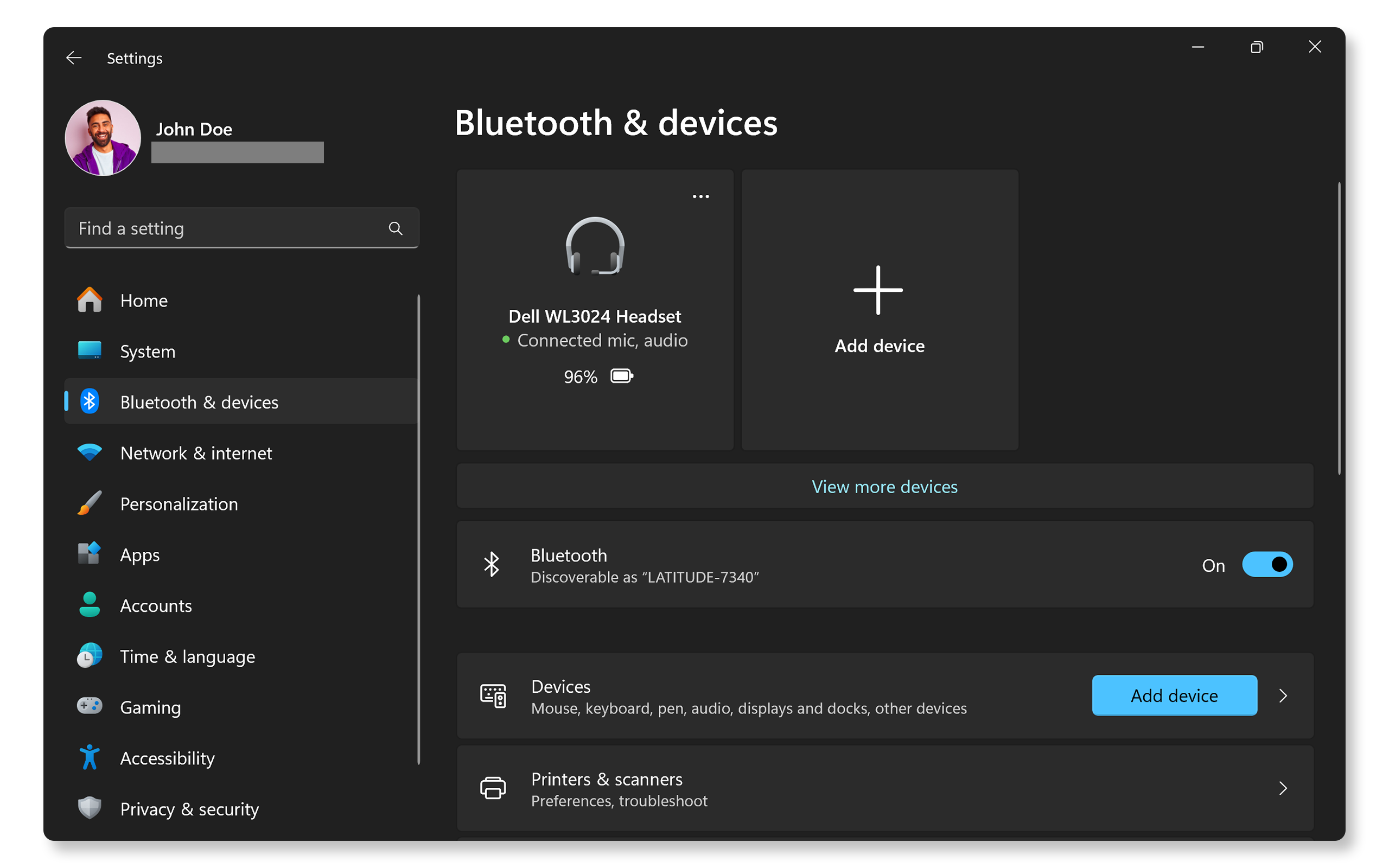
Check if your PC has Bluetooth by opening the Device Manager. Press Windows + X and select Device Manager from the menu. Look for a category named Bluetooth. If it is listed, your PC has Bluetooth hardware installed.
Another way is to open Settings > Devices > Bluetooth & other devices. See if there is a toggle switch for Bluetooth. If you see it, your PC supports Bluetooth.
If Bluetooth is missing, your PC lacks built-in support. This means you need to add Bluetooth capability externally.
Adding Bluetooth With A Usb Adapter
Buy a USB Bluetooth adapter, also called a dongle, for your PC. Plug the adapter into an open USB port on your computer. Windows usually installs the necessary drivers automatically.
If the drivers do not install, visit the adapter manufacturer’s website. Download and install the correct drivers for your device. Restart your PC after installation.
After setup, check the Device Manager or Bluetooth settings again. You should see Bluetooth available now. This method adds wireless capability to any PC without built-in Bluetooth.
Credit: www.dell.com
Choose A Bluetooth Audio Receiver App
Choosing the right Bluetooth audio receiver app is a key step to make non-Bluetooth speakers work with your PC. This app allows your PC to receive audio signals wirelessly. It acts as a bridge between your Bluetooth device and your wired speakers. The app lets you stream music or sounds from phones, tablets, or other Bluetooth devices to your PC. Selecting a reliable and easy-to-use app ensures smooth audio playback and stable connections.
Top Apps From Microsoft Store
The Microsoft Store offers several Bluetooth audio receiver apps. “Bluetooth Audio Receiver” is a popular choice. It supports many devices and is free to download. Another option is “AudioRelay,” which streams sound from phones to PCs. “Bluetooth Audio Receiver” stands out for simplicity and good user reviews. These apps turn your PC into a wireless audio receiver quickly. Check the app ratings and reviews before downloading to find the best fit.
Installing And Setting Up The App
Start by opening the Microsoft Store on your Windows PC. Search for “Bluetooth Audio Receiver” or the app of your choice. Click “Install” and wait for the app to download. After installation, launch the app from the Start menu. Enable Bluetooth on your PC and your phone or device. Pair both devices through Windows Bluetooth settings. Then, open the audio receiver app and accept the connection. Play audio on your phone to test if sound streams through your PC speakers. Adjust volume and sound settings as needed in the app or system controls.
Connect Your Phone Or Device To Pc
Connecting your phone or device to a PC lets you stream audio wirelessly. This setup works well to make non-Bluetooth speakers function like Bluetooth ones. Your PC acts as a bridge between your device and the speakers. Follow simple steps to pair devices and solve common connection problems.
Pairing Devices Via Bluetooth
First, ensure your PC has Bluetooth capability or use a Bluetooth USB adapter. Turn on Bluetooth on both your PC and phone or device. On your PC, go to Settings > Devices > Bluetooth & other devices. Click “Add Bluetooth or other device,” then select Bluetooth. Choose your phone or device from the list.
Confirm the pairing code shown on both devices matches. Accept the pairing on your phone or device. Once paired, your PC will act as a receiver. You can now play audio from your phone through the PC and connected speakers.
Troubleshooting Connection Issues
Check if Bluetooth is enabled on both PC and phone. Restart Bluetooth on both devices if connection fails. Remove old paired devices from the PC’s Bluetooth settings. Update Bluetooth drivers on your PC to the latest version.
Move devices closer to each other to avoid signal interference. Turn off other Bluetooth devices nearby that may cause conflicts. Restart your PC and phone if the issue continues. Make sure the Bluetooth Audio Receiver app is running if you use it for streaming.
Use A Bluetooth Transmitter Hardware
Using a Bluetooth transmitter hardware is a simple way to add wireless capability to non-Bluetooth speakers. This device connects to your speakers and sends audio signals via Bluetooth. It works with your PC, allowing you to enjoy wireless sound without replacing your speakers.
Selecting The Right Bluetooth Transmitter
Choose a transmitter with low latency for better sound quality. Check if it supports the Bluetooth version your PC uses. Look for a transmitter with a 3.5mm or RCA audio output to match your speaker’s input. Battery life matters if you want a portable option. Read reviews to find a reliable and easy-to-use model.
Connecting Transmitter To Non-bluetooth Speakers
First, plug the transmitter into your speaker’s audio input using the correct cable. Next, power on the transmitter and put it in pairing mode. On your PC, enable Bluetooth and search for the transmitter device. Pair the PC and transmitter to start sending audio wirelessly. Adjust the volume on both devices for the best sound.
Modifying Speakers With Bluetooth Modules
Adding Bluetooth capability to non-Bluetooth speakers is a smart way to enjoy wireless sound. Modifying speakers with Bluetooth modules lets you stream audio from your PC without cables. This process is simple and affordable. It requires finding the right points on your speaker and connecting a Bluetooth module securely. Follow these steps for a clear, wireless audio experience.
Locating Speaker Input Points
First, open your speaker carefully. Look for where the wires connect to the speaker drivers. These are usually small metal tabs or solder points. Trace the wires back to the speaker’s input terminals. These points carry the audio signal from your PC to the speakers. Identifying these spots is key to adding the Bluetooth module.
Use a multimeter if needed to check continuity. This helps confirm the correct input points. Avoid damaging any parts inside the speaker. Mark the spots clearly before moving to the next step.
Wiring Bluetooth Module To Speakers
Choose a Bluetooth audio receiver module designed for speakers. It has output wires for connecting to your speaker’s input points. Match the positive and negative terminals carefully to avoid reversed polarity. Solder or connect the module’s output wires to the speaker input points you found. Secure all connections with electrical tape or heat shrink tubing.
Power the Bluetooth module using a suitable power source. Many modules work with 5V or 12V DC adapters. Test the setup by pairing your PC with the Bluetooth module. Play audio to check sound quality and connection stability. Make any needed adjustments to wiring or placement inside the speaker enclosure.
Alternative Wired Connections
Alternative wired connections offer simple ways to connect non-Bluetooth speakers to your PC. These methods do not require wireless technology but still provide clear audio. They work well with most older speakers and cost little to nothing.
Using the right cables or small adapters, you can enjoy good sound quality without Bluetooth. This helps keep your setup easy and reliable.
Using Aux And Rca Cables
Aux and RCA cables are the most common wired options for speakers. Aux cables use a 3.5mm jack, the same as many headphones. You can plug one end into your PC’s headphone or audio out port. The other end goes into your speaker’s aux input.
RCA cables have red and white connectors for stereo sound. Many home speakers use RCA inputs. To connect, plug the RCA ends into the speaker and the 3.5mm aux end into your PC. You may need a 3.5mm to RCA adapter cable to do this.
This setup delivers direct audio without delay. It’s easy to find these cables online or at electronics stores. This method works well for desktops and laptops with headphone jacks.
Converting Wired Speakers To Wireless
Converting wired speakers to wireless means adding a Bluetooth receiver. These small devices plug into your speaker’s aux or RCA input. The receiver pairs with your PC’s Bluetooth signal.
Once paired, your PC sends sound wirelessly to the receiver. The receiver then plays the audio through the wired speakers. This way, your old speakers work like modern Bluetooth speakers.
Bluetooth receivers are affordable and simple to use. They often come with a rechargeable battery or USB power cable. This conversion keeps your speakers wired but adds wireless convenience.
Optimize Audio Settings On Pc
Optimizing audio settings on your PC improves sound quality and overall experience. After connecting non-Bluetooth speakers via a Bluetooth adapter or receiver, adjust your PC’s audio settings. This ensures clear, balanced sound and proper device usage. Simple tweaks help get the best output from your setup.
Setting Default Playback Device
Open the Sound settings on your PC. Go to the “Playback” tab. Find your Bluetooth audio device or adapter in the list. Click on it, then select “Set Default.” This makes sure your PC sends audio to the right device. Without this step, sound might play through other speakers or headphones.
Check the device status to confirm it is working properly. If your device is not visible, reconnect the Bluetooth adapter or restart your PC. Setting the correct playback device avoids confusion and keeps audio consistent.
Adjusting Volume And Sound Quality
Adjust the volume slider to a comfortable level. Avoid setting it too high to prevent distortion. Use the “Properties” button to access advanced sound settings. Here, you can enhance audio with equalizer options or disable enhancements if they cause issues.
Test different sound levels and quality settings. Play music or a video to hear changes in real time. Fine-tuning volume and sound quality improves your listening experience. It also protects your speakers from damage caused by extreme volume.

Credit: www.youtube.com
Maintain And Troubleshoot Your Setup
Maintaining and troubleshooting your Bluetooth setup for non-Bluetooth speakers is key to smooth performance. Small issues can disrupt your audio experience. Regular checks and quick fixes keep everything working well. Let’s explore common problems and how to solve them. Also, staying updated on software and drivers is vital for stability.
Common Issues And Fixes
Sometimes, your PC may not detect the Bluetooth adapter. Unplug and replug the adapter to reset the connection. Check if the adapter’s LED light is on. If not, try a different USB port.
Audio may cut out or stutter during playback. Move the speaker and PC closer to reduce interference. Remove other wireless devices nearby that may cause signal problems.
Bluetooth pairing can fail. Restart your PC and the Bluetooth device. Delete the device from the PC’s Bluetooth list and pair again. Confirm the speaker is in pairing mode.
Keeping Software And Drivers Updated
Bluetooth drivers keep your connection stable. Check your PC’s Device Manager to find driver information. Use Windows Update to install the latest driver versions automatically.
Some Bluetooth adapters need manufacturer software. Visit the adapter’s website for updates and install them carefully. Updated software fixes bugs and improves compatibility.
Also, keep your PC’s operating system current. Updates often include important fixes for Bluetooth functions. Regular updates reduce the chance of errors and improve overall performance.
Frequently Asked Questions
Can I Make A Non-bluetooth Speaker Bluetooth?
Yes, you can make a non-Bluetooth speaker Bluetooth by using a Bluetooth audio receiver or adapter. Plug the adapter into the speaker’s input, pair it with your device, and enjoy wireless audio streaming.
How To Make Non-bluetooth Pc Bluetooth?
Plug a Bluetooth USB adapter into your PC’s USB port. Install the required drivers. Enable Bluetooth in Windows settings to connect devices wirelessly.
How Do I Get Bluetooth On My Pc If It Doesn’t Have Bluetooth?
Plug a Bluetooth USB adapter into your PC’s USB port. Install the required drivers from the manufacturer’s website. Enable Bluetooth in Windows settings and pair your devices.
How To Make A Pc Bluetooth Speaker?
Install the Bluetooth Audio Receiver app on your PC from Microsoft Store. Pair your phone via Bluetooth and play audio through your PC speakers.
Conclusion
Making your non-Bluetooth speakers work wirelessly with your PC is simple. Use a Bluetooth adapter or a Bluetooth audio receiver app. These tools let you connect devices without extra cables. Enjoy the freedom of wireless sound without buying new speakers.
This method saves money and keeps your setup clean. Try it today and hear the difference.
