
Is your PC acting up with an app that just won’t close? You’re not alone.
Sometimes programs freeze or stop responding, leaving you stuck and frustrated. Knowing how to force quit on your PC can save you time and stress. In this guide, you’ll learn simple, quick ways to close those stubborn apps and get your computer back on track.
Whether you’re a beginner or just need a refresher, these easy steps will help you regain control without any hassle. Keep reading to discover the most effective methods to force quit on your PC and avoid wasting precious minutes dealing with frozen screens.

Credit: www.youtube.com
Force Quit With Task Manager
Task Manager is a built-in Windows tool that helps close unresponsive apps fast. It shows all running programs and their status. You can use it to force quit apps that freeze or do not respond.
Force quitting with Task Manager stops the app immediately. This method helps prevent your PC from slowing down or crashing. It is easy and works on all Windows versions.
Open Task Manager Quickly
Press Ctrl + Shift + Escape on your keyboard to open Task Manager instantly. This shortcut skips extra steps and brings up the window fast. You can also right-click the taskbar and choose Task Manager.
End Frozen Apps
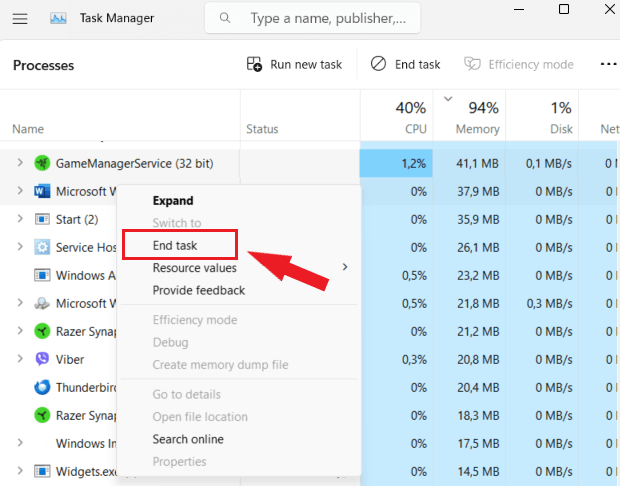
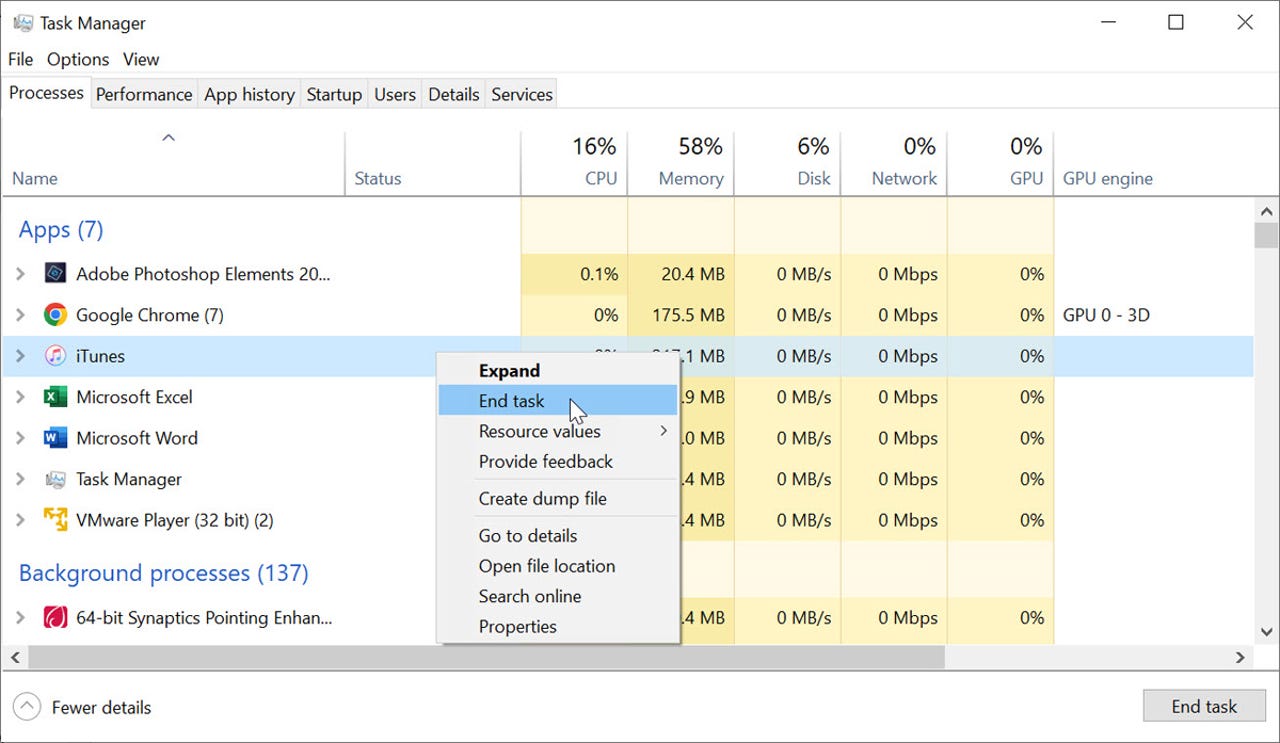
Inside Task Manager, find the app causing trouble. Look under the Processes tab for the frozen program. Click on it once to select, then hit End Task at the bottom right. This closes the app immediately.
Using Task Manager From Ctrl+alt+delete
Hold Ctrl and Alt, then press Delete. This opens a blue screen with several options. Click on Task Manager from the list. It opens the same Task Manager window where you can end frozen apps easily.
Credit: www.revouninstaller.com
Keyboard Shortcuts For Quick Exit
Keyboard shortcuts provide fast ways to force quit programs on a PC. They help close frozen or unresponsive applications quickly. Using these shortcuts saves time and avoids frustration.
Below are some essential keyboard commands for a quick exit on Windows systems.
Close Active Window With Alt+f4
Pressing Alt+F4 closes the active window immediately. This shortcut works in most apps and programs. It is the fastest way to exit without using the mouse. If multiple windows are open, repeat the shortcut to close each one.
Instant Task Manager With Ctrl+shift+esc
Ctrl+Shift+Esc opens Task Manager directly. This tool lets you view running programs and processes. You can select a frozen app and click “End Task” to force quit it. This shortcut is quicker than using Ctrl+Alt+Del first.
Security Screen Via Ctrl+alt+del
Ctrl+Alt+Del opens the security screen with several options. From here, select Task Manager to close unresponsive programs. You can also lock the PC or sign out if needed. This key combo is useful in emergencies.
Show Desktop Using Windows+d
Press Windows+D to minimize all open windows instantly. This shortcut hides everything on your screen and shows the desktop. It does not close programs but helps you clear the view fast. Press it again to restore your windows.
Using Command Prompt To Force Quit
Using Command Prompt to force quit apps on your PC is a quick and effective method. It works well when programs freeze or stop responding. This technique uses simple commands to identify and close the problematic app.
Command Prompt offers more control than Task Manager. It can terminate apps even if they do not close normally. Learning this method helps you manage your PC better during crashes or freezes.
Open Command Prompt As Administrator
Press the Windows key, type cmd, and see the Command Prompt app. Right-click on it and select Run as administrator. This opens the Command Prompt with full permissions needed to close apps.
Running as administrator is important. Without it, some commands may not work properly or show errors. Always confirm the User Account Control prompt to proceed.
List Running Processes
Type tasklist and press Enter. This command shows all running processes on your PC. Each process has a name and process ID (PID).
Look for the app causing trouble. Note its exact name from the list. For example, chrome.exe for Google Chrome or notepad.exe for Notepad.
Terminate App With Taskkill Command
To force quit an app, type taskkill /im appname.exe /f and hit Enter. Replace appname.exe with the process name you found.
Example: taskkill /im chrome.exe /f will force close Google Chrome. The /f flag forces the app to quit immediately.
This command ends the app even if it is frozen or unresponsive. Use it carefully to avoid losing unsaved work.
Force Shutdown When Pc Is Frozen
Sometimes your PC freezes and stops responding. No clicks or keys work. A force shutdown can help in this case. It turns off your computer safely when it is stuck.
Force shutdown should be a last option. Use it only if other ways to fix the freeze do not work. This prevents damage to your files and system.
Using The Power Button Safely
Press and hold the power button for about 5 to 10 seconds. The screen will go black and the PC will turn off. Wait a few seconds before turning it on again.
Do not press the power button repeatedly or too fast. This can harm the hardware. Hold it down steadily until the PC shuts down fully.
After the PC powers off, unplug it from the wall for 30 seconds. This clears any leftover power and helps reset the system.
When Other Methods Fail
If the power button does not work, try unplugging the PC. For laptops, remove the battery if possible. Wait a minute, then plug it back in and restart.
Use this method only if the power button fails. It forces the machine to lose power and stop immediately. Save your work often to avoid data loss.
After restarting, check your PC for problems. Run a virus scan or disk check to ensure no damage occurred.
Tips To Prevent App Freezing
App freezing can disrupt work and cause frustration. Preventing these freezes improves your PC experience. Simple habits can keep apps running smoothly. Follow these tips to reduce app freezing on your PC.
Keep Software Updated
Update your operating system regularly. Updates fix bugs that cause apps to freeze. Also, update apps to their latest versions. Developers improve app stability in new releases. Set your PC to update automatically. This keeps software current without extra effort.
Avoid Running Too Many Apps
Running many apps at once uses a lot of memory. This can slow your PC and cause freezing. Close apps you are not using. Use Task Manager to check running programs. Limit apps to those you need for your tasks. This frees up resources and helps apps run better.
Regular System Maintenance
Clean up your PC regularly to keep it fast. Remove temporary files and unnecessary programs. Use built-in tools like Disk Cleanup and Defragmenter. Scan for malware that can affect performance. Restart your PC often to clear memory. Regular care prevents freezes and keeps your PC healthy.
Credit: www.zdnet.com
Frequently Asked Questions
How To Force Quit When Pc Is Frozen?
Press Ctrl + Shift + Esc to open Task Manager. Select the frozen app, right-click, and choose End Task. If unresponsive, hold the power button until the PC shuts down.
How To Force Quit When Alt+f4 Doesn’t Work?
Press Ctrl + Shift + Esc to open Task Manager. Select the frozen app, right-click it, and choose “End task. ” Alternatively, use Ctrl + Alt + Delete to access Task Manager. If unresponsive, open Command Prompt as admin, type taskkill /im appname.
exe /f, and press Enter. Hold the power button to force shutdown if needed.
How To Force Quit An App On A Pc?
Press Ctrl + Shift + Esc to open Task Manager. Select the unresponsive app, right-click it, and choose “End task” to force quit.
How Do You Force Quit Your Pc?
Press Ctrl + Shift + Esc to open Task Manager. Select the unresponsive app, right-click it, and choose “End task. ” If frozen, hold the power button to force shutdown.
Conclusion
Knowing how to force quit on a PC saves time and frustration. Use keyboard shortcuts like Ctrl + Alt + Delete or Ctrl + Shift + Esc. Task Manager helps close frozen or unresponsive apps quickly. Remember to select the right app before ending the task.
These simple steps keep your PC running smoothly. Practice them to handle freezes with confidence. Your computer will thank you.
